
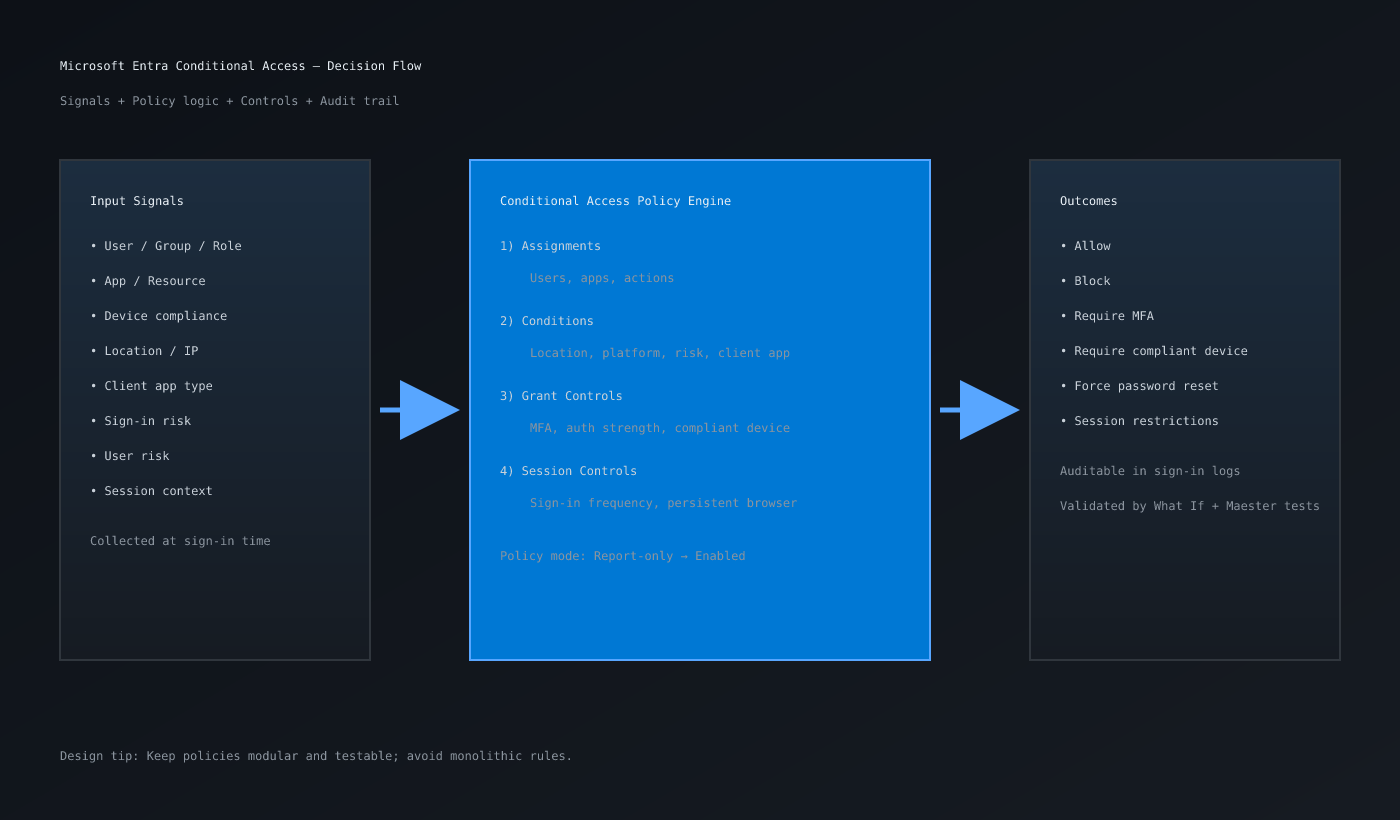
Figure 1: End-to-end decision flow from sign-in signals to policy outcomes and auditability.
Executive Snapshot
| Category | Recommendation |
|---|---|
| First policy to enforce | Admin MFA (with break-glass exclusions) |
| Highest-risk gap to close | Legacy authentication |
| Safe rollout mode | Report-only → validate → enforce |
| Verification strategy | What If + sign-in logs + Maester CI tests |
| Governance cadence | Weekly review, monthly drift check, quarterly reset drill |
TL;DR
If you only have 5 minutes:
- Create a break-glass cloud-only admin account first.
- Start with three baseline policies:
- Require MFA for admins
- Block legacy authentication
- Require compliant device for high-risk apps
- Use Report-only mode and the What If tool before enforcing.
- Exclude emergency accounts from all CA policies.
- Monitor sign-ins and policy impact weekly in Entra sign-in logs.
Conditional Access is the control plane for Zero Trust in Microsoft Entra ID (formerly Azure AD). If you implement it poorly, you lock out users. If you implement it well, you remove most identity attack paths.
Who This Guide Is For
This guide is for:
- System administrators who manage Microsoft 365 and Azure identities
- Security engineers implementing Zero Trust controls
- Cloud architects standardizing enterprise access policy baselines
You will build a production-safe baseline, avoid lockout mistakes, and understand how to scale policies across environments.
Prerequisites
Licensing and Roles
- Microsoft Entra ID P1 (minimum) for Conditional Access
- Global Administrator or Conditional Access Administrator role
- Security Reader role for anyone validating logs and policy impact
Environment Requirements
- At least one test user and one test device
- One emergency (break-glass) account with long random password stored securely
- Microsoft Authenticator or equivalent MFA method configured
- PowerShell 7.2+ on an admin workstation/runner
- Microsoft Graph PowerShell SDK available for policy export checks
- Security test account dedicated to non-production validation
Safety Checklist (Do This First)
- Create 2 emergency access accounts (cloud-only, no MFA dependency on your normal IdP path)
- Exclude emergency accounts from all Conditional Access policies
- Enable policy changes during a controlled maintenance window
- Notify help desk and identity owners before enforcement
Why Conditional Access Matters in 2026
Passwords are no longer enough. Attackers rely on:
- Password spray
- Token theft
- Legacy auth protocols that bypass MFA
- Session hijacking on unmanaged devices
Conditional Access combines signals (user risk, sign-in risk, location, device state, client app) with decisions (allow, block, require MFA, require compliant device, enforce authentication strength).
Think of it as: If context = risky, then require stronger controls or deny access.
Conditional Access Architecture (Practical Model)
A policy evaluates in this order:
- Assignments
- Who (users/groups/workload identities)
- What (apps/actions)
- Conditions (locations/platform/client app/risk)
- Access controls
- Grant controls (require MFA, compliant device, auth strength)
- Session controls (sign-in frequency, persistent browser)
- Policy state
- Report-only
- On
- Off
Design Principle
Use small, purpose-built policies instead of one giant policy. This improves troubleshooting, reporting, and change control.
Important: Production-ready Conditional Access is not just policy configuration — it is policy engineering with repeatable test evidence.
Step 1: Build Your Baseline Policy Set
Start with these policies in this order.
1.1 Require MFA for Administrative Roles
Goal: Protect privileged identities first.
Recommended Scope (Admins MFA)
- Directory roles: Global Admin, Privileged Role Admin, Security Admin, Conditional Access Admin
- Cloud apps: All cloud apps
Grant Controls (Admins MFA)
- Require multifactor authentication
Exclusions
- Emergency access accounts only
Why First
Compromised admin accounts are high-impact. This policy closes your biggest blast radius quickly.
1.2 Block Legacy Authentication
Goal: Stop protocols that cannot enforce modern auth/MFA.
Recommended Scope (Legacy Authentication Block)
- Users: All users (with staged exclusions for known legacy dependencies)
- Cloud apps: All cloud apps
- Conditions: Client apps → Exchange ActiveSync + Other clients
Grant Controls (Legacy Authentication Block)
- Block access
Rollout Tip
Run in report-only for 7 days. Identify service accounts or old devices still using legacy auth before enforcing.
1.3 Require Compliant Device for Sensitive Apps
Goal: Restrict high-value apps to managed devices.
Recommended Scope
- Users: All users (excluding emergency and specific break/fix groups)
- Cloud apps: SharePoint Online, Exchange Online, Microsoft Admin portals, line-of-business apps
Grant Controls
- Require device to be marked as compliant
- Optionally require MFA
Dependency
Requires Intune compliance policies to be correctly defined and enforced.
Step 2: Configure Policies in Microsoft Entra Admin Center
- Go to Microsoft Entra admin center → Protection → Conditional Access.
- Select New policy.
- Name with a predictable convention:
CA-<Scope>-<Control>-<State>
Example:
CA-Admins-RequireMFA-ReportOnly
- Configure Assignments:
- Users/groups
- Target resources (cloud apps)
- Conditions as needed
- Configure Access controls:
- Grant: MFA / compliant device / block
- Set policy state to Report-only first.
- Save and validate with test users.
Step 3: Validate with What If Tool and Sign-In Logs
Before enabling any policy:
- Open Conditional Access → What If.
- Test with real user scenarios:
- Admin from trusted location
- Admin from unknown location
- Standard user from unmanaged device
- Compare expected vs actual controls.
Then verify in sign-in logs:
- Sign-in logs → Conditional Access tab
- Confirm policy result: Not applied / Success / Failure
- Investigate unexpected blocks before enforcement
Step 3.5: Add Automated Policy Testing with Maester
Manual validation is required, but it does not scale. Maester adds repeatable security testing so policy regressions are caught before production rollout.
What Maester Gives You
- Test-as-code for Microsoft 365 / Entra security controls
- Pester-based assertions you can version in Git
- Repeatable checks in local runs and CI pipelines
- Evidence output you can attach to governance reviews
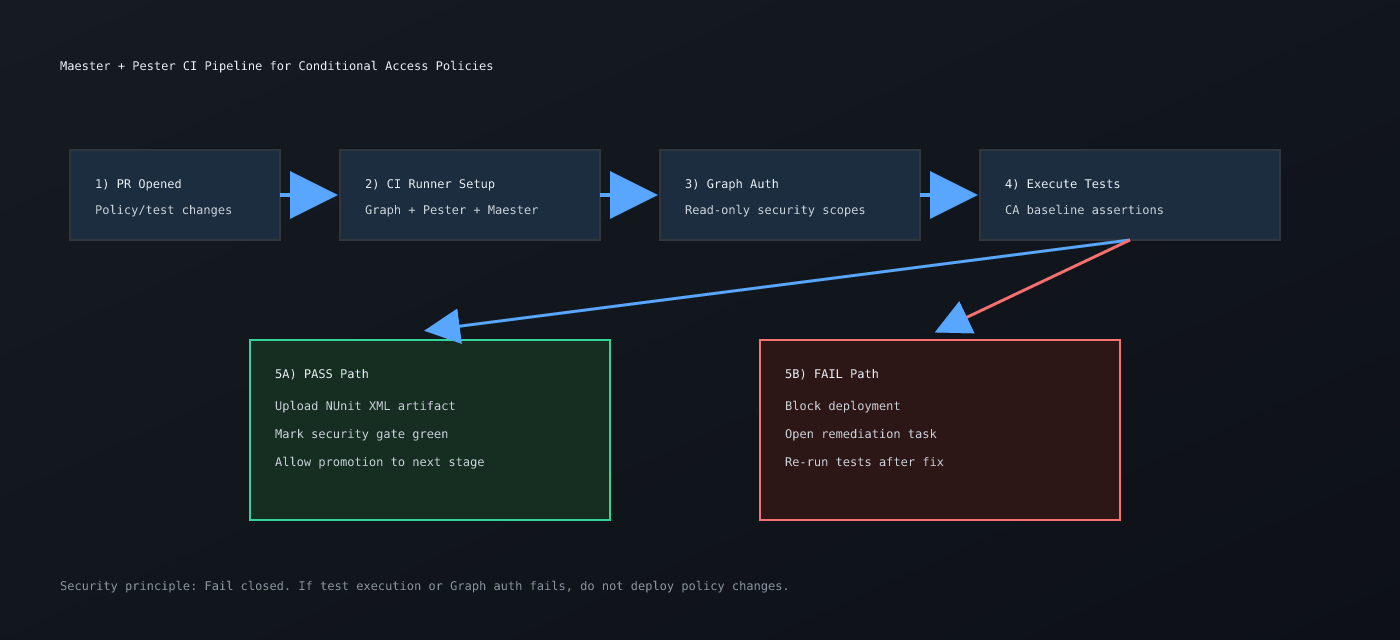
Figure 2: Pull request security gate using Maester + Pester tests and Graph read scopes.
Install and Initialize Maester
# Run in PowerShell 7+
Set-PSRepository -Name PSGallery -InstallationPolicy Trusted
Install-Module Maester -Scope CurrentUser
Import-Module Maester

# Create a baseline test folder in your repo
New-Item -ItemType Directory -Path .\security-tests\maester -Force | Out-Null
Connect with Least-Privilege Read Scopes
Connect-MgGraph -Scopes "Policy.Read.All","Directory.Read.All"
Get-MgContext | Select-Object TenantId, Scopes
Use a dedicated security automation identity where possible, and avoid broad write scopes for validation-only runs.
Example Maester/Pester Test File
Create security-tests/maester/conditional-access.tests.ps1:
Describe "Conditional Access baseline" {
   It "has an enabled admin MFA policy" {
      $policies = Get-MgIdentityConditionalAccessPolicy
      $adminMfa = $policies | Where-Object {
         $_.DisplayName -like "*Admins*RequireMFA*" -and $_.State -eq "enabled"
      }

      $adminMfa | Should -Not -BeNullOrEmpty
   }

   It "blocks legacy authentication" {
      $policies = Get-MgIdentityConditionalAccessPolicy
      $legacyBlock = $policies | Where-Object {
         $_.DisplayName -like "*Legacy*" -and $_.State -eq "enabled"
      }

      $legacyBlock | Should -Not -BeNullOrEmpty
   }

   It "excludes emergency accounts from broad policies" {
      $policies = Get-MgIdentityConditionalAccessPolicy
      $broadPolicies = $policies | Where-Object { $_.DisplayName -like "CA-*" }

      foreach ($policy in $broadPolicies) {
         # Validate your documented emergency group/account exclusion exists
         # (Implementation detail depends on tenant naming and object IDs)
         $policy.Conditions.Users.ExcludeUsers | Should -Not -BeNullOrEmpty
      }
   }
}
Run Tests and Generate Evidence
# Run Maester/Pester tests
Invoke-Pester -Path .\security-tests\maester -Output Detailed

# Optional: generate test result artifacts for compliance evidence
Invoke-Pester -Path .\security-tests\maester `
  -OutputFormat NUnitXml `
  -OutputFile .\artifacts\maester-results.xml
Recommended Test Gates Before Policy Enforcement
- All policy naming conventions pass.
- Admin MFA policy is enabled.
- Legacy auth block policy is enabled.
- Emergency account exclusions are present on broad-impact policies.
- No policy moved from report-only to enabled without change-ticket metadata.
Note: Treat failed or skipped Maester tests as a hard deployment blocker. Security controls should fail closed.
Step 4: Implement Risk-Based Policies
When baseline is stable, add identity risk signals.
4.1 Sign-In Risk Policy
Pattern: If sign-in risk is medium/high, require stronger auth.
Recommended control:
- Require multifactor authentication or phishing-resistant auth strength
4.2 User Risk Policy
Pattern: If user risk is high, force secure password reset.
Recommended control:
- Require password change (with self-service password reset configured)
Caution
Do not deploy risk policies without tuning user communication and help desk workflows. Risk events can spike during password campaigns or travel-heavy periods.
Step 5: Apply Location and Device Intelligence Safely
Named Locations
Use named locations for:
- Corporate egress IPs
- Trusted partner ranges (temporary)
- Explicitly blocked geographies (if policy/legal allows)
Best Practice
Do not rely only on IP allowlists. Use device compliance + MFA + risk signals together.
Device Filters
Device filters can target OS, trust type, or specific device attributes. Keep filters simple and documented to avoid brittle logic.
Step 6: Enforce Session Controls for High-Risk Workloads
Session controls help reduce token abuse impact.
Examples:
- Sign-in frequency for admin portals (shorter intervals)
- Disable persistent browser sessions for privileged roles
- Conditional Access App Control for sensitive SaaS sessions
Use sparingly. Too aggressive session controls create user fatigue and support tickets.
Practical PowerShell: Export and Document Policies
Use automation to track drift and support audits.
# Requires Microsoft Graph PowerShell SDK
# Install-Module Microsoft.Graph -Scope CurrentUser

Connect-MgGraph -Scopes "Policy.Read.All"

$policies = Get-MgIdentityConditionalAccessPolicy
$policies | Select-Object Id, DisplayName, State, CreatedDateTime, ModifiedDateTime |
    Sort-Object DisplayName |
    Export-Csv ".\conditional-access-policies.csv" -NoTypeInformation
Add this export to your monthly governance review process.
Practical Graph API Example (Read Policies)
GET https://graph.microsoft.com/v1.0/identity/conditionalAccess/policies
Authorization: Bearer <token>
Use API-driven exports for:
- Baseline snapshots before change windows
- CI checks for policy drift
- Compliance evidence packs
Testing Matrix You Should Run (Manual + Maester)
Before policy enforcement, test at least these scenarios:
| Scenario | Expected Outcome | Validation Type |
|---|---|---|
| Admin account, trusted device, trusted location | Access with MFA | Manual sign-in + Maester policy existence assertion |
| Admin account, unmanaged device | Block or require compliant device | Manual sign-in + policy condition assertion |
| Standard user, legacy client app | Block | Manual sign-in logs + Maester legacy policy assertion |
| High sign-in risk event | Step-up auth or block | Manual simulation + log review |
| Emergency account | Not impacted by CA policies | Manual emergency sign-in + Maester exclusion assertion |
CI Integration: Run Maester Tests in Pull Requests
Run policy validation on every security-change PR so you catch drift before rollout.
name: conditional-access-policy-tests

on:
   pull_request:
      paths:
         - 'security-tests/maester/**'
         - '.github/workflows/conditional-access-policy-tests.yml'

jobs:
   maester-tests:
      runs-on: windows-latest
      steps:
         - uses: actions/checkout@v4

         - name: Setup PowerShell modules
            shell: pwsh
            run: |
               Install-Module Microsoft.Graph -Scope CurrentUser -Force
               Install-Module Pester -Scope CurrentUser -Force
               Install-Module Maester -Scope CurrentUser -Force

         - name: Connect Graph and run tests
            shell: pwsh
            run: |
               Connect-MgGraph -AccessToken (ConvertTo-SecureString $env:GRAPH_ACCESS_TOKEN -AsPlainText -Force)
               Invoke-Pester -Path .\security-tests\maester -Output Detailed -OutputFormat NUnitXml -OutputFile .\maester-results.xml

         - name: Upload test results
            uses: actions/upload-artifact@v4
            with:
               name: maester-results
               path: .\maester-results.xml
Store authentication material in secure CI secrets and prefer workload identity/federated credentials over long-lived secrets.
Troubleshooting Common Issues
Problem 1: "Users suddenly blocked from all apps"
Likely causes:
- Policy targeted all users with no exclusions
- Emergency accounts not excluded
- Misconfigured app scope
Fix:
- Use emergency account to sign in
- Disable newest policy
- Recreate in report-only and retest
Problem 2: MFA Prompt Loop
Likely causes:
- Overlapping policies with conflicting grant controls
- Session controls too strict
- Device not recognized as compliant
Fix:
- Review policy overlap in sign-in logs
- Validate Intune compliance state
- Adjust sign-in frequency and persistent browser settings
Problem 3: Legacy App Breakage After Policy Enablement
Likely causes:
- POP/IMAP/SMTP or old Office clients still in use
Fix:
- Inventory legacy authentication usage in logs
- Migrate app/workload to modern auth
- Create temporary exception group with expiry date
Problem 4: Policy Appears Correct but Not Applied
Likely causes:
- User not in assigned scope
- App not in targeted cloud apps
- Conditional logic mismatch (platform/location/client app)
Fix:
- Validate with What If tool
- Check exact sign-in event details
- Confirm user and app assignments
Problem 5: Maester/Pester Tests Fail with Graph Authorization Errors
Likely causes:
- Missing
Policy.Read.AllorDirectory.Read.Allconsent - CI identity is not permitted in tenant
- Token not correctly passed to
Connect-MgGraph
Fix:
- Re-check granted Graph scopes and tenant admin consent.
- Validate CI identity sign-in and app registration permissions.
- Test auth locally with
Get-MgContextand a basic Graph call. - Fail closed: do not promote policy changes when security tests cannot run.
Governance Model for Sustainable Operations
Use a repeatable operating model:
Weekly
- Review policy failures and report-only insights
- Validate emergency account health
Monthly
- Export policy inventory (PowerShell/Graph)
- Remove stale exclusions and temporary bypasses
- Review top risky sign-ins and adjust controls
Quarterly
- Re-test break-glass procedure
- Revalidate policy coverage against new apps/workloads
- Update policy documentation and ownership
Recommended Rollout Plan (30 Days)
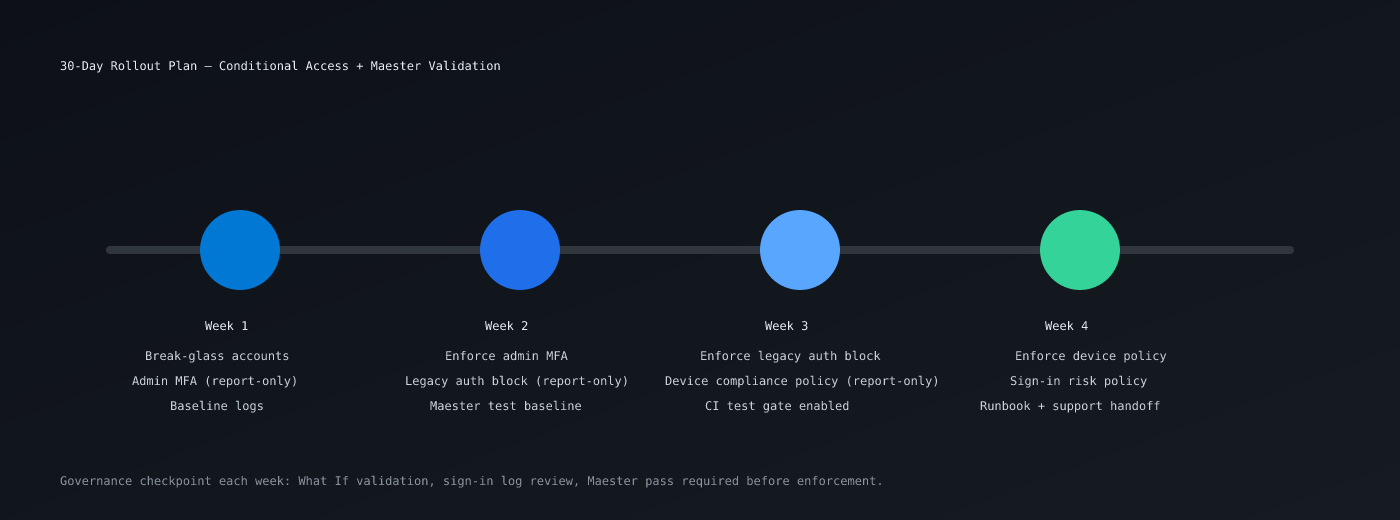
Figure 3: Phased rollout timeline with weekly validation checkpoints and enforcement gates.
Week 1
- Create emergency accounts
- Implement admin MFA policy in report-only
- Baseline sign-in logs
Week 2
- Enforce admin MFA
- Deploy legacy auth block in report-only
Week 3
- Enforce legacy auth block
- Deploy compliant device policy in report-only for sensitive apps
Week 4
- Enforce device policy
- Add sign-in risk policy with controlled scope
- Publish runbook and support playbook
Conclusion
Conditional Access is one of the highest-ROI security controls in Microsoft Entra. The key is not complexity; it is disciplined rollout:
- Protect admins first
- Eliminate legacy auth
- Require strong access signals for sensitive workloads
- Validate in report-only before enforcing
- Operate with continuous governance
If you follow this sequence, you can materially improve security posture without creating avoidable downtime.
Design & Presentation Checklist (for CMS Publish)
- Use a 16:9 crop thumbnail from Figure 1 as featured image.
- Keep callout boxes (
TIP,IMPORTANT,NOTE) rendered with branded accent colors. - Convert long code blocks into collapsible sections on mobile if your theme supports it.
- Add jump links for major sections: Baseline Policies, Maester Testing, CI Integration, Troubleshooting.
- Keep all figure captions sentence-case and action-oriented.
FAQ
What is the safest first Conditional Access policy to deploy?
Require MFA for administrative roles, with emergency account exclusions.
Should I block legacy authentication immediately?
Use report-only first for 7 days, identify dependencies, then enforce.
Do I need Intune for Conditional Access?
Not for every policy, but you do need Intune compliance when requiring compliant devices.
How many Conditional Access policies should I have?
Enough to keep logic clear and maintainable. Favor smaller, purpose-based policies over monolithic rules.
Can Conditional Access stop all account compromise?
No single control can. It significantly reduces identity attack surface when combined with least privilege, monitoring, and incident response.
Additional Resources
- Microsoft Entra Conditional Access documentation
- Microsoft Graph API reference for identity and policy
- Microsoft security best practices for Zero Trust architecture
- Maester project documentation and test library examples
- Pester documentation for test authoring patterns
Internal Link Recommendations
- Azure AD Connect setup and sync health guide
- Azure security best practices checklist
- Intune compliance policy configuration tutorial
- Azure identity protection deep-dive

Leave a Reply