
Executive Snapshot
| Category | Recommendation |
|---|---|
| CA renewal planning horizon | Begin 12 months before expiration |
| Critical first step | Document current PKI topology and certificate inventory |
| Renewal strategy | New key generation (preferred) vs. same key reuse |
| Validation approach | Test CA chain in lab environment before production |
| Governance cadence | Quarterly PKI health checks, annual renewal assessment |
| Backup requirement | Full CA backup + registry + database before any renewal |
TL;DR
If you only have 10 minutes:
- Plan ahead: Start CA renewal planning 12 months before certificate expiration to avoid emergency scenarios.
- Backup everything: Full system state backup, CA database, registry, and private keys before any changes.
- Two-tier is standard: Offline root CA (10-20 year validity) + online enterprise issuing CA (5-10 year validity).
- Generate new keys: During renewal, generate new key pairs rather than reusing existing keys for enhanced security.
- Test certificate chain: Validate the renewed CA chain in a test environment before production deployment.
- Publish CRL/OCSP: Ensure CRL Distribution Points and OCSP responders are accessible throughout the renewal.
- Monitor certificate health: Use PKI monitoring tools to track certificate expiration across your environment.
Active Directory Certificate Services (AD CS) is the foundation of enterprise PKI infrastructure. A poorly executed CA renewal can break authentication, encryption, VPN access, and critical business applications. This guide provides a battle-tested approach to CA renewal and deployment that minimizes risk and downtime.
Who This Guide Is For
This guide is for:
- Windows Server administrators managing enterprise certificate authorities
- Security engineers responsible for PKI infrastructure and certificate lifecycle management
- Infrastructure architects designing or maintaining on-premises CA hierarchies
- Compliance teams ensuring PKI meets regulatory and audit requirements
You will learn how to plan and execute a complete CA renewal cycle, deploy new enterprise CA servers, and establish operational best practices for certificate lifecycle management.
Prerequisites
Knowledge Requirements
- Intermediate understanding of Windows Server administration
- Familiarity with Active Directory Domain Services (AD DS)
- Basic understanding of Public Key Infrastructure (PKI) concepts
- Experience with PowerShell scripting (helpful but not required)
Licensing and Roles
- Windows Server 2019/2022 Standard or Datacenter licenses
- Enterprise Administrator or Domain Administrator role for AD CS installation
- Local Administrator rights on CA servers
- Security Administrator role for certificate template management
Environment Requirements
- Active Directory domain (functional level 2016 or higher recommended)
- Two dedicated servers for two-tier PKI (one can be virtual for issuing CA)
- Internet-accessible web server for CRL/AIA distribution points (optional but recommended)
- Network connectivity between CA servers and domain controllers
- DNS properly configured with forward and reverse lookup zones
Tools Required
- Windows Server with Desktop Experience (for CA management console)
- PowerShell 7.2+ with PKI module installed
- Backup solution capable of full system state backup
- PKI planning worksheet (provided in this guide)
- Certificate validation tools: certutil, OpenSSL (optional)
Safety Checklist (Complete This First)
- Document current PKI topology (CA hierarchy, certificate templates, issuance policies)
- Export all certificate templates to backup location
- Create full system state backup of all existing CA servers
- Backup CA database using \certutil -backup\
- Export CA certificate chain and CRL to secure location
- Document all CRL Distribution Points (CDP) and Authority Information Access (AIA) URLs
- Identify all applications and services dependent on issued certificates
- Establish rollback procedures before starting any changes
- Schedule maintenance window during low-usage period
- Notify stakeholders (IT teams, security, compliance, business units)
- Prepare test environment that mirrors production PKI topology
Why On-Premises Domain CA Matters in 2026
Despite the shift toward cloud services, on-premises certificate authorities remain critical for many enterprises:
Security and Control
- Air-gapped root CA: Keep root CA offline to prevent compromise
- Complete control: Full control over certificate issuance policies and validation
- Zero cloud dependency: Critical infrastructure functions without internet connectivity
Regulatory Compliance
- Data sovereignty: Certificates and private keys never leave organizational boundaries
- Audit trails: Complete on-premises logging for compliance requirements (HIPAA, PCI-DSS, SOX)
- Custom policies: Enforce industry-specific certificate requirements
Enterprise Integration
- Active Directory integration: Seamless certificate auto-enrollment for domain-joined systems
- Legacy application support: Many legacy applications require on-premises CAs
- Network device certificates: Switches, routers, firewalls, and appliances often require domain-issued certificates
- Smart card authentication: Integrated smart card logon for high-security environments
Cost Considerations
- No per-certificate fees: Unlimited certificate issuance without recurring costs
- Long-term ROI: Initial investment pays off over years of operation
- Hybrid scenarios: Combine on-premises CA with cloud services as needed
Understanding PKI Architecture: Essential Concepts
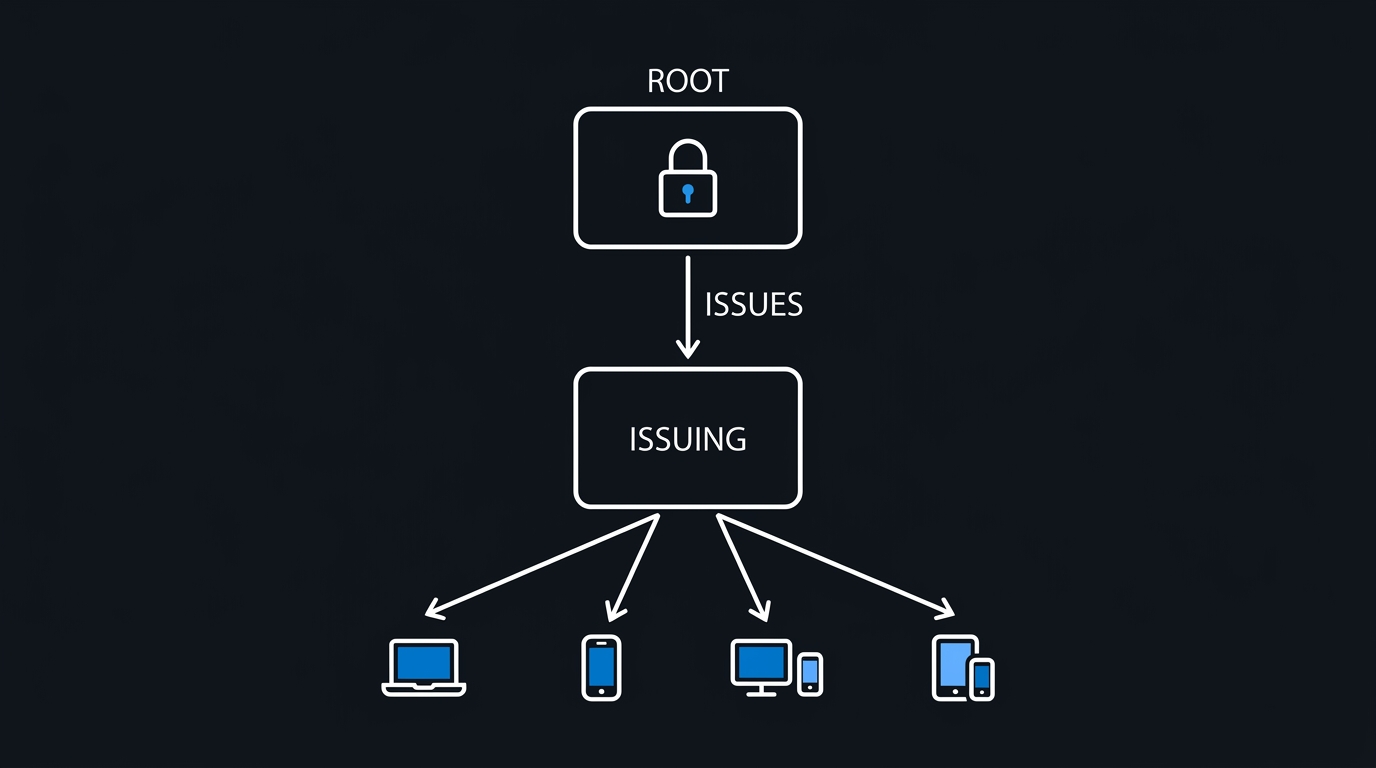
Two-Tier vs. Three-Tier PKI Hierarchy
Two-Tier PKI (Recommended for Most Enterprises)
┌─────────────────────────────────────┐
│   Offline Root CA                    │
│   - 10-20 year validity              │
│   - Generates issuing CA certs       │
│   - Powered off when not in use      │
│   - Physically secured                │
└─────────────┬───────────────────────┘
              │
              │ Issues subordinate cert
              ↓
┌─────────────────────────────────────┐
│   Enterprise Issuing CA              │
│   - 5-10 year validity               │
│   - Online 24/7 for cert issuance   │
│   - Integrated with Active Directory │
│   - Publishes CRL/OCSP               │
│   - Issues certificates to endpoints │
└─────────────────────────────────────┘
Advantages:
- Simpler to manage and troubleshoot
- Adequate security for most organizations
- Lower infrastructure costs
- Faster certificate chain validation
Three-Tier PKI (For Large Enterprises or High-Security Environments)
Root CA (offline)
  └── Policy CA (offline/semi-online)
        └── Issuing CA (online)
When to use three-tier:
- Multiple geographic locations requiring regional issuing CAs
- Different certificate policies for separate business units
- Merger/acquisition scenarios with separate PKI hierarchies
- Regulatory requirements for additional security layers
Certificate Validity Periods: Industry Best Practices
| CA Type | Recommended Validity | Rationale |
|---|---|---|
| Root CA | 15-20 years | Rarely changed, maximum stability |
| Issuing CA | 5-10 years | Balance between security and operational overhead |
| Server certificates | 1-2 years | Industry standard (Apple/Google enforce 398 days in 2026) |
| User certificates | 1 year | Aligns with annual user recertification |
| Device certificates | 2-3 years | Reduces endpoint certificate churn |
Important: Modern browsers and operating systems increasingly distrust certificates with validity periods exceeding 398 days (13 months). Plan server certificate lifetimes accordingly, even if your internal CA can issue longer-validity certificates.
CA Certificate Renewal Strategies
Strategy 1: Renew with New Key (Recommended)
Process:
- Generate new public/private key pair
- Create new CA certificate with new key
- Publish both old and new CA certificates during transition
Advantages:
✅ Enhanced security (new cryptographic material)
✅ Aligns with cryptographic best practices
✅ Provides clear migration path
Disadvantages:
⚠️ All issued certificates must be reissued
⚠️ Requires planning and testing
⚠️ Higher operational impact during transition
When to use:
- Scheduled CA renewal (not emergency)
- Key length upgrade (2048-bit → 4096-bit RSA or RSA → ECC)
- Cryptographic algorithm upgrade (SHA-1 → SHA-256)
- Security incident or potential key compromise
Strategy 2: Renew with Same Key
Process:
- Reuse existing private key
- Generate new certificate with extended validity
- Existing issued certificates remain valid
Advantages:
✅ Lower operational impact
✅ Existing certificates remain valid
✅ Faster implementation
Disadvantages:
⚠️ Security risk if private key is compromised
⚠️ Cannot change key length or algorithm
⚠️ Extends risk window for key material
When to use:
- Emergency renewal near expiration
- Temporary extension while planning full renewal
- Small environments with limited certificate deployment
ITPROINSIGHTS Recommendation: Always use new key generation for scheduled CA renewals. Same-key renewal should be reserved for emergency scenarios only.
Part 1: Planning Your CA Renewal
Step 1: Assess Current PKI Environment
1.1 Inventory Current CA Configuration
Run this PowerShell script on your existing CA server:
# CA Environment Discovery Script
# Run with elevated privileges on CA server

$CAConfig = certutil -getconfig
$CAInfo = certutil -getreg CA

Write-Host "=== CA Configuration ===" -ForegroundColor Cyan
certutil -CAInfo

Write-Host "
=== Certificate Templates ===" -ForegroundColor Cyan
certutil -CATemplates

Write-Host "
=== CA Certificate Details ===" -ForegroundColor Cyan
certutil -ca.cert

Write-Host "
=== CRL Distribution Points ===" -ForegroundColor Cyan
certutil -getreg CA\CRLPublicationURLs

Write-Host "
=== AIA (Authority Info Access) ===" -ForegroundColor Cyan
certutil -getreg CA\CACertPublicationURLs

Write-Host "
=== Active Certificates Count ===" -ForegroundColor Cyan
certutil -view -restrict "NotAfter>=now" csv | Measure-Object | Select-Object -ExpandProperty Count

# Export current configuration to file
$OutputPath = "C:\PKI-Backup\CA-Assessment-$(Get-Date -Format 'yyyyMMdd-HHmmss').txt"
New-Item -Path "C:\PKI-Backup" -ItemType Directory -Force | Out-Null
certutil -CAInfo > $OutputPath

Write-Host "
Configuration exported to: $OutputPath" -ForegroundColor Green
Expected output:
- CA name and configuration
- Certificate template list
- Current CA certificate details and expiration date
- CRL/AIA URL configuration
- Count of active certificates
1.2 Document PKI Dependencies
Create a PKI dependency matrix:
| System/Application | Certificate Type | Template Used | Owner/Contact | Impact if CA Unavailable |
|---|---|---|---|---|
| Domain Controllers | Computer | DomainController | IT Infrastructure | CRITICAL: Authentication fails |
| VPN Gateway | Server | WebServer | Network Team | HIGH: Remote access down |
| Exchange Server | Server | ExchangeServer | Messaging Team | HIGH: Email encryption broken |
| Web Applications | Server | WebServer | App Team | MEDIUM: HTTPS warnings |
| User Smart Cards | User | SmartCardLogon | Security Team | HIGH: MFA logon fails |
1.3 Calculate Renewal Timeline
Use this renewal planning matrix:
| Milestone | Timeline Before Expiration | Action Required |
|---|---|---|
| Initial Assessment | 12 months | Document current PKI, assess dependencies |
| Renewal Planning | 9 months | Define renewal strategy, procure hardware |
| Lab Testing | 6 months | Build test CA environment, validate renewal procedures |
| Stakeholder Communication | 6 months | Notify all certificate consumers, plan migration |
| Production Renewal | 3 months | Execute CA renewal in production |
| Certificate Reissuance | 2-3 months | Reissue all certificates from renewed CA |
| Old CA Decommission | 1 month | Remove old CA after all certificates migrated |
Warning: Attempting CA renewal with less than 3 months before expiration is high-risk. Emergency renewals often result in service outages and require same-key renewal (less secure).
Step 2: Design Your Renewal Strategy
2.1 Renewal Decision Matrix
Use this decision tree:
Is this an emergency renewal (< 3 months to expiration)?
├── YES → Same-key renewal (temporary)
│         Plan full new-key renewal for future
└── NO → New-key renewal (recommended)
          ├── Is key length/algorithm upgrade needed?
          │   ├── YES → New key + upgrade (RSA 4096 or ECC)
          │   └── NO → New key + same algorithm
          └── Continue to planning phase
2.2 Key Cryptographic Decisions
| Decision Point | 2026 Recommendation | Rationale |
|---|---|---|
| Root CA key algorithm | RSA 4096-bit or ECC P-384 | Long-term security, wide compatibility |
| Issuing CA key algorithm | RSA 4096-bit or ECC P-256 | Balance security and performance |
| Hash algorithm | SHA-256 or SHA-384 | SHA-1 deprecated, SHA-256 industry standard |
| Key storage | Hardware Security Module (HSM) or TPM | Protect private keys from extraction |
| CRL signing algorithm | Same as CA certificate | Consistency and compatibility |
Note: Elliptic Curve Cryptography (ECC) provides equivalent security to RSA at smaller key sizes (ECC P-256 ≈ RSA 3072-bit), improving performance. However, verify application compatibility before deploying ECC-based CAs.
2.3 Validity Period Planning
Root CA Certificate:
# Calculate root CA expiration
$RootValidityYears = 20
$RootExpiration = (Get-Date).AddYears($RootValidityYears)
Write-Host "Root CA will expire on: $($RootExpiration.ToString('yyyy-MM-dd'))"

# Rule: Root CA validity should be 2x issuing CA validity + 5 years buffer
$IssuingCAValidityYears = 7
$MinimumRootValidity = ($IssuingCAValidityYears * 2) + 5
if ($RootValidityYears -lt $MinimumRootValidity) {
    Write-Warning "Root CA validity may be too short. Consider $MinimumRootValidity years or more."
}
Issuing CA Certificate:
- Standard: 5-7 years for enterprise environments
- Extended: 10 years for stable, low-change environments (not recommended for internet-facing certificates)
Step 3: Create Detailed Renewal Plan
Download and complete this PKI Renewal Planning Worksheet:
PKI Renewal Planning Worksheet
Section 1: Current State Documentation
- Current root CA certificate expiration date: _______________
- Current issuing CA certificate expiration date: _______________
- Total active certificates issued: _______________
- Certificate templates in use: _______________
- CRL distribution points: _______________
- AIA URLs: _______________
Section 2: Renewal Strategy
- Renewal type: ☐ New key ☐ Same key
- Key algorithm: ☐ RSA 4096 ☐ RSA 2048 ☐ ECC P-256 ☐ ECC P-384
- Root CA validity: _______ years
- Issuing CA validity: _______ years
- Hash algorithm: ☐ SHA-256 ☐ SHA-384
Section 3: Infrastructure Planning
- Root CA server: Offline physical server
- Location: _______________
- Backup location: _______________
- Issuing CA server: ☐ Physical ☐ Virtual
- Hostname: _______________
- IP address: _______________
- CRL/AIA web server: _______________
- Network connectivity verified: ☐ Yes ☐ No
Section 4: Timeline and Resources
- Target renewal start date: _______________
- Estimated completion date: _______________
- Project lead: _______________
- Technical resources: _______________
- Stakeholder notification date: _______________
Section 5: Testing and Validation
- Test environment built: ☐ Yes ☐ No
- Renewal procedures validated in test: ☐ Yes ☐ No
- Certificate chain validation successful: ☐ Yes ☐ No
- Application compatibility confirmed: ☐ Yes ☐ No
Section 6: Risk Mitigation
- Full backup completed: ☐ Yes ☐ No
- Rollback procedure documented: ☐ Yes ☐ No
- Emergency contact list: ☐ Yes ☐ No
- Extended maintenance window approved: ☐ Yes ☐ No
Part 2: Deploying a New On-Premises Domain CA Server
Step 4: Prepare CA Server Infrastructure
4.1 Server Hardware Requirements
Root CA Server (Offline):
- Purpose: Rarely powered on, maximum security
- Specification: Basic server or workstation is sufficient
- Minimum: 2 vCPU, 4 GB RAM, 100 GB disk
- Operating System: Windows Server 2022 Standard
- Network: Disconnected after initial setup (air-gapped)
- Physical Security: Locked server room or safe
- Backup Media: USB drives or external disks (encrypted)
Issuing CA Server (Online):
- Purpose: 24/7 online for certificate issuance
- Specification: Enterprise-class server or VM
- Minimum: 4 vCPU, 8 GB RAM, 250 GB disk (SSD recommended)
- Operating System: Windows Server 2022 Standard or Datacenter
- Network: Domain-joined, stable network connectivity
- Backup: Integrated with enterprise backup solution
- High Availability: Consider clustering or rapid restore capability
Tip: For high-availability scenarios, consider using Network Load Balancing with multiple issuing CAs or implement rapid CA restore procedures with frequent backups.
4.2 Pre-Installation Checklist
Root CA Server:
# Run on root CA server BEFORE installing CA role

# 1. Set computer name (must not be domain-joined)
Rename-Computer -NewName "RootCA01"

# 2. Configure static IP (temporary, will be disconnected after setup)
New-NetIPAddress -InterfaceAlias "Ethernet" -IPAddress "192.168.1.10" -PrefixLength 24 -DefaultGateway "192.168.1.1"
Set-DnsClientServerAddress -InterfaceAlias "Ethernet" -ServerAddresses "192.168.1.5"

# 3. Install prerequisites
Install-WindowsFeature -Name ADCS-Cert-Authority -IncludeManagementTools

# 4. Configure high-entropy RNG for key generation
Set-ItemProperty -Path "HKLM:\SYSTEM\CurrentControlSet\Services\W32Time\Config" -Name "MaxPollInterval" -Value 10

# 5. Verify system time is accurate (critical for certificate validity)
w32tm /resync /force
w32tm /query /status

# 6. Create PKI directory structure
New-Item -Path "C:\PKI" -ItemType Directory -Force
New-Item -Path "C:\PKI\RootCA" -ItemType Directory -Force
New-Item -Path "C:\PKI\CRL" -ItemType Directory -Force
New-Item -Path "C:\PKI\AIA" -ItemType Directory -Force
Issuing CA Server:
# Run on issuing CA server BEFORE installing CA role

# 1. Set computer name and join domain
Rename-Computer -NewName "IssuingCA01"
Add-Computer -DomainName "contoso.com" -Credential (Get-Credential) -Restart

# After reboot and domain join:

# 2. Configure static IP
New-NetIPAddress -InterfaceAlias "Ethernet" -IPAddress "10.0.1.20" -PrefixLength 24 -DefaultGateway "10.0.1.1"
Set-DnsClientServerAddress -InterfaceAlias "Ethernet" -ServerAddresses "10.0.1.5", "10.0.1.6"

# 3. Verify DNS resolution
Resolve-DnsName -Name "contoso.com"
Resolve-DnsName -Name "dc01.contoso.com"

# 4. Verify domain connectivity
Test-ComputerSecureChannel -Verbose
nltest /dsgetdc:contoso.com

# 5. Install CA role and web enrollment (optional)
Install-WindowsFeature -Name ADCS-Cert-Authority, ADCS-Web-Enrollment -IncludeManagementTools

# 6. Create PKI directory structure
New-Item -Path "C:\PKI" -ItemType Directory -Force
New-Item -Path "C:\PKI\IssuingCA" -ItemType Directory -Force
Step 5: Install and Configure Root CA (Offline)
5.1 Install Standalone Root CA
Run on Root CA server:
# Install Certificate Authority role
# IMPORTANT: Do NOT join this server to domain (standalone CA for security)

Install-AdcsCertificationAuthority
    -CAType StandaloneRootCA
    -CACommonName "Contoso Root CA"
    -CADistinguishedNameSuffix "O=Contoso Corporation,C=US"
    -KeyLength 4096
    -HashAlgorithmName SHA256
    -CryptoProviderName "RSA#Microsoft Software Key Storage Provider"
    -ValidityPeriod Years
    -ValidityPeriodUnits 20
    -DatabaseDirectory "C:\Windows\System32\CertLog"
    -LogDirectory "C:\Windows\System32\CertLog"
    -Force

# Expected output: "CA installation completed successfully"
Parameter explanation:
- CAType: StandaloneRootCA (not domain-integrated for security)
- CACommonName: Descriptive name (appears in certificate Subject)
- KeyLength: 4096-bit RSA (strong security for long-lived root)
- HashAlgorithmName: SHA256 (industry standard)
- ValidityPeriod: 20 years (root CA should outlive issuing CAs)
5.2 Configure Root CA CRL and AIA URLs
Critical: Configure these URLs to point to locations accessible to all certificate-consuming systems.
# Remove default CDP and AIA entries
Get-CACrlDistributionPoint | Where-Object { $_.Uri -like "*ldap*" -or $_.Uri -like "*file*" } | Remove-CACrlDistributionPoint -Force
Get-CAAuthorityInformationAccess | Where-Object { $_.Uri -like "*ldap*" -or $_.Uri -like "*file*" } | Remove-CAAuthorityInformationAccess -Force

# Add HTTP-based CDP (CRL Distribution Point)
Add-CACRLDistributionPoint -Uri "http://pki.contoso.com/pki/<CaName><CRLNameSuffix><DeltaCRLAllowed>.crl" -AddToCertificateCDP -AddToFreshestCrl -Force

# Add file-based CDP for internal publishing
Add-CACRLDistributionPoint -Uri "C:\PKI\CRL\<CaName><CRLNameSuffix><DeltaCRLAllowed>.crl" -PublishToServer -PublishDeltaToServer -Force

# Add HTTP-based AIA (Authority Information Access) for root CA certificate
Add-CAAuthorityInformationAccess -Uri "http://pki.contoso.com/pki/<ServerDNSName>_<CaName><CertificateName>.crt" -AddToCertificateAIA -Force

# Restart CA service to apply changes
Restart-Service CertSvc

# Publish initial CRL
certutil -CRL
URL variables explained:
: Automatically replaced with CA common name : CRL identifier (empty for base CRL) : Indicates delta CRL support : Server hostname : Certificate file identifier
5.3 Export Root CA Certificate
# Export root CA certificate (public key only, safe to distribute)
certutil -ca.cert "C:\PKI\RootCA\ContosoRootCA.cer"

# Export CRL
Copy-Item "C:\Windows\System32\CertSrv\CertEnroll\*.crl" -Destination "C:\PKI\CRL\"

# Copy to USB drive for transport to issuing CA and web server
Copy-Item "C:\PKI\RootCA\*.cer" -Destination "E:\PKI\RootCA\" -Force
Copy-Item "C:\PKI\CRL\*.crl" -Destination "E:\PKI\CRL\" -Force

Write-Host "Root CA certificate and CRL exported to USB drive" -ForegroundColor Green
5.4 Shutdown and Secure Root CA
After completing initial configuration:
# Create final backup before shutting down
wbadmin start backup -backupTarget:E: -include:C: -allCritical -quiet

# Verify backup completed
wbadmin get versions

# Shutdown root CA
Stop-Computer -Force
Physical security steps:
- Disconnect network cable
- Power off server
- Store in locked server room or safe
- Store backup media in separate secure location
- Document access procedures for future root CA operations
Important: Root CA should only be powered on for:
- Issuing subordinate CA certificates
- Renewing root CA certificate
- Publishing updated CRLs (quarterly or as needed)
- Responding to security incidents
Step 6: Install and Configure Enterprise Issuing CA
6.1 Publish Root CA Certificate to Active Directory
Run on issuing CA server (or domain controller):
# Copy root CA certificate from USB drive
Copy-Item "E:\PKI\RootCA\ContosoRootCA.cer" -Destination "C:\PKI\RootCA\" -Force

# Publish root CA certificate to AD Trusted Root store
certutil -dspublish -f "C:\PKI\RootCA\ContosoRootCA.cer" RootCA

# Verify publication
certutil -viewstore "ldap:///CN=Certification Authorities,CN=Public Key Services,CN=Services,CN=Configuration,DC=contoso,DC=com?cACertificate"

# Import root CA certificate to local machine trusted root store
certutil -addstore -f Root "C:\PKI\RootCA\ContosoRootCA.cer"

# Verify import
Get-ChildItem Cert:\LocalMachine\Root | Where-Object { $_.Subject -like "*Contoso Root CA*" }
6.2 Request Subordinate Certificate from Root CA
On issuing CA server, generate certificate request:
# Create certificate request file for subordinate CA
$RequestFile = "C:\PKI\IssuingCA\IssuingCA01.req"

# Use CAPolicy.inf to define subordinate CA properties (create this file first)
$CAPolicyContent = @"
[Version]
Signature="`$Windows NT`$"

[PolicyStatementExtension]
Policies=AllIssuancePolicy
Critical=FALSE

[AllIssuancePolicy]
OID=2.5.29.32.0

[BasicConstraintsExtension]
PathLength=0
Critical=TRUE

[certsrv_server]
RenewalKeyLength=4096
RenewalValidityPeriod=Years
RenewalValidityPeriodUnits=7
CRLPeriod=Days
CRLPeriodUnits=7
CRLDeltaPeriod=Days
CRLDeltaPeriodUnits=1
LoadDefaultTemplates=0
AlternateSignatureAlgorithm=0
"@

# Write CAPolicy.inf to Windows directory
Set-Content -Path "C:\Windows\CAPolicy.inf" -Value $CAPolicyContent

# Install Enterprise Subordinate CA
Install-AdcsCertificationAuthority `
    -CAType EnterpriseSubordinateCA `
    -CACommonName "Contoso Issuing CA 01" `
    -CADistinguishedNameSuffix "O=Contoso Corporation,C=US" `
    -KeyLength 4096 `
    -HashAlgorithmName SHA256 `
    -CryptoProviderName "RSA#Microsoft Software Key Storage Provider" `
    -OutputCertRequestFile $RequestFile `
    -Force

Write-Host "Certificate request saved to: $RequestFile" -ForegroundColor Green
Expected output:
- Certificate request file created at specified path
- CA service installed but not started (waiting for certificate)
6.3 Submit Request to Root CA and Issue Certificate
Copy request file to USB drive:
Copy-Item "C:\PKI\IssuingCA\IssuingCA01.req" -Destination "E:\PKI\IssuingCA\" -Force
On Root CA server (power on, sign request, power off):
# Copy request from USB
Copy-Item "E:\PKI\IssuingCA\IssuingCA01.req" -Destination "C:\PKI\IssuingCA\" -Force

# Submit and issue certificate
certreq -submit -config "RootCA01\Contoso Root CA" "C:\PKI\IssuingCA\IssuingCA01.req" "C:\PKI\IssuingCA\IssuingCA01.cer"

# Manually approve if needed (in Certification Authority MMC console)
# Or auto-issue with:
certutil -resubmit [RequestID]

# Export issued certificate and root CA certificate
Copy-Item "C:\PKI\IssuingCA\IssuingCA01.cer" -Destination "E:\PKI\IssuingCA\" -Force
Copy-Item "C:\PKI\RootCA\ContosoRootCA.cer" -Destination "E:\PKI\RootCA\" -Force

# Publish new CRL before shutting down
certutil -CRL
Copy-Item "C:\Windows\System32\CertSrv\CertEnroll\*.crl" -Destination "E:\PKI\CRL\" -Force

# Shutdown root CA again
Stop-Computer -Force
6.4 Install Issuing CA Certificate
Back on issuing CA server:
# Copy certificates from USB
Copy-Item "E:\PKI\IssuingCA\IssuingCA01.cer" -Destination "C:\PKI\IssuingCA\" -Force
Copy-Item "E:\PKI\RootCA\ContosoRootCA.cer" -Destination "C:\PKI\RootCA\" -Force

# Install issued subordinate CA certificate
certutil -installcert "C:\PKI\IssuingCA\IssuingCA01.cer"

# Start CA service
Start-Service CertSvc

# Verify CA is operational
Get-Service CertSvc
certutil -ping

# Verify certificate chain
certutil -verify "C:\PKI\IssuingCA\IssuingCA01.cer"
Expected output:
Certificate chain validates successfully
Root CA: Contoso Root CA
Issuing CA: Contoso Issuing CA 01
6.5 Configure Issuing CA CRL and AIA Extensions
# Configure CDP (CRL Distribution Points)
# Remove default entries
Get-CACrlDistributionPoint | Where-Object { $_.Uri -like "*file*" } | Remove-CACrlDistributionPoint -Force

# Add HTTP CDP for client access
Add-CACRLDistributionPoint -Uri "http://pki.contoso.com/pki/<CaName><CRLNameSuffix><DeltaCRLAllowed>.crl" -AddToCertificateCDP -AddToFreshestCrl -Force

# Add LDAP CDP for domain clients
Add-CACRLDistributionPoint -Uri "ldap:///CN=<CATruncatedName><CRLNameSuffix>,CN=<ServerShortName>,CN=CDP,CN=Public Key Services,CN=Services,<ConfigurationContainer><CDPObjectClass>" -AddToCertificateCDP -AddToFreshestCrl -Force

# Add file system CDP for publishing
Add-CACRLDistributionPoint -Uri "C:\Windows\System32\CertSrv\CertEnroll\<CaName><CRLNameSuffix><DeltaCRLAllowed>.crl" -PublishToServer -PublishDeltaToServer -Force

# Configure AIA (Authority Information Access)
# Remove default file-based AIA
Get-CAAuthorityInformationAccess | Where-Object { $_.Uri -like "*file*" } | Remove-CAAuthorityInformationAccess -Force

# Add HTTP AIA
Add-CAAuthorityInformationAccess -Uri "http://pki.contoso.com/pki/<ServerDNSName>_<CaName><CertificateName>.crt" -AddToCertificateAIA -Force

# Add LDAP AIA for domain
Add-CAAuthorityInformationAccess -Uri "ldap:///CN=<CATruncatedName>,CN=AIA,CN=Public Key Services,CN=Services,<ConfigurationContainer><CAObjectClass>" -AddToCertificateAIA -Force

# Set CRL publication intervals
certutil -setreg CA\CRLPeriod "Days"
certutil -setreg CA\CRLPeriodUnits 7
certutil -setreg CA\CRLDeltaPeriod "Days"
certutil -setreg CA\CRLDeltaPeriodUnits 1

# Set CRL overlap period (grace period)
certutil -setreg CA\CRLOverlapPeriod "Hours"
certutil -setreg CA\CRLOverlapPeriodUnits 12

# Restart CA service
Restart-Service CertSvc

# Publish initial CRL
certutil -CRL
6.6 Configure Certificate Templates and Auto-Enrollment
# Configure auto-enrollment for domain computers
# Run on domain controller or management workstation

# Install RSAT tools if needed
Install-WindowsFeature -Name GPMC, ADCS-Mgmt -IncludeManagementTools

# Configure Group Policy for auto-enrollment
# Create or edit domain-level GPO
$GPOName = "PKI Cert Auto-Enrollment"
New-GPO -Name $GPOName -Comment "Configures certificate auto-enrollment" | New-GPLink -Target "DC=contoso,DC=com"

# Enable auto-enrollment via PowerShell or Group Policy Editor:
# Computer Configuration > Policies > Windows Settings > Security Settings > Public Key Policies
# - Certificate Services Client - Auto-Enrollment: Enable
# - Certificate Services Client - Certificate Enrollment Policy: Enable

# Verify certificate templates are published
certutil -CATemplates

# Publish specific templates
certutil -SetCATemplates +WebServer +Computer +User

# Force Group Policy update on test client
gpupdate /force
Verification checklist:
- CA service is running and accessible
- Root CA certificate is trusted by domain clients
- CRL is published and accessible via HTTP and LDAP
- Certificate templates are available
- Auto-enrollment GPO is applied
- Test certificate enrollment from domain-joined client
Part 3: Executing CA Certificate Renewal
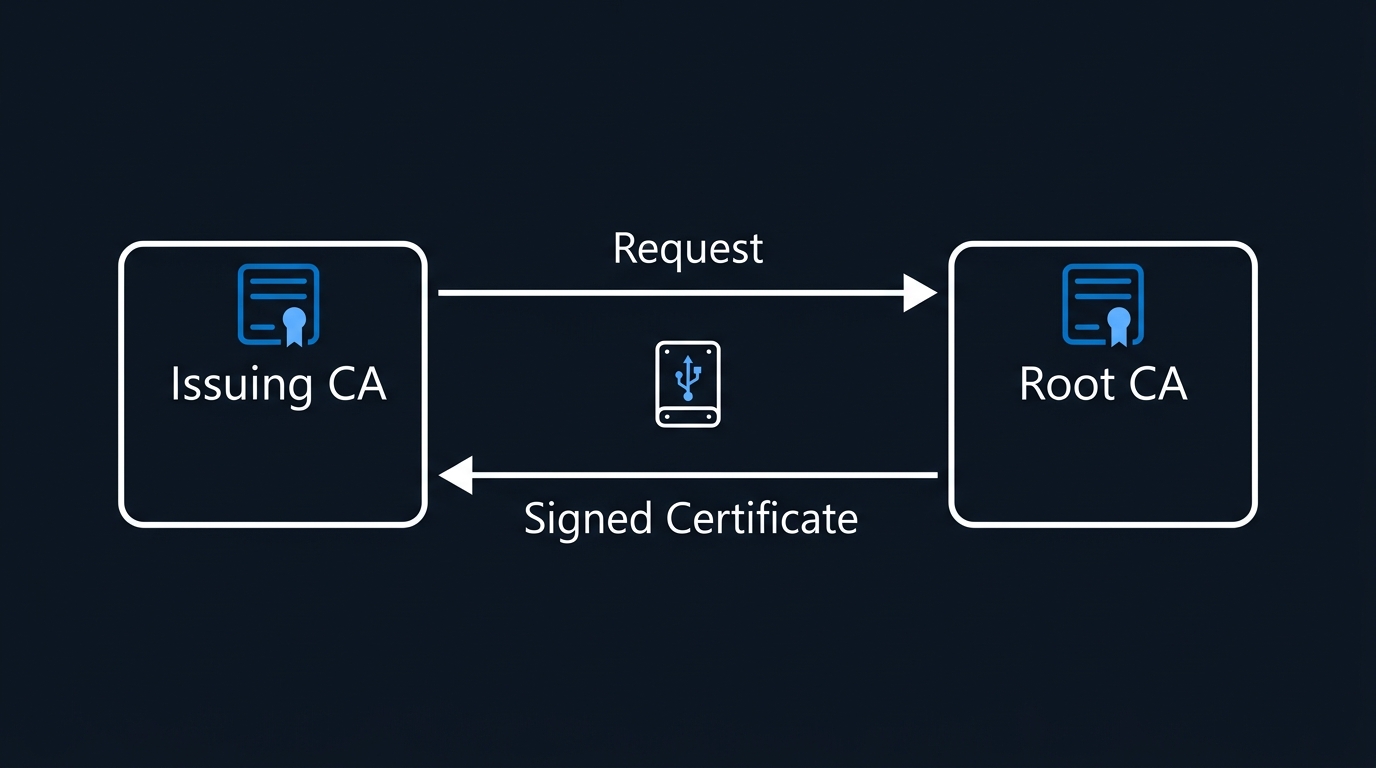
Step 7: Renew Issuing CA Certificate with New Key
When your issuing CA certificate is approaching expiration (recommended: 6-12 months before expiry):
7.1 Pre-Renewal Backup
# Full backup of CA configuration and database
$BackupPath = "C:\PKI-Backup\Pre-Renewal-$(Get-Date -Format 'yyyyMMdd-HHmmss')"
New-Item -Path $BackupPath -ItemType Directory -Force

# Backup CA database
certutil -backup $BackupPath

# Backup registry settings
certutil -getreg CA > "$BackupPath\CA-Registry.txt"

# Export all certificate templates
certutil -CATemplates > "$BackupPath\CA-Templates.txt"

# System state backup
wbadmin start backup -backupTarget:E: -include:C: -allCritical -quiet

Write-Host "Pre-renewal backup completed: $BackupPath" -ForegroundColor Green
7.2 Generate New Key and Certificate Request
# Renew CA certificate with new key
certutil -renewCert ReuseKeys=False

# This generates a new certificate request file:
# C:\<CAName>.req

# Copy request to USB for transport to root CA
Copy-Item "C:\IssuingCA01.req" -Destination "E:\PKI\Renewal\" -Force
7.3 Sign Renewal Request on Root CA
Power on root CA server:
# Copy request from USB
Copy-Item "E:\PKI\Renewal\IssuingCA01.req" -Destination "C:\PKI\Renewal\" -Force

# Submit and issue renewed certificate
certreq -submit -config "RootCA01\Contoso Root CA" "C:\PKI\Renewal\IssuingCA01.req" "C:\PKI\Renewal\IssuingCA01-Renewed.cer"

# Export renewed certificate
Copy-Item "C:\PKI\Renewal\IssuingCA01-Renewed.cer" -Destination "E:\PKI\Renewal\" -Force

# Publish updated CRL
certutil -CRL
Copy-Item "C:\Windows\System32\CertSrv\CertEnroll\*.crl" -Destination "E:\PKI\CRL\" -Force

# Shutdown root CA
Stop-Computer -Force
7.4 Install Renewed Certificate on Issuing CA
# Copy renewed certificate from USB
Copy-Item "E:\PKI\Renewal\IssuingCA01-Renewed.cer" -Destination "C:\PKI\Renewal\" -Force

# Install renewed CA certificate
certutil -installcert "C:\PKI\Renewal\IssuingCA01-Renewed.cer"

# Restart CA service
Restart-Service CertSvc

# Verify both old and new certificates are present
certutil -store my

# Publish new CRL
certutil -CRL
Step 8: Certificate Migration Strategy
After renewing the CA with a new key, you must migrate all issued certificates:
8.1 Identify Certificates Needing Replacement
# Query all certificates issued by old CA certificate
$OldCAThumbprint = "PASTE_OLD_CA_CERT_THUMBPRINT_HERE"

# Export certificate inventory
certutil -view -restrict "CertificateTemplate=WebServer,NotAfter>=now" -out "CommonName,SerialNumber,NotAfter" csv > "C:\PKI\CertInventory.csv"

# Count certificates per template
certutil -CATemplates | ForEach-Object {
    $Template = $_
    $Count = (certutil -view -restrict "CertificateTemplate=$Template,NotAfter>=now" csv | Measure-Object -Line).Lines
    [PSCustomObject]@{
        Template = $Template
        ActiveCertificates = $Count
    }
} | Format-Table
8.2 Configure Certificate Auto-Renewal
# Enable auto-renewal for computer and user certificates
# Via Group Policy:
# Computer Configuration > Policies > Windows Settings > Security Settings > Public Key Policies
# Certificate Services Client - Auto-Enrollment:
# - Configuration Model: Enabled
# - Renew expired certificates, update pending certificates, remove revoked certificates: Checked
# - Update certificates that use certificate templates: Checked

# Force certificate renewal on domain clients
Invoke-Command -ComputerName (Get-ADComputer -Filter *).Name -ScriptBlock {
    certutil -pulse
    gpupdate /force
}
8.3 Manual Certificate Reissuance for Critical Systems
For systems that don't support auto-enrollment (network devices, applications):
# Revoke old certificate
certutil -revoke [SerialNumber] 6  # Reason: CeaseOfOperation

# Generate new certificate request (application/device-specific process)
# Submit to renewed CA
# Install new certificate on target system
# Update application configuration to use new certificate
Step 9: Decommission Old CA Certificate
After all certificates are migrated (typically 60-90 days):
# Verify no active certificates from old CA
$OldCert = certutil -store my

$OldCertSerial = "PASTE_OLD_CERT_SERIAL"
certutil -view -restrict "CertificateTemplate=*,NotAfter>=now" csv | Select-String $OldCertSerial

# If no results, safe to remove old CA certificate
certutil -delstore my $OldCertSerial

# Archive old CA certificate for compliance
Export-Certificate -Cert (Get-Item "Cert:\LocalMachine\My\$OldCertSerial") -FilePath "C:\PKI\Archive\OldCA-$(Get-Date -Format 'yyyyMMdd').cer"
Part 4: Post-Deployment Operations & Maintenance
Step 10: Configure Certificate Auto-Enrollment
10.1 Create Auto-Enrollment Group Policy
# Create GPO for auto-enrollment
$GPOName = "Certificate Auto-Enrollment - Computers"
New-GPO -Name $GPOName | New-GPLink -Target "DC=contoso,DC=com"

# Configure via Group Policy Management Console (GPMC):
# Computer Configuration > Policies > Windows Settings > Security Settings > Public Key Policies
# 1. Certificate Services Client - Auto-Enrollment
#    - Configuration Model: Enabled
#    - Renew expired certificates: Checked
#    - Update certificates that use certificate templates: Checked
#    - Expiration notification: 10% of certificate lifetime

# 2. Certificate Services Client - Certificate Enrollment Policy
#    - Configuration Model: Enabled
10.2 Test Auto-Enrollment
# On test workstation
gpupdate /force

# Trigger certificate enrollment
certutil -pulse

# Verify certificate was issued
Get-ChildItem Cert:\LocalMachine\My | Where-Object { $_.Issuer -like "*Contoso Issuing CA*" }

# Check auto-enrollment event logs
Get-WinEvent -LogName "Microsoft-Windows-CertificateServicesClient-Lifecycle-System/Operational" -MaxEvents 20
Step 11: Setup CRL Distribution Web Server
11.1 Configure IIS for CRL/AIA Publishing
# On web server (pki.contoso.com)
# Install IIS
Install-WindowsFeature -Name Web-Server, Web-Mgmt-Console -IncludeManagementTools

# Create PKI virtual directory
New-Item -Path "C:\inetpub\pki" -ItemType Directory -Force
New-WebVirtualDirectory -Site "Default Web Site" -Name "pki" -PhysicalPath "C:\inetpub\pki"

# Configure MIME types for CER and CRL
Add-WebConfigurationProperty -PSPath "IIS:\Sites\Default Web Site\pki" -Filter "system.webServer/staticContent" -Name "." -Value @{fileExtension='.crl'; mimeType='application/pkix-crl'}
Add-WebConfigurationProperty -PSPath "IIS:\Sites\Default Web Site\pki" -Filter "system.webServer/staticContent" -Name "." -Value @{fileExtension='.cer'; mimeType='application/pkix-cert'}

# Enable directory browsing (optional, for troubleshooting)
Set-WebConfigurationProperty -PSPath "IIS:\Sites\Default Web Site\pki" -Filter "system.webServer/directoryBrowse" -Name "enabled" -Value $true

# Set NTFS permissions
$Acl = Get-Acl "C:\inetpub\pki"
$Permission = "CONTOSO\IssuingCA01$","Read","Allow"
$AccessRule = New-Object System.Security.AccessControl.FileSystemAccessRule $Permission
$Acl.SetAccessRule($AccessRule)
Set-Acl "C:\inetpub\pki" $Acl

# Test web access
Invoke-WebRequest -Uri "http://pki.contoso.com/pki/" -UseBasicParsing
11.2 Configure Automated CRL Publishing
# On issuing CA server, create scheduled task to publish CRL
$TaskName = "Publish CRL to Web Server"
$Action = New-ScheduledTaskAction -Execute "PowerShell.exe" -Argument "-File C:\Scripts\Publish-CRL.ps1"
$Trigger = New-ScheduledTaskTrigger -Daily -At "3:00AM"
$Principal = New-ScheduledTaskPrincipal -UserID "NT AUTHORITY\SYSTEM" -LogonType ServiceAccount -RunLevel Highest

Register-ScheduledTask -TaskName $TaskName -Action $Action -Trigger $Trigger -Principal $Principal

# Create publish script
$PublishScript = @'
# Publish-CRL.ps1
$WebServer = "\\pki.contoso.com\c$\inetpub\pki"
Copy-Item "C:\Windows\System32\CertSrv\CertEnroll\*.crl" -Destination $WebServer -Force
Copy-Item "C:\Windows\System32\CertSrv\CertEnroll\*.crt" -Destination $WebServer -Force
Write-EventLog -LogName Application -Source "PKI" -EventID 1000 -EntryType Information -Message "CRL published successfully"
'@

Set-Content -Path "C:\Scripts\Publish-CRL.ps1" -Value $PublishScript
Step 12: Implement PKI Monitoring
12.1 Certificate Expiration Monitoring
# Monitor certificates expiring within 60 days
$ExpirationThreshold = (Get-Date).AddDays(60)

$ExpiringCerts = certutil -view -restrict "NotAfter<=$($ExpirationThreshold.ToString('MM/dd/yyyy'))" csv |
    ConvertFrom-Csv |
    Where-Object { $_."Request.CommonName" -ne "" }

if ($ExpiringCerts) {
    $EmailBody = $ExpiringCerts | Format-Table -AutoSize | Out-String
    Send-MailMessage -To "pki-admin@contoso.com" -From "ca-monitor@contoso.com" -Subject "Certificates Expiring Soon" -Body $EmailBody -SmtpServer "smtp.contoso.com"
}
12.2 CA Health Check Script
# CA-HealthCheck.ps1
function Test-CAHealth {
    param([string]$CAServer)

    $HealthReport = [PSCustomObject]@{
        Server = $CAServer
        ServiceRunning = (Get-Service CertSvc).Status -eq 'Running'
        DatabaseAccessible = (certutil -ping) -match "Ping Success"
        CRLValid = Test-CRLValidity
        DiskSpace = (Get-PSDrive C).Free / 1GB
        LastCRLPublication = (certutil -getreg CA\CRLLastPublished).Split(':')[1].Trim()
        PendingRequests = (certutil -view -restrict "Disposition=9" csv | Measure-Object -Line).Lines
    }

    return $HealthReport
}

function Test-CRLValidity {
    $CRL = certutil -URL (certutil -getreg CA\CRLPublicationURLs)[0]
    return $CRL -match "Verified"
}

# Run health check
$Health = Test-CAHealth -CAServer "IssuingCA01"
if (-not $Health.ServiceRunning -or -not $Health.DatabaseAccessible) {
    # Send alert
    Send-MailMessage -To "pki-admin@contoso.com" -From "ca-monitor@contoso.com" -Subject "CA Health Alert" -Body ($Health | Format-List | Out-String) -SmtpServer "smtp.contoso.com"
}
12.3 Enable CA Auditing
# Enable comprehensive auditing
certutil -setreg CA\AuditFilter 127  # All events

# Configure Windows Event Log retention
wevtutil sl "Microsoft-Windows-CertificationAuthority/Operational" /ms:104857600  # 100MB

# Create scheduled task to archive CA logs monthly
$TaskName = "Archive CA Event Logs"
$Action = New-ScheduledTaskAction -Execute "PowerShell.exe" -Argument "-File C:\Scripts\Archive-CALogs.ps1"
$Trigger = New-ScheduledTaskTrigger -Monthly -DaysOfMonth 1 -At "2:00AM"
Register-ScheduledTask -TaskName $TaskName -Action $Action -Trigger $Trigger
Troubleshooting Common Issues
Issue 1: Certificate Chain Validation Fails
Symptom: Clients report "Certificate chain terminated in untrusted root"
Diagnosis:
# Check root CA certificate distribution
Get-ChildItem Cert:\LocalMachine\Root | Where-Object { $_.Subject -like "*Contoso Root CA*" }

# Verify certificate chain
certutil -verify -urlfetch [CertificatePath]
Resolution:
# Republish root CA certificate to AD
certutil -dspublish -f "C:\PKI\RootCA\ContosoRootCA.cer" RootCA

# Force Group Policy update on clients
Invoke-Command -ComputerName (Get-ADComputer -Filter *).Name -ScriptBlock { gpupdate /force }

# Manually import root CA certificate if needed
certutil -addstore -enterprise Root "C:\PKI\RootCA\ContosoRootCA.cer"
Issue 2: CRL Not Accessible
Symptom: Certificate validation errors: "The revocation function was unable to check revocation"
Diagnosis:
# Test CRL URL accessibility
certutil -URL http://pki.contoso.com/pki/ContosoIssuingCA01.crl

# Check CRL publication status
certutil -getreg CA\CRLLastPublished
certutil -getreg CA\CRLNextPublish
Resolution:
# Manually publish CRL
certutil -CRL

# Verify web server access
Test-NetConnection pki.contoso.com -Port 80

# Check NTFS and IIS permissions
Get-Acl "C:\inetpub\pki"
Get-WebConfiguration "IIS:\Sites\Default Web Site\pki"

# Restart IIS if needed
iisreset /restart
Issue 3: Auto-Enrollment Not Working
Symptom: Computers/users not receiving certificates automatically
Diagnosis:
# Check GPO application
gpresult /H "C:\Temp\GPResult.html" /F

# Review cert enrollment event logs
Get-WinEvent -LogName "Microsoft-Windows-CertificateServicesClient-Lifecycle-System/Operational" | Where-Object { $_.Id -in @(19,20,21) } | Select-Object -First 10

# Verify certificate template permissions
certutil -v -dstemplate [TemplateName]
Resolution:
# Force GPO update
gpupdate /force

# Trigger manual certificate enrollment
certutil -pulse

# Verify template permissions (Read and Enroll required for target group)
# Use Certificate Templates MMC: certtmpl.msc
# Right-click template > Properties > Security tab > Add "Domain Computers" with Read and Enroll permissions

# Restart certificate enrollment service
Restart-Service CertSvc
Issue 4: CA Service Won't Start
Symptom: CA service fails to start with error "The certificate for the Certificate Authority is not valid"
Diagnosis:
# Check CA certificate status
certutil -store my

# Review System Event Log
Get-EventLog -LogName System -Source CertificationAuthority -Newest 10

# Verify CA database integrity
certutil -verify C:\Windows\System32\CertLog\<CAName>.edb
Resolution:
# Restore CA from backup if database corrupt
certutil -restoreDB C:\PKI-Backup\[BackupFolder]

# If CA certificate missing, reinstall from exported copy
certutil -installcert "C:\PKI\IssuingCA\IssuingCA01.cer"

# Repair CA installation
Install-AdcsCertificationAuthority [parameters] -Force

# Check private key permissions
certutil -repairstore my [CertSerial]
Issue 5: Slow Certificate Issuance
Symptom: Certificate requests take several minutes to process
Diagnosis:
# Check CA database size
Get-ItemProperty "C:\Windows\System32\CertLog\*.edb" | Select-Object Name, Length

# Review CA performance counters
Get-Counter "\Certification Authority\Requests/sec" -Continuous

# Check pending requests queue
certutil -view -restrict "Disposition=9" csv | Measure-Object -Line
Resolution:
# Defragment CA database (requires CA service downtime)
net stop certsvc
esentutl /d "C:\Windows\System32\CertLog\<CAName>.edb"
net start certsvc

# Increase CA database cache size
certutil -setreg DBSessionCount 100
certutil -setreg DBMaxReadCacheSize 104857600  # 100MB

# Archive old certificates
certutil -view -restrict "NotAfter<01/01/2020" -out "RequestID" csv | ForEach-Object {
    certutil -deleterow [RequestID]
}

# Restart CA service
Restart-Service CertSvc
Ongoing Maintenance & Best Practices
Quarterly Maintenance Tasks
Q1: January-March
- Review certificate expiration report (next 12 months)
- Audit CA event logs for unauthorized access attempts
- Test CA backup and restore procedures
- Review and update certificate templates
- Verify CRL/AIA web server accessibility
- Update CA documentation
Q2: April-June
- Security patch review and installation (Windows Update)
- Verify auto-enrollment is functioning for all target groups
- Review certificate issuance patterns (identify anomalies)
- Test disaster recovery procedures
- Audit certificate template permissions
- Review PKI health check reports
Q3: July-September
- Renew CA certificates if expiring within 12 months
- Review and optimize CRL publication intervals
- Test certificate revocation procedures
- Audit network device certificate inventory
- Update emergency contact list
- Conduct PKI team training/knowledge transfer
Q4: October-December
- Annual PKI security assessment
- Review and update CAPolicy.inf if needed
- Test root CA recovery (power on, verify, power off)
- Archive old CA event logs
- Plan next year's PKI initiatives
- Document lessons learned
Annual Tasks
January:
- Complete annual PKI audit for compliance (HIPAA/PCI-DSS/SOX)
- Review disaster recovery plan and update as needed
- Assess PKI capacity and performance (plan for growth)
June:
- Security assessment and penetration testing
- Review cryptographic algorithm standards (upgrade if needed)
- Benchmark against industry PKI best practices
Security Best Practices
-
Root CA Security:
- Store offline in physically secured location
- Power on only when necessary (subordinate CA issuance/renewal)
- Maintain separate backup media stored offsite
- Require two-person rule for root CA access
- Document all root CA operations in physical logbook
-
Issuing CA Security:
- Apply security patches within 30 days of release
- Enable comprehensive auditing (AuditFilter = 127)
- Implement least-privilege access (minimize Enterprise Admins)
- Use HSM or TPM for private key storage
- Disable unnecessary certificate templates
- Review CA event logs weekly
-
Network Security:
- Restrict CA server access to management VLAN
- Implement firewall rules (allow only necessary ports)
- Deploy intrusion detection/prevention systems
- Monitor CRL/AIA web server for unauthorized access
- Use HTTPS for external CRL/AIA distribution
-
Operational Security:
- Require MFA for CA administrative access
- Separate CA admin accounts from daily-use accounts
- Implement change management procedures for PKI changes
- Conduct annual security awareness training for PKI staff
- Maintain offline copies of PKI documentation
PKI Documentation Requirements
Maintain the following documentation:
- PKI Architecture Diagram: CA hierarchy, network topology, CRL/AIA distribution
- Certificate Policy (CP): Organizational certificate issuance policies
- Certificate Practice Statement (CPS): Detailed operational procedures
- Standard Operating Procedures (SOPs):
- CA installation and configuration
- Certificate issuance and revocation
- Backup and restore procedures
- Disaster recovery procedures
- CA renewal procedures
- Change Log: All PKI configuration changes with dates and approvals
- Contact List: PKI team members, escalation procedures, vendor contacts
- Compliance Mapping: PKI controls mapped to regulatory requirements
Conclusion
Deploying and maintaining an on-premises certificate authority infrastructure requires careful planning, rigorous execution, and ongoing maintenance. By following the procedures outlined in this guide, you can establish a secure, reliable PKI that meets enterprise requirements while minimizing operational risks.
Key Takeaways
- Plan Ahead: Start CA renewal planning at least 12 months before expiration
- Test Thoroughly: Validate all procedures in a lab environment first
- Backup Everything: Maintain multiple backups before any PKI changes
- New Keys Preferred: Use new key generation for scheduled renewals
- Monitor Continuously: Implement automated monitoring for certificate health
- Document Religiously: Maintain comprehensive PKI documentation
- Security First: Keep root CA offline and implement defense-in-depth
Next Steps
After completing your CA deployment or renewal:
- Week 1: Verify all systems can obtain certificates successfully
- Week 2-4: Monitor certificate auto-enrollment and revocation processes
- Month 2: Conduct tabletop disaster recovery exercise
- Month 3: Complete comprehensive PKI security audit
- Ongoing: Follow quarterly maintenance schedule
When to Consider Cloud PKI
While this guide focuses on on-premises PKI, consider cloud-based or hybrid solutions if:
- Your organization is fully cloud-native with no on-premises infrastructure
- You lack in-house PKI expertise
- You need global certificate issuance with minimal latency
- Regulatory requirements don't mandate on-premises key storage
- You want to reduce operational overhead
Frequently Asked Questions (FAQ)
Q1: How often should I renew my CA certificates?
A: Root CA: 15-20 years. Issuing CA: 5-7 years for enterprise environments. Plan renewal 12 months before expiration.
Q2: Can I upgrade from RSA 2048-bit to 4096-bit during renewal?
A: Yes! Renew with new key and specify 4096-bit key length. All issued certificates will need reissuance.
Q3: What happens if my CRL expires?
A: Certificate validation will fail for all certificates issued by that CA. Ensure CRL publication is automated and monitored.
Q4: Should I use OCSP or CRL for revocation checking?
A: Use both. CRL for offline scenarios, OCSP for real-time online validation. OCSP is faster but requires online connectivity.
Q5: How many issuing CAs do I need?
A: One issuing CA is sufficient for most organizations (<5,000 endpoints). Add additional issuing CAs for:
- Geographic distribution (reduce latency)
- Workload isolation (separate user certs from device certs)
- High availability (multiple CAs behind load balancer)
Q6: Can I have both on-premises and cloud-based CAs?
A: Yes! Hybrid PKI architectures are common. Use on-premises CA for internal resources, cloud PKI (Azure Key Vault,AWS Private CA) for cloud-native applications.
Q7: What's the blast radius if my root CA is compromised?
A: Complete PKI failure. All certificates become untrustworthy. You must:
- Revoke root CA certificate
- Deploy new root CA (new keys)
- Reissue all subordinate CA certificates
- Reissue all endpoint certificates
This can take weeks/months. Hence the importance of keeping root CA offline and physically secured.
Q8: Do I need a CA for my home lab?
A: For production-like testing, yes. For casual lab work, self-signed certificates are sufficient. Consider using a dedicated lab CA with short-lived certificates.
Q9: How do I migrate from an old CA to a new CA?
A: Gradual approach:
- Deploy new CA (don't remove old CA yet)
- Publish both CA certificates to clients
- Issue new certificates from new CA
- Monitor old CA certificate expiration
- After all certificates migrated, decommission old CA
Allow 60-90 days for full migration.
Q10: Can I use Elliptic Curve Cryptography (ECC) certificates for my CA?
A: Yes, but verify compatibility first. ECC P-256/P-384 provides strong security with better performance. However, some legacy applications don't support ECC. For maximum compatibility, use RSA 4096-bit.
Related Resources
Microsoft Official Documentation
- Active Directory Certificate Services Overview
- Design and Deploy a PKI Infrastructure
- Certificate Auto-Enrollment Configuration Guide
- PKI Health Checks and Best Practices
Industry Standards & RFCs
- RFC 5280: Internet X.509 Public Key Infrastructure Certificate and CRL Profile
- RFC 6960: Online Certificate Status Protocol (OCSP)
- CA/Browser Forum Baseline Requirements
Tools & Utilities
- PKIView: Active Directory PKI Health Tool
- certutil: Built-in Windows certificate utility (certutil command reference)
- OpenSSL: Cross-platform certificate toolkit
- PKI Solutions: Enterprise PKI Toolkit
Community Resources
- Microsoft Tech Community – Ask the Directory Services Team
- NIST PKI Program
- /r/sysadmin PKI Resources
Training & Certification
- Microsoft Learn: Implement and Manage Active Directory Certificate Services
- Pluralsight: Implementing PKI
- SANS: SEC505: Securing Windows and PowerShell Automation (includes PKI)
Enterprise PKI Vendors (Hybrid/Cloud Options)
- Entrust: Managed PKI Services
- DigiCert: PKI Platform
- GlobalSign: Managed PKI
- Sectigo: Certificate Manager
About IT Pro Insights
IT Pro Insights (ITPROINSIGHTS.com) provides enterprise IT professionals with actionable technical content, in-depth tutorials, and industry analysis. This article is part of our Infrastructure & Operations and Security & Compliance content pillars.

Leave a Reply