
Executive Snapshot
| Category | Recommendation |
|---|---|
| Primary Tool | Microsoft Entra ID — Conditional Access What-If |
| Supplementary Tool | PowerShell (Microsoft.Graph module) + Workbooks |
| Biggest Risk | Break-glass and service accounts excluded from all policies |
| Quick Win | Enable Sign-in logs → CA column to spot "No policies applied" instantly |
| Remediation Priority | Legacy auth block → MFA for admins → MFA for all users → device compliance |
| Review Cadence | Full gap analysis quarterly; What-If spot checks after every policy change |
TL;DR
- The What-If tool simulates which Conditional Access policies apply to any user/app/IP combination — use it proactively, not just after a breach.
- "No policies applied" in Sign-in logs is your most actionable gap indicator — it means a real sign-in happened with zero CA enforcement.
- Service accounts, break-glass accounts, and external guests are the three most common coverage holes in enterprise Entra ID tenants.
- PowerShell automation scales the analysis beyond what the portal UI can do — audit all 500 users in a batch, not one at a time.
- Fix gaps in this order: block legacy auth → enforce MFA for privileged roles → enforce MFA for all users → require compliant devices for sensitive apps.
Introduction
Conditional Access is only as strong as its coverage. Most organisations deploy an initial set of policies, tick the compliance box, and move on — but Conditional Access policy sets are living configurations that drift over time. New applications get added to Azure AD. Guest users land outside existing policy scope. A helpdesk tech creates an emergency exclusion group "temporarily" and never removes it. A service account authenticates via a legacy protocol that bypasses MFA entirely.
The result is a policy estate that looks comprehensive on paper but has invisible gaps that a credential-stuffing attack or a compromised insider can walk straight through.
A conditional access gap analysis is a structured review that maps every realistic sign-in scenario in your environment to a policy, flags scenarios with no coverage, and produces a prioritised remediation backlog. Done well, it turns Conditional Access from a checkbox into a genuinely enforced access control layer. This tutorial walks you through the complete process using Microsoft Entra ID's built-in What-If tool, Sign-in log analysis, and PowerShell automation — no third-party tooling required.
Prerequisites
- Microsoft Entra ID P1 or P2 licence (What-If requires P1 minimum; Identity Protection features need P2)
- Conditional Access Administrator or Security Administrator role in Entra ID
- PowerShell 7.x with the
Microsoft.Graphmodule installed (Install-Module Microsoft.Graph) - Sign-in logs retained for at least 30 days (configure Diagnostic Settings → Log Analytics Workspace if not already done)
- Familiarity with Conditional Access policy anatomy: assignments (users, apps, conditions) and access controls (grant, session)
- Optional but recommended: a Log Analytics Workspace linked to Entra ID Sign-in logs
1. Understand Your Policy Estate Before You Test It
Before running a single What-If query, export and document your current policy set. You cannot find gaps in policies you have not mapped.
# Export all Conditional Access policies to JSON for offline analysis
# Requires: Connect-MgGraph -Scopes "Policy.Read.All"

Connect-MgGraph -Scopes "Policy.Read.All" -NoWelcome

$policies = Get-MgIdentityConditionalAccessPolicy -All

$policies | ForEach-Object {
    [PSCustomObject]@{
        DisplayName    = $_.DisplayName
        State          = $_.State
        CreatedDateTime = $_.CreatedDateTime
        ModifiedDateTime = $_.ModifiedDateTime
        IncludeUsers   = ($_.Conditions.Users.IncludeUsers -join ", ")
        ExcludeUsers   = ($_.Conditions.Users.ExcludeUsers -join ", ")
        ExcludeGroups  = ($_.Conditions.Users.ExcludeGroups -join ", ")
        IncludeApps    = ($_.Conditions.Applications.IncludeApplications -join ", ")
        GrantControls  = ($_.GrantControls.BuiltInControls -join ", ")
    }
} | Export-Csv -Path "./ca-policy-export-$(Get-Date -Format yyyyMMdd).csv" -NoTypeInformation

Write-Host "Export complete. Review ca-policy-export-*.csv" -ForegroundColor Green
Open the CSV and look for these immediate red flags before doing anything else:
- Policies in Report-only mode that should be enforced
- Policies with empty ExcludeGroups that reference an exclusion group you cannot identify
- Policies that include
"All"apps but also exclude a suspiciously large list of applications - Any policy with
State = disabled— these provide zero protection
2. Map Your Attack Surface: The Four Gap Dimensions
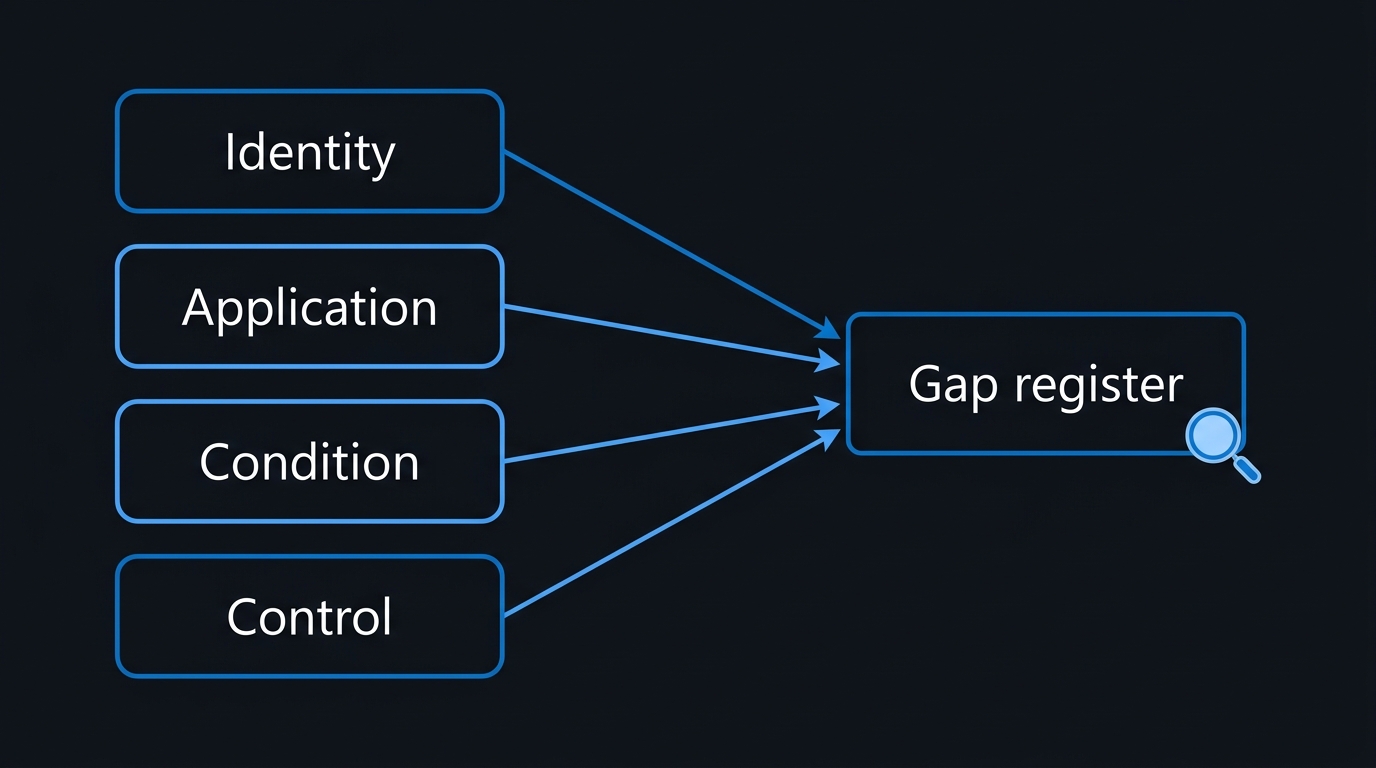
A conditional access gap analysis covers four dimensions. Think of each as an axis on which an attacker can find an unprotected path:
Keep a running Gap Register (a simple spreadsheet is fine) with columns: Dimension | Scenario | Affected Users | Risk Rating | Remediation | Owner | Target Date.
3. Use What-If to Simulate Sign-in Scenarios
The What-If tool in the Entra ID portal (Protection → Conditional Access → What-If) lets you simulate any sign-in and see exactly which policies fire — and which do not.
Where to find it: Entra admin centre → Protection → Conditional Access → Policies blade → What-If button (top of the page).
3.1 High-Value What-If Scenarios to Always Test
Work through this matrix systematically. Document results in your Gap Register.
| Scenario | User | Application | Conditions to Set |
|---|---|---|---|
| Privileged admin, browser, managed device | Global Admin account | Microsoft Admin Portals | Device: compliant, any location |
| Privileged admin, mobile app, unmanaged device | Global Admin account | Microsoft Admin Portals | Device: unmanaged, foreign country |
| Break-glass account | Your break-glass UPN | All cloud apps | Any location |
| External guest | A guest UPN | SharePoint Online | Any location |
| Service account | Service account UPN | Any app it uses | Any location |
| Legacy auth client | Any user | Exchange Online | Client app: Exchange ActiveSync |
| High-risk sign-in | Any user | All cloud apps | Sign-in risk: High |
| Compliant device access to sensitive app | Any user | Your ERP/finance app | Device: compliant |
For each scenario, What-If will show one of three outcomes:
- ✅ Policy applied + grant/block action — covered
- 🟡 Policy applied in report-only — not enforced, potential gap
- 🔴 No policies applied — definitive gap, highest priority
3.2 Interpreting What-If Results
A result of "No policies applied" for a break-glass account against All cloud apps is expected and correct — these accounts must be excluded. Document the rationale. A result of "No policies applied" for a regular user hitting Salesforce is a critical gap.
4. Mine Sign-in Logs for Real-World Gaps
What-If tests hypothetical scenarios. Sign-in logs show you gaps that are actively being exploited or traversed — right now, with real users.
4.1 KQL Query: Find Sign-ins With No CA Policy Applied
Run this in Log Analytics (your Entra ID Diagnostic Settings workspace):
// Identify real sign-ins where zero CA policies were applied
// Timeframe: last 30 days, excluding known service principals
SigninLogs
| where TimeGenerated > ago(30d)
| where ResultType == 0  // Successful sign-ins only
| where ConditionalAccessStatus == "notApplied"
| where UserType != "Guest"  // Analyse guests separately
| where AppDisplayName !in ("Windows Sign In", "Microsoft Authentication Broker")
| summarize
    SignInCount     = count(),
    UniqueApps      = dcount(AppDisplayName),
    AppList         = make_set(AppDisplayName, 10),
    LastSeen        = max(TimeGenerated)
    by UserPrincipalName, UserDisplayName
| sort by SignInCount desc
| take 50
This surfaces the users who are signing in most frequently with zero CA enforcement. If you see production users in this list, treat it as an incident, not a backlog item.
4.2 KQL Query: Legacy Authentication Usage
// Detect legacy authentication protocols still in use
// These bypass MFA regardless of CA policy
SigninLogs
| where TimeGenerated > ago(30d)
| where ClientAppUsed in (
    "Exchange ActiveSync",
    "IMAP4",
    "MAPI Over HTTP",
    "SMTP Auth",
    "POP3",
    "Other clients"
)
| where ResultType == 0
| summarize
    Count           = count(),
    LastSeen        = max(TimeGenerated),
    Protocols       = make_set(ClientAppUsed)
    by UserPrincipalName, AppDisplayName
| sort by Count desc
Any user appearing here is bypassing your MFA policies. Block legacy auth for these users immediately — or create a targeted migration plan if the protocol is legitimately required (e.g., a line-of-business app using SMTP Auth).
5. Automate Gap Detection Across All Users
Running What-If manually for 50 accounts is feasible. For 500 or 5,000, you need automation. The Microsoft Graph v1.0/identity/conditionalAccess/evaluate endpoint lets you batch-simulate policies programmatically.
# Batch What-If simulation using Microsoft Graph
# Evaluates CA policies for a list of users against a target application
# Requires: Connect-MgGraph -Scopes "Policy.Read.All","User.Read.All"

Connect-MgGraph -Scopes "Policy.Read.All", "User.Read.All" -NoWelcome

# Define the application to test (Office 365 Exchange Online)
$targetAppId = "00000002-0000-0ff1-ce00-000000000000"

# Load users to test (adjust filter as needed)
$users = Get-MgUser -Filter "accountEnabled eq true and userType eq 'Member'" `
         -Select "id,userPrincipalName,displayName" -All

$gapReport = [System.Collections.Generic.List[PSCustomObject]]::new()

foreach ($user in $users) {
    $body = @{
        conditionalAccessWhatIfSubject = @{
            "@odata.type" = "#microsoft.graph.userSubject"
            userId        = $user.Id
        }
        conditionalAccessContext       = @{
            servicePrincipalId = $targetAppId
        }
    } | ConvertTo-Json -Depth 5

    try {
        $result = Invoke-MgGraphRequest `
            -Method POST `
            -Uri "https://graph.microsoft.com/v1.0/identity/conditionalAccess/evaluate" `
            -Body $body `
            -ContentType "application/json"

        $policiesApplied = $result.value | Where-Object { $_.result -ne "notApplicable" }

        if (-not $policiesApplied) {
            $gapReport.Add([PSCustomObject]@{
                UserPrincipalName = $user.UserPrincipalName
                DisplayName       = $user.DisplayName
                AppId             = $targetAppId
                PoliciesApplied   = 0
                GapSeverity       = "Critical"
            })
        }
    }
    catch {
        Write-Warning "Failed to evaluate user $($user.UserPrincipalName): $_"
    }

    Start-Sleep -Milliseconds 200  # Respect Graph API throttling limits
}

$gapReport | Export-Csv -Path "./ca-gap-report-$(Get-Date -Format yyyyMMdd).csv" -NoTypeInformation
Write-Host "$($gapReport.Count) users with no CA coverage found." -ForegroundColor Yellow
Schedule this script to run weekly via an Azure Automation runbook and email the output to your security team. A zero-count result is your target steady state.
6. Prioritised Remediation Framework
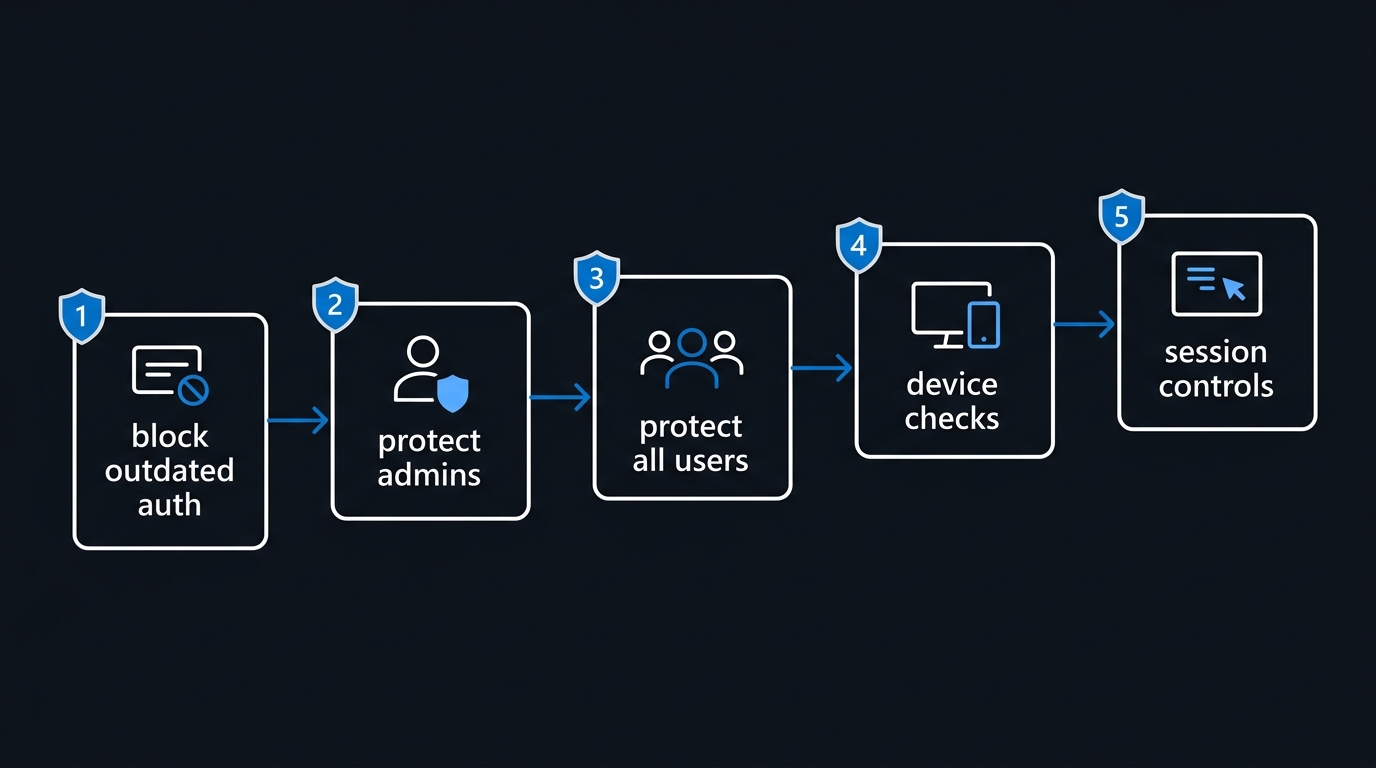
Once you have your Gap Register populated, remediate in this order. Doing it backwards (device compliance before MFA) is a common and costly mistake.
Priority 1 example — Block legacy authentication:
# Create a Conditional Access policy to block legacy authentication
# Run ONLY in Report-Only mode first; switch to Enabled after 2-week validation

$params = @{
    DisplayName = "BLOCK - Legacy Authentication Protocols"
    State       = "enabledForReportingButNotEnforced"  # Change to "enabled" after validation
    Conditions  = @{
        Users        = @{
            IncludeUsers = @("All")
            ExcludeGroups = @("YOUR-BREAK-GLASS-GROUP-ID")  # Replace with actual GUID
        }
        Applications = @{
            IncludeApplications = @("All")
        }
        ClientAppTypes = @(
            "exchangeActiveSync",
            "other"
        )
    }
    GrantControls = @{
        Operator         = "OR"
        BuiltInControls  = @("block")
    }
}

New-MgIdentityConditionalAccessPolicy -BodyParameter $params
Write-Host "Policy created in Report-Only mode. Validate for 14 days before enabling." -ForegroundColor Cyan
7. Pitfalls to Avoid
These are the most frequent mistakes encountered in real-world conditional access gap analysis engagements:
1. Excluding too many users from "All users" policies
Every group added to an exclusion list is a potential gap. Audit your exclusion groups quarterly. Remove stale members. If an exclusion group has more than 10 members, question why.
2. Treating Report-only as protection
Report-only mode generates logs but enforces nothing. It is a validation tool, not a security control. Policies sitting in Report-only for more than 30 days should be reviewed for promotion or deletion.
3. Testing What-If with admin accounts
What-If runs in the context of the signed-in admin. If you are a Global Admin testing a policy that excludes Global Admins, you will see a false result. Always use the "user" field in What-If to impersonate a test user, not yourself.
4. Ignoring workload identities (service principals)
Conditional Access for workload identities requires Entra ID P2 and separate policies. Many organisations have dozens of service principals that authenticate to sensitive APIs with no CA enforcement at all. Include them in scope.
5. Not accounting for Continuous Access Evaluation (CAE)
CAE revokes tokens in near-real-time for supported clients. If your gap analysis shows long-lived tokens as a risk, ensure CAE-capable clients and services are in scope — but do not assume CAE replaces CA policies.
6. Skipping the "all platforms" condition
A policy that targets Windows and macOS but omits Linux, iOS, and Android is a gap. Set platform conditions explicitly or use "Any device" to close the gap, then layer device-specific controls on top.
7. Not validating after every policy change
New CA policy changes can inadvertently break existing coverage or create new exclusion overlaps. Run your automated gap check (Section 5) after every policy deployment as part of your change management process.
Troubleshooting
What-If shows "No policies applied" but I have an "All users, All apps" policy
Cause: The account you are testing is a member of an exclusion group, or the policy is in disabled or Report-only state.
Fix: Check ExcludeGroups and ExcludeUsers on that policy. In the What-If results panel, expand the policy row — it will show the exact assignment reason it was excluded.
Graph API evaluate endpoint returns 403 Forbidden
Cause: The token does not have Policy.Read.All or the account lacks the Conditional Access Administrator role.
Fix: Re-run Connect-MgGraph -Scopes "Policy.Read.All","User.Read.All" and confirm the consented scopes with (Get-MgContext).Scopes.
KQL query returns no results for ConditionalAccessStatus == "notApplied"
Cause: Sign-in logs are not flowing to Log Analytics, or the Diagnostic Settings are configured to send only AuditLogs and not SignInLogs.
Fix: Entra admin centre → Diagnostic settings → verify SignInLogs and NonInteractiveUserSignInLogs are both checked and pointing to your workspace. Allow 15-30 minutes for initial ingestion.
Legacy auth block policy causes application outages
Cause: A line-of-business application is using Basic Auth or a legacy protocol not captured in your pre-migration audit.
Fix: Run the policy in Report-only mode for two weeks. Review ConditionalAccessPolicies in Sign-in logs for any result: reportOnlyFailure entries. Identify the affected application and either update its auth method or create a scoped exclusion with compensating controls (IP restriction + alerting).
Key Takeaways
- A conditional access policy estate is not a set-and-forget control — it requires structured, periodic gap analysis to remain effective as your environment evolves.
- The What-If tool is your primary validation instrument, but it must be paired with real Sign-in log analysis — the Conditional Access insights and reporting workbook — to catch gaps that are actively being traversed.
- The four gap dimensions — identity, application, condition, and control — provide a repeatable framework for systematic coverage review.
- Automate batch user evaluation using the Microsoft Graph evaluate endpoint; manual spot-checks do not scale beyond a small user population.
- Legacy authentication is the single highest-priority gap in most tenants — block it first, before tackling device compliance or session controls.
- Exclusion groups are gap injection points — audit their membership on the same cadence as your policy review.
- Document every accepted gap (break-glass accounts, emergency exclusions) with a rationale and review date — undocumented exclusions become forgotten vulnerabilities.
Next Steps
- Run the policy export script (Section 1) today and load the CSV into a spreadsheet — just reviewing it visually will surface obvious problems within 20 minutes.
- Enable Entra ID Sign-in log streaming to Log Analytics if you have not already — you cannot run the KQL gap queries without it, and the data is invaluable for incident response beyond CA analysis.
- Schedule a quarterly Conditional Access review as a recurring calendar item. Block two hours, work through the What-If scenario matrix in Section 3, and update your Gap Register.
- Evaluate Conditional Access for workload identities — if you have Entra ID P2, extend your gap analysis to service principals using the dedicated Workload Identities policies blade.
- Integrate the PowerShell gap report into your Azure DevOps or GitHub Actions pipeline as a post-deployment validation step whenever a CA policy change is merged.

Leave a Reply