
Executive Snapshot
| Item | Detail |
|---|---|
| Goal | Ship devices directly from OEM/reseller to end users, fully provisioned, with zero imaging |
| Two paths | Autopilot device preparation (v2, Entra-join only, no hash) vs. classic Autopilot (v1, hash-based, supports Hybrid Join) |
| Core dependency | Entra ID P1 (or Microsoft 365 Business Premium), Intune MDM authority, Autopilot device registration |
| Primary tools | Microsoft Intune admin center, Get-WindowsAutopilotInfo, Microsoft Graph PowerShell, OEM/partner registration |
| Time to provision | Typically 15-30 minutes for a device-prep deployment; longer for hybrid-joined ESP with heavy app payloads |
| Reset option | Autopilot Reset (Entra-joined only) re-provisions in place without re-imaging |
TL;DR
- Autopilot device preparation (v2) is the new default for Entra-joined fleets — no hardware hash import, Enrollment Time Grouping instead of a device list, and a simplified percentage progress bar rather than a full ESP.
- Classic Autopilot profiles still win when you need Hybrid Join, on-prem AD dependencies, or existing ESP-based app orchestration — it isn't being retired, and Autopilot profiles take precedence over device-prep policies if a device is registered for both.
- Hardware hash registration is only mandatory for classic Autopilot — device prep devices enroll the moment a user signs in with a work account during OOBE, no pre-registration step at all.
- The Enrollment Status Page is now two phases (Device Setup, Account Setup) and defaults to installing Windows quality updates during provisioning on new profiles — check that setting explicitly, it changes first-boot timing.
- Autopilot Reset replaces re-imaging for redeployment — it wipes personal data and apps but keeps Entra join, Intune enrollment, and Autopilot registration intact, so a returned laptop is back in service in one remote action.
Introduction
Every endpoint admin has lived the old workflow: a pallet of new laptops arrives, someone racks up an imaging bench, and devices trickle out over days while a technician babysits driver injection and app installs. Windows Autopilot with Intune deletes that bench entirely. A device leaves the factory, gets shipped straight to the employee's door, and the moment they connect to Wi-Fi and sign in with their work account, Windows pulls policy, apps, and configuration from the cloud and hands back a compliant, ready-to-work desktop.
What's changed for 2026 is that Microsoft now ships two distinct provisioning paths under the Autopilot name: the newer Autopilot device preparation (sometimes called v2) and the classic Autopilot profile-and-ESP model most shops have run since Windows 10. They are not a straight upgrade path — they solve overlapping but different problems, and picking wrong means either missing Hybrid Join support or dragging along hardware-hash logistics you no longer need. This guide walks the full lifecycle: prerequisites, choosing a path, registering hardware, building profiles, configuring the Enrollment Status Page, targeting apps for first sign-in, piloting, troubleshooting ESP timeouts, and resetting devices for reuse.
Prerequisites
Before touching a device, confirm the back end is actually ready:
- Licensing: Microsoft Entra ID P1 (standalone or bundled in Microsoft 365 Business Premium / E3 / E5), plus an Intune license assigned to every user who'll enroll a device this way. Autopilot registration itself doesn't consume a license, but MDM enrollment and policy delivery do.
- Entra join type decided up front: Microsoft Entra join for cloud-only fleets, Microsoft Entra hybrid join if you still need on-prem AD computer objects (line-of-business apps with Kerberos dependencies, legacy GPOs). This decision determines which Autopilot path you're even eligible for — device preparation is Entra-join only.
- Intune set as the MDM authority in the Microsoft Intune admin center (Tenant administration > Connectors and tokens > Mobility), with automatic enrollment configured under Devices > Enrollment > Windows > Automatic Enrollment (MDM user scope = All or a targeted group).
- Network egress to the Autopilot and Intune service endpoints unblocked on the deployment network — proxies that intercept TLS or require interactive auth will stall OOBE before it reaches sign-in.
- A pilot group of Entra security groups already created (dynamic device groups are ideal) so profiles, ESP, and apps can be scoped without touching production users on day one.
Autopilot Device Preparation vs. Classic Autopilot Profiles
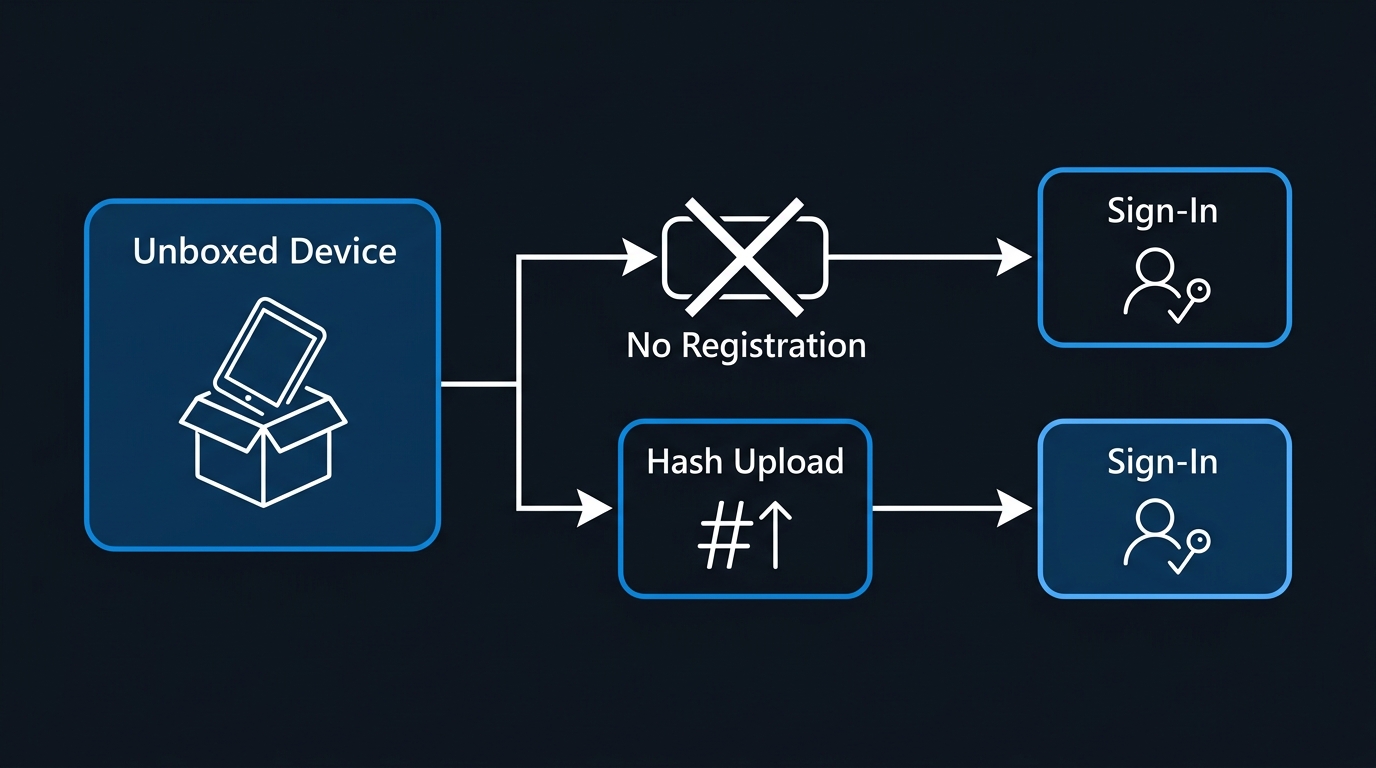
This is the decision that shapes everything downstream, so make it deliberately rather than defaulting to whichever tutorial you read first.
Autopilot device preparation removes the pre-registration step. Instead of importing a hardware hash before the device ships, it uses Enrollment Time Grouping: a device is only recognized as belonging to your policy at the moment a user signs in during OOBE with a work account tied to your tenant. That single change collapses a lot of logistics — no CSV exports from OEMs, no waiting on partner registration, no orphaned hash records for devices that got returned or re-racked. It also supports mixing Win32 and line-of-business apps in the same deployment (up to 25 apps per policy), which classic Autopilot historically choked on because both app types compete for the TrustedInstaller service. The tradeoff: device preparation currently only supports Microsoft Entra join, and it replaces the full ESP with a simplified percentage-based progress screen rather than granular phase reporting.
Classic Autopilot is still the only option if you need Microsoft Entra hybrid join, want the traditional multi-phase Enrollment Status Page with device-vs-account phase separation, or have existing profiles and ESP tuning you don't want to rebuild. It requires the hardware hash (or OEM/reseller pre-registration) uploaded before the device reaches the end user.
Both mechanisms coexist in the same tenant indefinitely — Microsoft has stated there's no forced migration off classic profiles. The one interaction to know: if a device is already registered as a classic Autopilot device, that profile takes precedence over any device preparation policy. If you want a device to go through device preparation instead, you have to remove its classic Autopilot registration first.
Rule of thumb: new Entra-joined fleets with simple app payloads → device preparation. Hybrid-joined, AD-dependent, or app-heavy deployments with complex ESP requirements → classic Autopilot profiles.
Registering Devices: Hardware Hash and Partner Registration
If you're running classic Autopilot, the device needs to exist in your Autopilot device list before it can pick up a profile. Three ways to get it there:
1. OEM or reseller registration. The cleanest path — most major OEMs (Dell, HP, Lenovo, Microsoft) and CDW/Insight-tier resellers can register hardware hashes directly against your tenant ID at the point of purchase. Ask for this on every hardware order; it means devices are Autopilot-ready before they ever ship to you.
2. Self-service hash collection from an existing Windows install (useful for devices already in the field, or when the OEM registration didn't happen). Run this from an elevated PowerShell session on the target device:
# Install/update the community script that reads WMI for the hardware hash
Install-Script -Name Get-WindowsAutopilotInfo -Force

# Collect the hash and write it to a CSV for later import
Get-WindowsAutopilotInfo.ps1 -OutputFile C:\Autopilot\device-hash.csv
3. Direct online registration, which authenticates to Microsoft Graph and imports the device in the same step instead of producing a CSV:
# Requires Microsoft.Graph.Authentication and
# Microsoft.Graph.DeviceManagement.Enrollment modules — the script installs them if missing
Get-WindowsAutopilotInfo.ps1 -Online -GroupTag "Finance-Laptops"
For bulk imports from a CSV you already collected (common when refreshing dozens of devices from an imaging bench during a transition period), import the file through Intune with Graph PowerShell rather than the deprecated CSV upload blade where it's been retired from the UI:
Connect-MgGraph -Scopes "DeviceManagementServiceConfig.ReadWrite.All"

Import-Csv "C:\Autopilot\device-hash.csv" | ForEach-Object {
    $body = @{
        serialNumber        = $_.'Device Serial Number'
        hardwareIdentifier   = $_.'Hardware Hash'
        groupTag             = $_.'Group Tag'
    } | ConvertTo-Json

    Invoke-MgGraphRequest -Method POST `
        -Uri "https://graph.microsoft.com/v1.0/deviceManagement/importedWindowsAutopilotDeviceIdentities" `
        -Body $body -ContentType "application/json"
}
Give devices a Group Tag at registration time (Finance-Laptops, Warehouse-Kiosk, etc.) — it's the cheapest way to auto-assign the right deployment profile later via dynamic group membership, and retrofitting tags after the fact means editing every device record by hand.
Building the Deployment Profile
For classic Autopilot: in the Intune admin center, go to Devices > Enrollment > Windows > Enrollment Policies > Deployment Profiles > Create Profile > Windows PC. Configure:
- Deployment mode: User-driven (the common case) or Self-deploying (kiosk/shared devices with no user sign-in, requires TPM 2.0 attestation).
- Join type: Microsoft Entra joined or Microsoft Entra hybrid joined.
- Out-of-box experience settings: hide the EULA and privacy settings screens (skip the clicks, not the compliance — your terms are already covered by the employment agreement), disable the option to use a local admin account, set language/region defaults, and lock the Autopilot enrollment to prevent a user from bypassing it with a local account.
Assign the profile to the dynamic device group matching the Group Tag you set during registration.
For device preparation: go to Devices > Enrollment > Windows > Enrollment Policies > Device Preparation Policies > Create Policy. You'll configure account type (standard or Entra ID admin — default to standard for anything user-facing), the app list (up to 25 Win32/LOB apps), and the timeout for the whole deployment. There's no hash-based device group to assign here — the policy targets a user group, and Enrollment Time Grouping handles the rest at OOBE.
Enrollment Status Page Configuration
The ESP is what keeps a user staring at "Just a moment" instead of a bare desktop while critical policy and apps land. Configure it under Devices > Enrollment > Windows > Enrollment Status Page.
Two phases matter:
- Device Setup phase runs before anyone signs in — device-targeted configuration profiles, compliance policies, certificates, and device-group apps. This is where most ESP timeouts originate, because it's blocking on things a user can't see or influence.
- Account Setup phase runs after first sign-in, during the rest of OOBE — user-targeted profiles and apps assigned to user groups.
Key settings to get right:
- "Show app and profile configuration progress" — turn this on for pilot rings so you can actually see which app or policy is hanging, then consider hiding it for production rings once you trust the flow.
- "Only show page to devices provisioned by Out-of-box experience (OOBE)" — leave this on; you don't want ESP re-triggering on every re-enrollment.
- "Block device use until required apps and profiles are installed" — this is the enforcement switch. Off means users get a desktop before everything lands (fine for low-risk app sets); on means the device won't unlock until the required list finishes.
- "Install Windows quality updates" (device setup phase) — new ESP profiles now default this to Yes, meaning provisioning waits for monthly cumulative updates to land before finishing. On profiles that predate this change the default stays No. Check it explicitly: Yes materially lengthens first-boot time on freshly imaged OEM media that's a few months stale, but it also means the device is patched before a user ever touches it.
- Timeout: default is 60 minutes for device setup and 60 for account setup. Extend cautiously for locations with slow WAN links; don't extend blindly as a band-aid for an app that's actually failing.
You can run up to 51 ESP profiles per tenant (default plus 50 custom), with priority order resolving conflicts when a device or user matches more than one — profile priority 1 wins.
App and Policy Targeting for First Sign-In
Assign apps and configuration to the same group used for the deployment profile / device-prep policy, split cleanly:
- Device-group assignments (Required) for anything that must exist before a user profile even starts building — endpoint protection, disk encryption policy, VPN client, baseline compliance policy.
- User-group assignments (Required) for line-of-business apps, printer connections, and anything scoped to a role rather than a machine.
- Mark only truly blocking apps as "required and tracked in ESP" — every app you mark trackable adds it to the ESP wait list, and one slow MSI installer holds up the whole provisioning screen for every device in that ring.
- Avoid targeting Win32 apps with dependencies on user context during the device-setup phase; they'll fail silently because no user session exists yet.
Piloting and Troubleshooting
Run a pilot ring of 5-10 devices covering your actual hardware mix (different OEMs behave differently around driver injection and TPM attestation) before expanding.
Common ESP timeout causes, roughly in order of frequency:
- Win32 app install failures blocking the required list — check Intune app assignment status (Apps > Monitor > App install status) for the specific device, not just the aggregate.
- Network/proxy interception breaking the TLS handshake to Microsoft Graph or Windows Update endpoints — devices that "hang at spinning dots" on isolated VLANs are almost always a proxy or firewall problem, not an Autopilot problem.
- Conflicting device configuration profiles — two profiles targeting the same setting with different values will stall or silently pick one, and diagnosing this from ESP alone is close to impossible; check Devices > Configuration > profile assignment overlaps.
- Stale TPM or driver firmware on Self-deploying mode — this fails attestation before the profile even downloads.
- Group Tag mismatch — a device that doesn't land in the expected dynamic group gets no profile at all and sits at a generic OOBE screen indefinitely.
Pull collected diagnostics from a stuck or failed device with:
# Generates a diagnostics zip and Autopilot event log export for the current device
Get-AutopilotDiagnostics -Online -ZipFile "C:\Temp\autopilot-diag-$(Get-Date -Format yyyyMMdd-HHmm).zip"

# If that community tool isn't present, pull the raw event log directly
Get-WinEvent -LogName "Microsoft-Windows-Provisioning-Diagnostics-Provider/Admin" |
    Where-Object { $_.TimeCreated -gt (Get-Date).AddHours(-2) } |
    Select-Object TimeCreated, Id, LevelDisplayName, Message |
    Export-Csv "C:\Temp\provisioning-events.csv" -NoTypeInformation
Cross-reference timestamps against the Intune admin center's Devices > Monitor > Autopilot deployment status blade, which shows per-phase timing and the exact policy/app that was in flight when a timeout fired.
flowchart LR
    A[Unbox device] --> B[Connect to network]
    B --> C[Sign in with work account]
    C --> D[Microsoft Entra join]
    D --> E[Enrollment Status Page]
    E --> F[Policies, certs, apps deploy]
    F --> G[Ready desktop]
Reset and Reprovision Flows
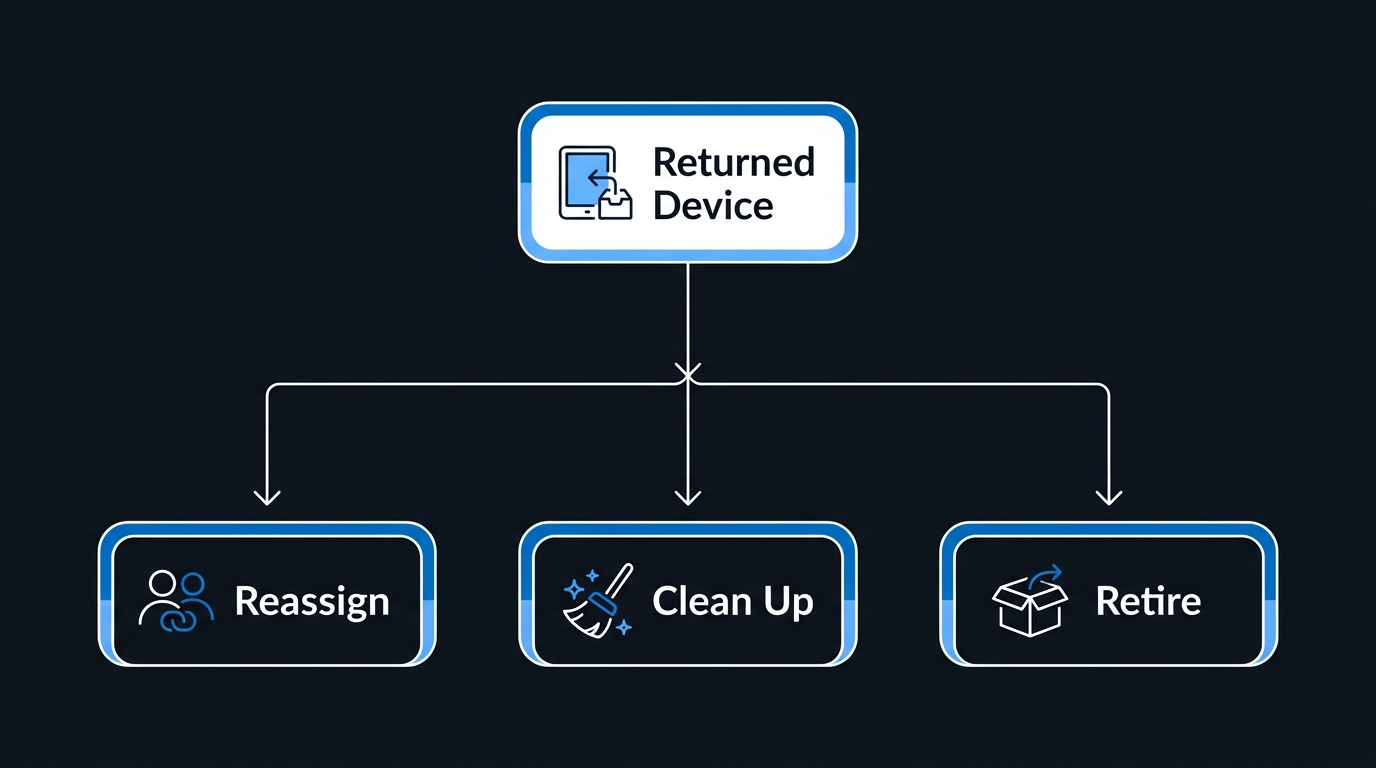
When a device comes back from an employee — offboarding, hardware refresh, reassignment — you don't need to re-image it.
Autopilot Reset is the right tool for Entra-joined devices staying in your fleet. Trigger it locally (from the sign-in screen, via the "Other users > Reset this device" option, gated behind an admin PIN or Ctrl+Windows+R shortcut you can restrict) or remotely from Intune (Devices > All devices > select device > Autopilot Reset). It wipes user data, apps, and settings, then reapplies the original Autopilot profile — but it keeps Entra join, Intune enrollment, and Autopilot registration intact, so the device is back in production in one action with no re-registration step. Note it doesn't support Hybrid Join devices.
Fresh Start is a different tool for a different problem — it's aimed at decluttering a device (removing preinstalled bloatware and third-party software) while preserving the user's home folder, not at handing a device to a new user. It doesn't reliably preserve your MDM/Autopilot state, so don't reach for it as an offboarding tool.
Full Wipe (Devices > Wipe) is for lost, stolen, or decommissioned hardware — it doesn't attempt to preserve anything and, depending on configuration, can also remove Autopilot registration if you don't explicitly keep enrollment data.
Pick by scenario: reassigning to a new employee → Autopilot Reset. Performance cleanup on a device staying with the same user → Fresh Start. Lost, stolen, or retiring the device → Wipe.
Common Mistakes to Avoid
- Registering hardware hashes for a device-preparation deployment — it's unnecessary work and can actually create a conflicting classic Autopilot registration that silently overrides the device-prep policy.
- Leaving "Install Windows quality updates" at its new default without checking what it does to first-boot time on a slow WAN link.
- Marking every assigned app as ESP-tracked, turning one flaky installer into a fleet-wide provisioning bottleneck.
- Skipping the pilot ring and going straight to a full hardware order — different OEM firmware and TPM implementations surface different failure modes.
- Using Fresh Start as a re-provisioning tool for device handoffs; it doesn't guarantee your MDM/Autopilot state survives.
- Forgetting Group Tags at registration time, then having to hand-edit every device record later to get dynamic group assignment working.
- Assuming device preparation is a strict upgrade and migrating Hybrid Join fleets to it — it doesn't support hybrid join at all.
Key Takeaways
- Two live Autopilot paths in 2026: device preparation (Entra-join only, no hash, simplified progress UI) and classic Autopilot (hash-based, Hybrid Join support, full ESP). Pick based on join type and app complexity, not on which is newer.
- Hardware hash registration — via OEM,
Get-WindowsAutopilotInfo, or Graph import — is only required for classic Autopilot. - ESP now runs two explicit phases and defaults to installing quality updates during device setup on new profiles; verify that setting rather than assuming.
- Autopilot Reset, not Fresh Start or full Wipe, is the correct tool for redeploying an Entra-joined device to a new user without losing enrollment state.
- Diagnostics live in both the Intune admin center's Autopilot deployment status blade and the local provisioning event log — cross-reference both when chasing an ESP timeout.
Next Steps
Start by inventorying your fleet's join-type mix (pure Entra vs. Hybrid) — that single fact determines which Autopilot path is even available to you. Then stand up one pilot deployment profile or device-prep policy against a 5-10 device ring, deliberately including your slowest-WAN site, before touching a production hardware order.
Related Articles
-
Microsoft 365 Reporting in 2026: Usage Reports, Graph API, and Entra Logs
-
Azure AD Conditional Access Policies: Complete Setup Guide (2026) + Maester Testing
-
Microsoft 365 Groups and Teams Sprawl: A Governance Playbook for 2026
-
Compare Windows Autopilot device preparation and Windows Autopilot | Microsoft Learn
-
What's new in Windows Autopilot device preparation | Microsoft Learn
-
Set up the Enrollment Status Page in the admin center | Microsoft Learn
-
Manually register devices with Windows Autopilot | Microsoft Learn
-
Device Action: Fresh Start – Microsoft Intune | Microsoft Learn
-
Overview for Windows Autopilot Reset in Intune | Microsoft Learn

Leave a Reply