
Executive Snapshot
| Area | Current State to Check | Risk if Ignored |
|---|---|---|
| Storage quotas | Default 1 TB/user; admin-raised quotas above license entitlement | Read-only OneDrive after July 2026 quota enforcement rollout |
| Sharing policy | Org-level default often left at "Anyone" | Uncontrolled external exposure of business data |
| Known Folder Move | Not enforced tenant-wide via Intune | Desktop/Documents data loss on device wipe or replacement |
| Sync health | No visibility into device sync errors | Silent sync failures discovered only after data loss |
| Departed-user retention | Default 30-day OneDrive retention | Business-critical files purged before manager review |
| Governance | Sensitivity labels not applied to OneDrive content | DLP policies have nothing to act on |
TL;DR
- Microsoft began enforcing licensed OneDrive quotas in July 2026 — any OneDrive above its license entitlement now gets rounded down and can go read-only, so audit before you get support tickets.
- Storage quotas top out at 5 TB self-service; anything higher requires a Microsoft support request, and quotas set above the license ceiling silently get capped on the next refresh.
- Known Folder Move (KFM) deployed silently through Intune protects Desktop, Documents, and Pictures automatically, but Microsoft caps rollout at 1,000 devices/day and 4,000/week to avoid sync storms.
- The OneDrive Sync Health dashboard lives in the Microsoft 365 Apps admin center, not the SharePoint admin center — a common source of admin confusion — and needs sync client 22.232 or later to report.
- Default departed-user retention is only 30 days (up to 93 after license removal); raise it in the SharePoint admin center to as much as 3,650 days before you need it, not after.
Introduction
OneDrive for Business quietly became the highest-stakes admin surface in Microsoft 365. It is not just personal file storage anymore — it is where Known Folder Move redirects entire desktops, where departing employees' final work products live, and where external sharing links leak data if nobody sets guardrails. In July 2026, Microsoft closed a long-standing gap by enforcing storage quotas strictly against license entitlements, which means tenants that quietly over-provisioned OneDrive storage for years are now seeing users hit read-only mode without warning.
This guide walks through the full administrative surface: how storage quotas actually work now, how to set sharing policy defaults that match your risk tolerance, how to roll out Known Folder Move without triggering a sync storm, how to monitor sync health at scale, how to handle departed-user data before it disappears, and how to wire OneDrive into your broader governance and DLP strategy. Every section includes the PowerShell you need — this is a working reference, not a policy overview. If you administer more than a handful of OneDrive accounts, treat the quota enforcement change as the trigger to revisit all of it at once.
Storage Quotas and How to Raise Them
Every licensed OneDrive for Business user gets a default allocation of 1 TB. Admins can raise individual or bulk quotas up to 5 TB through the SharePoint admin center or PowerShell without contacting support; anything beyond 5 TB per user requires a Microsoft support request justifying the business need.
The critical 2026 change: Microsoft rolled out a fix (tracked as message center post MC1310684) starting in early July 2026 and completing mid-July, which enforces that a user's actual OneDrive quota can never exceed what their license entitles them to. Historically, some admins set quotas above the licensed limit as a workaround — that workaround is now closed. If a user's OneDrive sits above their licensed quota when the enforcement reaches their tenant, that OneDrive is placed into a read-only state until either the excess storage is trimmed or the license is upgraded to one that supports the higher quota.
Run this audit before your tenant is affected, not after:
# Requires: Microsoft.Online.SharePoint.PowerShell module, SharePoint admin role
Connect-SPOService -Url https://contoso-admin.sharepoint.com

# Pull every personal site with its current quota and used storage
$oneDriveSites = Get-SPOSite -IncludePersonalSite $true -Limit All -Template "SPSPERS"

$report = foreach ($site in $oneDriveSites) {
    [PSCustomObject]@{
        Owner        = $site.Owner
        Url          = $site.Url
        QuotaGB      = [math]::Round($site.StorageQuota / 1024, 1)
        UsedGB       = [math]::Round($site.StorageUsageCurrent / 1024, 1)
        PercentUsed  = [math]::Round(($site.StorageUsageCurrent / $site.StorageQuota) * 100, 1)
    }
}

# Flag anything close to or over the 5 TB self-service ceiling
$report | Where-Object { $_.QuotaGB -gt 5000 -or $_.PercentUsed -gt 90 } |
    Sort-Object PercentUsed -Descending |
    Export-Csv -Path .\OneDriveQuotaAudit.csv -NoTypeInformation
Cross-reference the export against each owner's assigned license SKU. Anyone with a quota set above their license's entitlement needs either a license upgrade or a quota reduction before the enforcement pass reaches them — reducing quota on a site that's already near capacity risks pushing that user into read-only immediately, so trim only accounts with headroom.
To raise the default org-wide baseline for all new OneDrive provisions:
# Set the org default OneDrive quota (in MB) — applies to newly provisioned sites
Set-SPOTenant -OneDriveStorageQuota 5242880   # 5 TB in MB

# Raise quota for a single existing user (must not exceed license entitlement)
Set-SPOSite -Identity "https://contoso-my.sharepoint.com/personal/jsmith_contoso_com" `
    -StorageQuota 2097152   # 2 TB in MB
Sharing Policies: Org Defaults, External Tiers, and Link Types
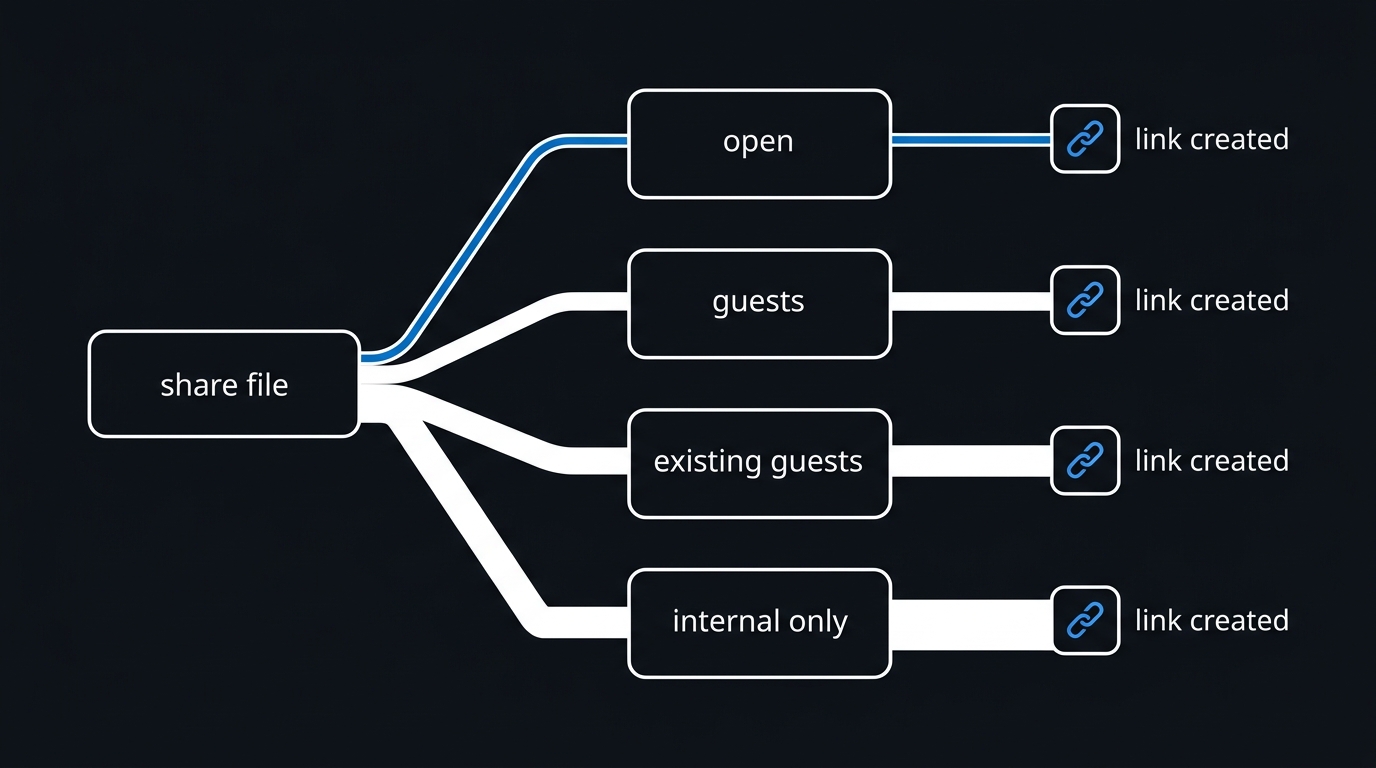
SharePoint and OneDrive share one org-level sharing setting, with four tiers from most to least permissive: Anyone (anonymous links), New and existing guests (requires sign-in or verification), Existing guests only, and Only people in your organization. Site-level settings can be more restrictive than the org default but never more permissive — SharePoint always applies whichever setting is stricter.
A second change worth flagging: starting May 2026, Microsoft Entra B2B integration for SharePoint and OneDrive external sharing became mandatory for all tenants. The EnableAzureADB2BIntegration setting no longer has any effect once the rollout reaches your tenant — guest sharing now always flows through Entra ID, so any external-access reviews or Conditional Access policies scoped to guest accounts need to assume this is universally true.
# Set the org-wide default to "Existing guests only" — a reasonable middle ground
# Options: Disabled | ExistingExternalUserSharingOnly | ExternalUserSharingOnly | ExternalUserAndGuestSharing
Set-SPOTenant -SharingCapability ExistingExternalUserSharingOnly

# Set expiration on anonymous ("Anyone") links — org-wide max and recommended defaults
Set-SPOTenant -CoreOrganizationSharingLinkMaxExpirationInDays 30
Set-SPOTenant -OneDriveOrganizationSharingLinkMaxExpirationInDays 30
Set-SPOTenant -CoreOrganizationSharingLinkRecommendedExpirationInDays 14
Set-SPOTenant -OneDriveOrganizationSharingLinkRecommendedExpirationInDays 14

# Default link type new shares default to: Direct (specific people) rather than org-wide
Set-SPOTenant -DefaultSharingLinkType Direct
Set-SPOTenant -DefaultLinkPermission View
Decide the sharing tier before you decide the link defaults — a permissive org setting with tight link expirations still leaks more than a restrictive org setting with loose ones.
flowchart TD
    A[User shares a OneDrive file] --> B{Org sharing capability}
    B -->|Anyone| C{Sensitivity label on file?}
    B -->|New/Existing guests| D{Recipient has org account or verified email?}
    B -->|Existing guests only| E{Recipient already a guest in tenant?}
    B -->|Only people in org| F[Internal share only]
    C -->|Highly Confidential| G[Block anonymous link, force Specific People]
    C -->|Public/General| H[Allow anonymous link with expiration]
    D -->|Yes| I[Guest link created, Entra B2B invite sent]
    D -->|No| J[Prompt to request access instead]
    E -->|Yes| I
    E -->|No| J
    F --> K[Direct link, no external exposure]
Known Folder Move Rollout via Intune / GPO
Known Folder Move (KFM) redirects a user's Desktop, Documents, and Pictures folders into their OneDrive so local-only data survives device loss, wipe, or replacement. Intune's Settings Catalog is now the preferred deployment path over legacy ADMX-backed GPO, though both are still supported for hybrid environments.
Deploy silently to avoid relying on end users to click through a prompt:
# This block is illustrative of the registry values the Intune Settings Catalog
# profile ultimately writes — useful for validating deployment via a Win32 detection script
# or for environments still using Group Policy Preferences.

$oneDriveKey = "HKLM:\SOFTWARE\Policies\Microsoft\OneDrive"
New-Item -Path $oneDriveKey -Force | Out-Null

# Tenant ID scopes KFM to your org's OneDrive
Set-ItemProperty -Path $oneDriveKey -Name "KFMSilentOptIn" -Value "<your-tenant-id>" -Type String

# Suppress the opt-out option so users can't unlink KFM once applied
Set-ItemProperty -Path $oneDriveKey -Name "KFMSilentOptInWithNotification" -Value 1 -Type DWord

# Block sync of personal (consumer) Microsoft accounts on managed devices
Set-ItemProperty -Path $oneDriveKey -Name "DisablePersonalSync" -Value 1 -Type DWord
In the Intune admin center, build this as Devices > Configuration > Create > Settings catalog, filter for "OneDrive," and configure Silently move Windows known folders to OneDrive with your tenant ID, plus Prevent users from redirecting their Windows known folders back to their PC. Assign to a pilot group of 50–100 devices first — Microsoft's own guidance caps broad rollout at 1,000 devices per day and 4,000 per week because simultaneous first-time KFM syncs across thousands of desktops can overwhelm both client bandwidth and SharePoint backend throttling. Stagger by Azure AD dynamic group or Intune scope tag rather than pushing to "All Devices" in one assignment.
Sync Health Monitoring and Controls
The OneDrive Sync Health dashboard is easy to look for in the wrong place — it lives in the Microsoft 365 Apps admin center (config.office.com), under Health > OneDrive Sync, not the SharePoint admin center. It requires the OneDrive sync client to be version 22.232 or later on Windows and macOS to report data at all, so any fleet still on an older client shows up as a blind spot rather than a clean bill of health.
The dashboard's Overview tab surfaces three numbers worth watching weekly: the percentage of devices with at least one active sync issue, the percentage of devices with Known Folder Move enabled, and the percentage running the current OneDrive client version. Drill into the Issues tab for per-device errors — authentication failures, path-length violations, and file-lock conflicts are the most common categories.
To control sync behavior at the tenant level rather than just observe it:
# Block sync of specific file types tenant-wide (space-separated extensions, no leading dot)
Set-SPOTenant -ExcludedFileExtensionsForSyncClient "pst", "ost", "bak"

# Restrict OneDrive sync to only domain-joined or Intune-managed devices
Set-SPOTenant -TenantRestrictionEnabled $true
Set-SPOTenant -AllowedDomainListForSyncClient "<tenant-directory-id>"

# Throttle sync bandwidth is a client-side registry/GPO setting, not a tenant setting —
# validate current values pulled from a representative device
Get-ItemProperty -Path "HKCU:\Software\Microsoft\OneDrive" -Name "EnableAllOrNothingDownloadUx" -ErrorAction SilentlyContinue
Blocking personal Microsoft accounts (covered in the KFM section via DisablePersonalSync) is the single highest-impact control here — it closes the most common data-exfiltration path where an employee signs a second, personal OneDrive account into a managed device and copies files across.
Departed-User Retention and Access Transfer
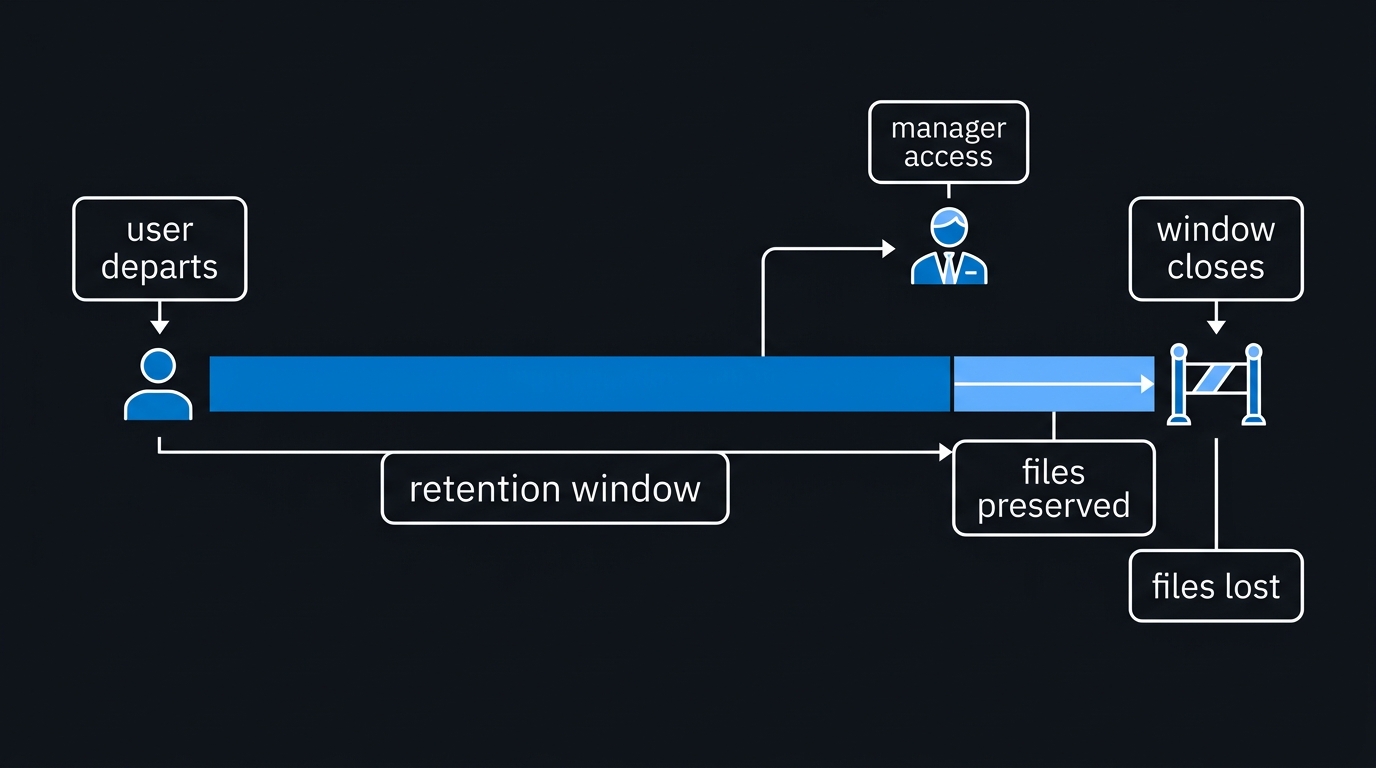
By default, OneDrive for Business retains a user's content for only 30 days after their account is deleted, or up to 93 days if the license is simply removed before deletion. That window is short enough that a manager on vacation, or an offboarding process with any lag, can lose access to business-critical files permanently. Raise the default before you need it — you can configure retention up to 3,650 days (10 years) tenant-wide.
# Raise the tenant-wide default retention window for deleted users' OneDrive (in days, max 3650)
Set-SPOTenant -OrphanedPersonalSitesRetentionPeriod 180

# Grant a manager or designated user secondary admin access to a departed employee's OneDrive
# so files can be reviewed/migrated before the retention window closes
Set-SPOSite -Identity "https://contoso-my.sharepoint.com/personal/jdoe_contoso_com" `
    -Owner "manager@contoso.com"

# Bulk report of OneDrive sites belonging to disabled or deleted Entra ID accounts
$disabledUsers = Get-MgUser -Filter "accountEnabled eq false" -All
foreach ($user in $disabledUsers) {
    $upn = $user.UserPrincipalName -replace "@", "_" -replace "\.", "_"
    Get-SPOSite -Identity "https://contoso-my.sharepoint.com/personal/$upn" -ErrorAction SilentlyContinue |
        Select-Object Url, StorageUsageCurrent, LastContentModifiedDate
}
Pair this with a Microsoft Purview retention policy scoped to a "Leavers" adaptive scope — when an Entra ID account moves into a leaver state, it automatically shifts from an active retain-only policy to a retain-and-delete policy, which is a separate control layer from the SharePoint-level site retention setting above. Both need to be configured; neither substitutes for the other.
Governance with Sensitivity Labels and DLP Touchpoints
OneDrive inherits sensitivity labeling and Data Loss Prevention enforcement from the same Microsoft Purview policies applied to SharePoint and Exchange, but it is frequently left out of policy scope because admins configure DLP against SharePoint sites and forget OneDrive is a distinct location type in the policy editor. Confirm every DLP policy explicitly includes "OneDrive accounts" as a location, not just "SharePoint sites" — the two are separate checkboxes.
Sensitivity labels applied automatically (via auto-labeling policies scanning OneDrive content) give DLP something concrete to act on: a label of "Highly Confidential" can trigger a DLP rule that blocks external sharing outright, regardless of the org-wide sharing tier configured earlier. This layered approach — org sharing tier as the baseline, label-driven DLP as the override — is what lets you keep a moderately permissive default sharing policy without exposing regulated content.
Automation with SharePoint Online Management Shell / Graph PowerShell
Most of the commands above use the SharePoint Online Management Shell module (Microsoft.Online.SharePoint.PowerShell), which remains the primary surface for tenant-wide OneDrive settings. Microsoft Graph PowerShell (Microsoft.Graph) is the better fit for user- and site-scoped reporting and for anything touching Entra ID state, since SPO cmdlets don't expose license or account-status data directly.
A practical combined workflow: use Graph to identify the population (for example, users nearing license changes or departure), then use SPO cmdlets to act on their OneDrive sites. Scheduling this as a weekly Azure Automation runbook, rather than a manual ad hoc script, is what keeps the quota and retention audits from silently going stale.
Troubleshooting Common Sync Issues
- Sync stuck at "Processing changes" — usually a file with an unsupported character, path exceeding 400 characters, or a file locked by another process. Check the Sync Health dashboard's per-device issue list rather than guessing from user reports.
- "We can't connect to OneDrive" after a password reset — a stale refresh token; have the user sign out and back into the OneDrive client rather than restarting the app, which doesn't force reauthentication.
- Read-only OneDrive after July 2026 quota enforcement — check the account's license SKU against the storage quota audit script above; the fix is either a license upgrade or reducing stored content, not adjusting
Set-SPOSite -StorageQuota(that value is now capped server-side). - KFM silently fails to redirect on some devices — confirm the device isn't also joined to a personal Microsoft account session;
DisablePersonalSyncneeds to be applied before KFM enrollment, not after. - Sync health dashboard shows no data for a device — client version below 22.232; push a OneDrive client update via the same Intune Settings Catalog profile used for KFM.
Common Mistakes to Avoid
- Setting per-user quotas above the license entitlement as a workaround — this stopped working with the July 2026 enforcement change and now risks read-only lockouts.
- Leaving the org-wide sharing default at "Anyone" because it was never revisited after initial tenant setup.
- Configuring DLP policies against SharePoint sites only, forgetting OneDrive is a separate location that must be explicitly included.
- Rolling out silent KFM to all devices in a single Intune assignment instead of staggering by group, risking sync storms and helpdesk spikes.
- Leaving departed-user retention at the 30-day default and discovering the gap only after a manager needs a file that's already gone.
Key Takeaways
OneDrive administration in 2026 is no longer "set it and forget it" — the quota enforcement change alone forces a tenant-wide audit that many admins haven't run in years. Treat storage, sharing, KFM, sync health, and retention as one connected system: a permissive sharing default without label-driven DLP is a gap, an unmonitored KFM rollout is a helpdesk incident waiting to happen, and a short retention window is a liability the moment someone needs it extended.
Next Steps
Run the storage quota audit script this week, before the enforcement wave reaches accounts you haven't checked. Then move through sharing policy, KFM staging groups, and retention settings in that order — each builds on visibility the previous step gives you.

Leave a Reply