
Executive Snapshot
| Dimension | Detail |
|---|---|
| Problem | Unrestricted self-service creation lets every Teams meeting, project, or chat spin up a permanent Microsoft 365 Group with its own SharePoint site, mailbox, and Planner |
| Root cause | EnableGroupCreation defaults to $true tenant-wide, no naming standard, no expiration, no ownership succession |
| Fix | Security-group-gated creation, naming policy, activity-based expiration, ownerless-group remediation, container sensitivity labels, guest access review |
| Licensing | Naming policy and expiration policy require Microsoft Entra ID P1 (or P2) for affected users; container sensitivity labels require Microsoft Purview / E5 compliance |
| Tooling | Microsoft Graph PowerShell SDK, Microsoft Entra admin center, Microsoft 365 admin center, Microsoft Purview compliance portal |
| Rollout window | 6-8 weeks from audit to enforcement, staged by department |
| Ongoing cost of doing nothing | Slower search, orphaned data with no accountable owner, expanding guest-access attack surface, redundant licensing spend on empty containers |
TL;DR
- Audit before you restrict — pull a full inventory of groups, owners, and last-activity dates with Microsoft Graph PowerShell before you touch a single setting.
- Gate creation, don't ban it — flip
EnableGroupCreationto$falseand route requests through a security group and a lightweight request form, not a helpdesk ticket black hole. - Naming and expiration are the highest-leverage controls — a prefix convention plus an activity-based expiration policy prevents 80% of new sprawl with almost no user friction.
- Ownerless groups are a silent risk, not a cosmetic problem — every group without an accountable owner is a container nobody is reviewing for guest access or stale permissions.
- Sequence the rollout in phases — inventory, then soft policy (naming + notifications), then hard enforcement (creation gate + expiration), or you will get an inbox full of complaints and a rolled-back policy.
Introduction
Every Teams meeting invite, every ad-hoc project chat, every "let's just spin up a Team for this" moment creates a Microsoft 365 Group — and each one drags along a SharePoint site, an Exchange mailbox, a Planner plan, and a Viva Engage connection whether anyone asked for all of that or not. In a tenant with no governance, that adds up fast: three years in, a mid-size organization typically has thousands of groups, half of them untouched since creation, a third with no owner left in the company, and a search experience that returns five stale "Marketing Team" results before the current one.
This isn't a hypothetical. It's the default behavior of Microsoft 365, because EnableGroupCreation ships set to allow anyone to create a group, and nothing expires by default. Fixing it doesn't require ripping capability away from users — it requires four or five specific, well-documented Microsoft Entra and Microsoft 365 admin controls, applied in the right order. This guide walks through assessing your current sprawl, restricting who can create groups, enforcing naming and expiration, closing the ownerless-group gap, layering in sensitivity labels for container-level protection, and rolling all of it out without triggering a user revolt.
Why Sprawl Happens: Default Create-Anything Behavior
Microsoft 365 Groups are the connective tissue behind Teams, SharePoint team sites, Planner, and Viva Engage — one group, one set of memberships, four experiences. That design is genuinely good for collaboration. It's also why sprawl compounds so quickly: creating a Team, a Planner plan, or a Viva Engage community all silently provision a Microsoft 365 Group behind the scenes, so users rarely realize they're creating a permanent object with a SharePoint site and mailbox attached.
Left at tenant defaults:
EnableGroupCreationis$true— any licensed user can create a group from Outlook, Teams, Planner, or Viva Engage.- There is no naming convention, so you get "Project X," "ProjectX," "Project_X_2025," and "px-team" for the same initiative.
- Expiration is off, so groups persist forever, even after the project, event, or team they supported has ended.
- Ownership isn't enforced at creation — the creator becomes the sole owner, and when they leave the company, the group becomes ownerless with nobody responsible for membership or guest review.
None of this is a bug. It's an intentional trade-off toward frictionless collaboration. The governance job is to reintroduce just enough friction and lifecycle management to keep the tenant navigable, without reintroducing the IT-ticket bottleneck that self-service was built to eliminate in the first place.
Assessing Current Sprawl: Build the Inventory First
Don't restrict anything until you know what you're restricting. Pull a full inventory of Microsoft 365 Groups, their owners, member counts, and last-activity signals using the Microsoft Graph PowerShell SDK.
# Connect with the scopes needed to read groups, owners, and directory activity
Connect-MgGraph -Scopes "Group.Read.All", "Directory.Read.All", "Reports.Read.All"

# Pull every Microsoft 365 (unified) group with core metadata
$groups = Get-MgGroup -Filter "groupTypes/any(c:c eq 'Unified')" -All `
    -Property Id, DisplayName, Mail, CreatedDateTime, RenewedDateTime, Visibility

$report = foreach ($group in $groups) {
    $owners = Get-MgGroupOwner -GroupId $group.Id -All
    $members = Get-MgGroupMember -GroupId $group.Id -All

    [PSCustomObject]@{
        DisplayName   = $group.DisplayName
        Mail          = $group.Mail
        Visibility    = $group.Visibility
        CreatedOn     = $group.CreatedDateTime
        LastRenewed   = $group.RenewedDateTime
        OwnerCount    = $owners.Count
        MemberCount   = $members.Count
        IsOwnerless   = $owners.Count -eq 0
    }
}

# Surface the two things you care about most: no owner, or stale renewal
$report |
    Where-Object { $_.IsOwnerless -or $_.LastRenewed -lt (Get-Date).AddMonths(-6) } |
    Sort-Object IsOwnerless -Descending |
    Export-Csv -Path ".\m365-group-sprawl-audit.csv" -NoTypeInformation
Run this monthly during the assessment phase. You're looking for three numbers that will shape the rest of your rollout: total group count, percentage with zero owners, and percentage untouched in the last 90-180 days. In most tenants that have never had a lifecycle policy, 20-35% of groups are ownerless and 40%+ show no meaningful activity in six months — that's your baseline, and it's the number you'll report back to leadership to justify the policy.
Restricting Group Creation: The Security-Group Gate
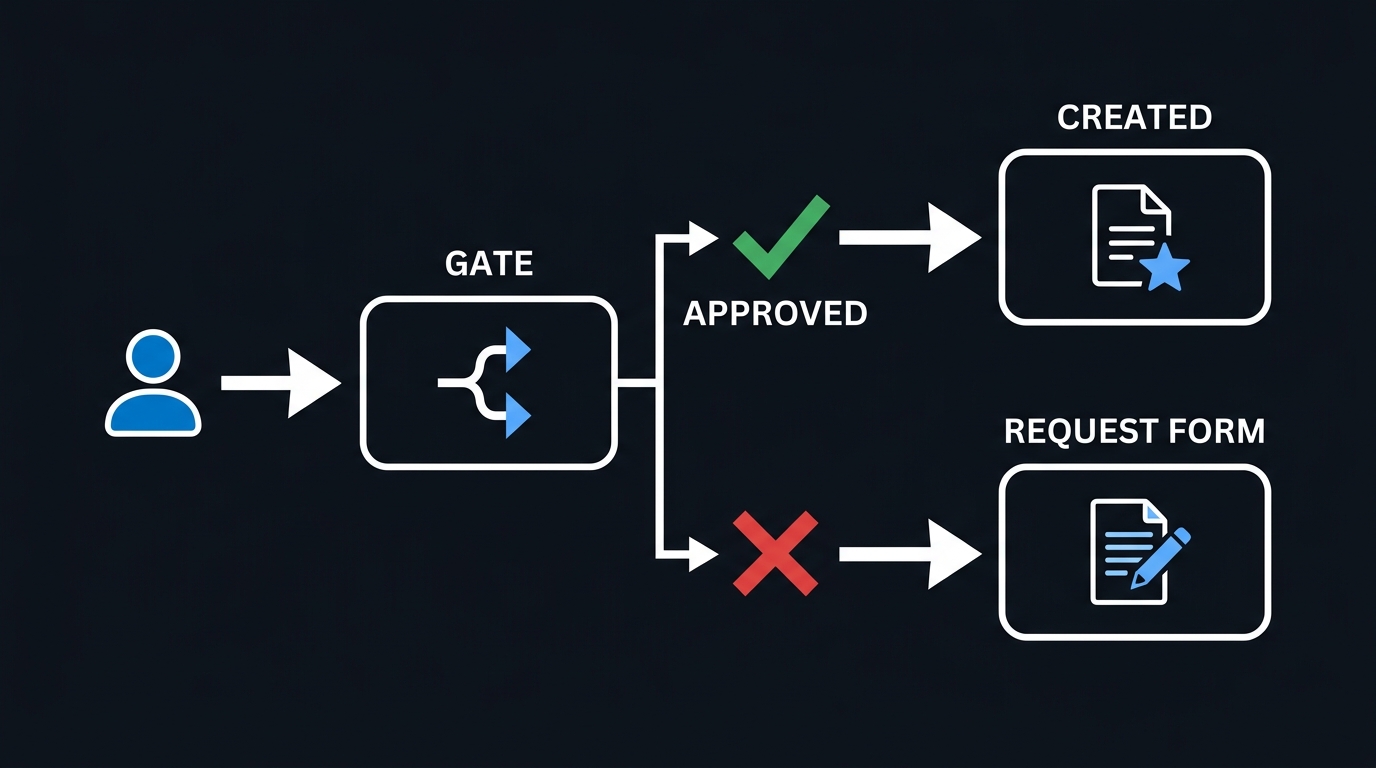
The most effective single control is also the simplest: stop unrestricted self-service creation and route it through a security group. This doesn't require a helpdesk approval workflow — it requires deciding who's allowed to create groups (typically team leads, project managers, and IT), putting them in a security group, and pointing the tenant setting at it.
Connect-MgGraph -Scopes "Directory.ReadWrite.All", "Group.ReadWrite.All"

# 1. Create (or reuse) a security group that holds approved group creators
$creatorsGroup = New-MgGroup -DisplayName "M365-Group-Creators-Approved" `
    -MailEnabled:$false -MailNickname "m365groupcreators" -SecurityEnabled:$true

# 2. Locate the directory setting template for group.unified behavior
$template = Get-MgDirectorySettingTemplate | Where-Object { $_.DisplayName -eq "Group.Unified" }
$settingsObject = @{
    templateId = $template.Id
    values = @(
        @{ name = "EnableGroupCreation"; value = "False" }
        @{ name = "GroupCreationAllowedGroupId"; value = $creatorsGroup.Id }
    )
}

# 3. Apply it as a directory-wide setting (update if one already exists instead of creating a duplicate)
$existing = Get-MgDirectorySetting | Where-Object { $_.TemplateId -eq $template.Id }
if ($existing) {
    Update-MgDirectorySetting -DirectorySettingId $existing.Id -BodyParameter $settingsObject
} else {
    New-MgDirectorySetting -BodyParameter $settingsObject
}
Two things to verify before you flip this live: the accounts you'll rely on for break-glass creation need Microsoft Entra ID P1 licensing (this is a premium directory feature), and Global Administrators, Groups Administrators, and a handful of other privileged roles retain the ability to create groups regardless of membership in the gating security group — don't be surprised when a helpdesk admin can still create one after "everyone" is restricted. Changes to directory settings can take up to 30 minutes to propagate, so don't panic-test five minutes after applying.
Naming Policy: Make Sprawl Searchable, Even Where It Persists
A naming policy won't stop sprawl on its own, but it makes existing sprawl navigable and gives you a durable signal for later cleanup. Configure it in the Microsoft Entra admin center under Groups > Settings > Naming policy, or via Graph, using a prefix-suffix pattern such as [Department]-GroupName-[YYYYMMDD].
Two components matter:
- Prefix/suffix template — automatically stamps a department code or ticket reference on every group name so ownership context survives even after the original creator leaves.
- Blocked words list — prevents groups named things like "HR," "Payroll," "Legal," or "Executive" from being created by anyone outside those specific approved teams, closing an easy impersonation/social-engineering vector.
The naming policy only applies going forward — it does not rename existing groups — so plan a one-time bulk-rename pass against your audit CSV for anything actively in use, and let anything inactive fall through to the expiration policy instead of manually renaming dead weight.
Expiration Policy: Activity-Based Renewal, Not a Blunt Timer
Expiration is off by default and has to be turned on deliberately in the Microsoft Entra admin center (Groups > Expiration) or via the Group.Unified directory setting. Set a lifetime — 180 or 365 days is typical — and, critically, enable activity-based auto-renewal so groups with real usage renew themselves silently and only genuinely dormant groups reach the owner-notification stage.
How it actually behaves in production: as a group approaches its expiration date, Microsoft 365 checks for group activity (SharePoint file access, Teams chat, Outlook conversation, Planner task updates). If activity is detected, the group renews automatically with no action needed from anyone. If there's no activity, owners get an email notification to manually renew; if no owner renews within the grace period, the group is soft-deleted and — this is the safety net worth telling users about explicitly — recoverable for 30 days by an owner or an administrator before it's gone for good.
This is the control that does the most long-term work with the least standing effort, but it has a hard licensing dependency: every member of every group the policy applies to needs to be covered by an available Entra ID P1 or P2 license in the tenant (not necessarily assigned to each user, but available in the pool) — confirm your licensing headroom before you turn it on tenant-wide, or scope it to a subset of groups first.
Ownerless Groups Policy: Close the Accountability Gap
Your audit will surface a real number of ownerless groups — from people who left the company, changed roles, or were removed as sole owner without anyone reassigning ownership. Left alone, these are containers nobody is reviewing for guest membership, stale permissions, or sensitive content.
Microsoft 365 has a built-in remediation policy for this in the Microsoft 365 admin center under Settings > Org settings > Microsoft 365 Groups: when a group has no owner, it automatically emails the most active members and asks if they'll accept ownership. Configure how many active members get asked and how many weeks between notification waves. Once someone accepts, notifications stop and the group has an accountable owner again.
Treat this as a standing control, not a one-time cleanup. Pair it with your monthly audit script — any group still showing IsOwnerless = $true after two notification cycles should be flagged for manual review or folded into the next expiration cycle rather than left to accumulate indefinitely.
Sensitivity Labels for Containers: Protection That Travels With the Group
Naming and expiration control the group's existence. Sensitivity labels control what happens inside it. Container labels — configured in the Microsoft Purview compliance portal and published to Teams, SharePoint sites, Microsoft 365 Groups, and Viva Engage communities — let you enforce privacy (public vs. private), guest access permission, and unmanaged-device access as a single labeling decision applied at creation or afterward.
A typical three-tier model:
- General — public or private per team choice, guests allowed, standard access.
- Confidential — private only, guests allowed with justification, conditional access enforced for unmanaged devices.
- Highly Confidential — private only, guest access blocked entirely, device compliance required.
As of 2026, Microsoft has extended sensitivity labels into public preview for Microsoft Entra cloud security groups too — not just Microsoft 365 Groups — giving you the same proactive guest-access governance over static security groups that were previously ungoverned by Purview. Worth piloting if your tenant leans heavily on security groups for access control alongside Microsoft 365 Groups.
One operational gotcha: applying a label that blocks guest access does not retroactively remove guests already in the group. If a group is relabeled to a stricter tier, guest removal is a separate manual or scripted step — don't assume the label alone closes the door.
Guest Access Governance: Review, Don't Just Restrict
Guest access is usually the actual risk sprawl creates — not the group count itself. Combine container sensitivity labels with a recurring access review:
- Enable Entra access reviews scoped to groups with guest members, run quarterly, with the group owner as the reviewer (this is also why ownerless-group remediation matters — an access review with no owner to review it is a review that never happens).
- Cross-reference your audit CSV's ownerless and stale groups against guest membership counts — a dormant group with active guest accounts is your highest-priority remediation target, ahead of anything else on this list.
- For groups tied to time-bound external engagements (vendor projects, client collaborations), set expiration to match the engagement window rather than a generic 365-day default.
Governance Lifecycle
flowchart LR
    A[Create] -->|naming policy applied| B[Govern]
    B -->|activity detected| B
    B -->|guest access review| B
    B -->|no activity + no owner action| C[Expire]
    C -->|owner renews| B
    C -->|no renewal, 30-day grace| D[Archive / Delete]
    D -->|recoverable within 30 days| C
A Rollout Plan That Doesn't Enrage Users
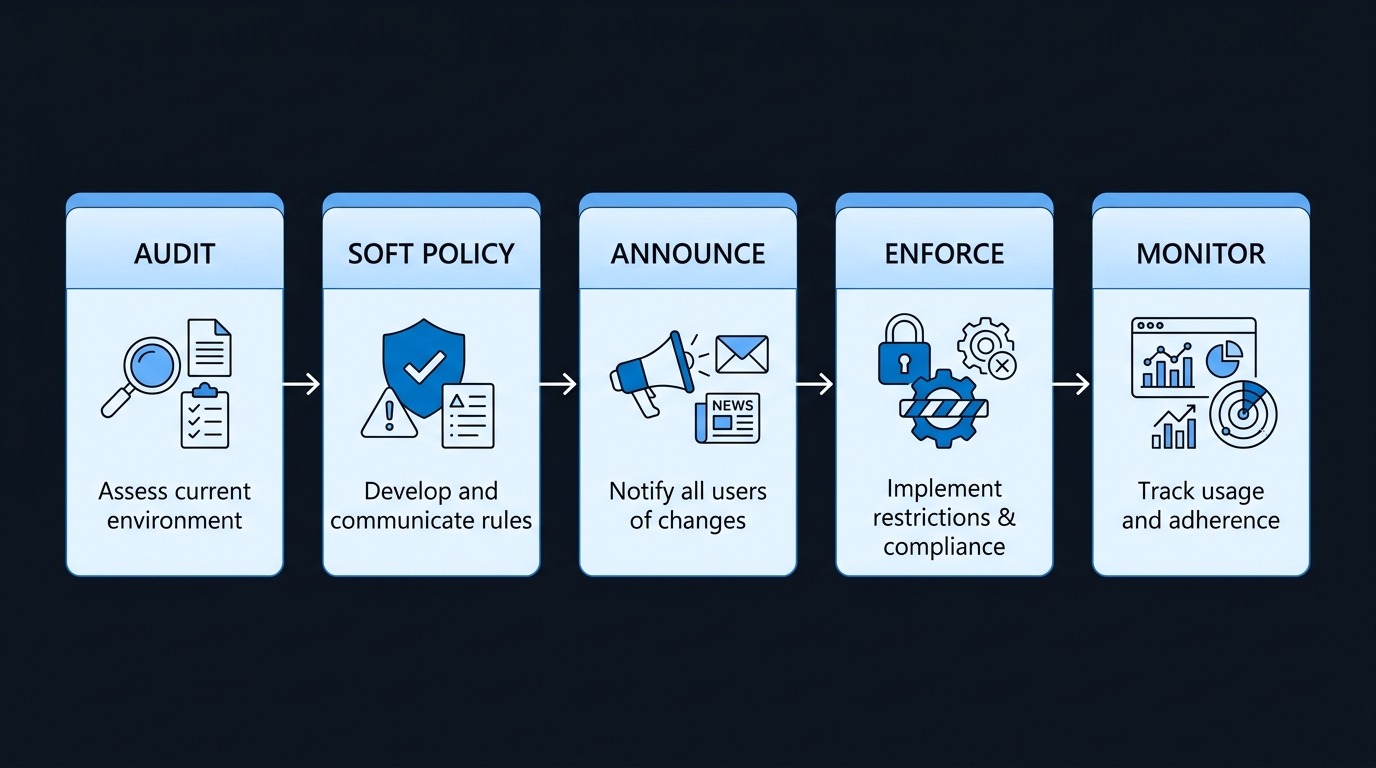
Sequencing matters more than any individual setting. Enforce everything simultaneously and you'll get a flood of complaints and a rolled-back policy within a week. Stage it instead:
- Weeks 1-2 — Audit only. Run the Graph PowerShell inventory, quantify ownerless and dormant groups, and get sign-off from leadership on the numbers before you touch a single control.
- Weeks 3-4 — Soft policy. Turn on the naming policy and ownerless-group notifications. Nothing blocks anyone yet; this is pure visibility and low-friction nudging.
- Weeks 5-6 — Announce and educate. Communicate the upcoming creation gate and expiration policy directly to the security-group population who'll be affected, with a clear self-service path for requesting group-creation access (a form, not a ticket queue).
- Weeks 7-8 — Hard enforcement. Flip
EnableGroupCreationto$falsewith the security-group gate, and turn on the expiration policy with activity-based renewal. - Ongoing — Monthly audit + quarterly guest access review. The policies run themselves once live, but the audit script and access reviews are what catch drift and prove the program is still working.
Communicate the "why" in business terms every time: fewer duplicate groups to search through, faster onboarding because naming is predictable, and no surprise loss of access because expiration always comes with a 30-day recovery window, not an instant deletion.
Common Mistakes to Avoid
- Restricting creation before running the audit. You'll have no baseline to measure improvement against and no data to justify the policy to skeptical stakeholders.
- Turning on expiration without activity-based renewal. A blunt timer expires groups that are actively in use, and you'll spend the next quarter fielding "why did my Team disappear" tickets.
- Assuming Global Admins are also gated by the creation restriction. They aren't — several privileged roles retain creation rights regardless of security-group membership.
- Applying a stricter sensitivity label and assuming guests are automatically removed. They aren't; guest removal is a separate step.
- Skipping the licensing check. Naming and expiration policies require Entra ID P1/P2 coverage for affected users — confirm pool availability before you flip switches tenant-wide, not after.
- Enforcing everything in one change window. Sequenced rollout beats simultaneous enforcement every time this has been tried at scale.
- Treating ownerless-group remediation as a one-time cleanup. It's a recurring policy that needs the same monthly audit cadence as everything else, or the backlog rebuilds within two quarters.
Key Takeaways
- Sprawl is a default-behavior problem, not a user-behavior problem —
EnableGroupCreationand unset expiration are the root causes, and both are fixable with directory settings. - Audit first, using Microsoft Graph PowerShell, to establish a baseline of ownerless and dormant groups before restricting anything.
- The security-group +
AllowGroupCreationpattern gates creation without eliminating self-service — approved creators keep frictionless access. - Naming policy and activity-based expiration are the two highest-leverage controls and should be enabled before hard enforcement of creation restrictions.
- Ownerless-group remediation and guest access reviews are recurring processes, not one-time projects — bake them into a monthly/quarterly cadence.
- Container sensitivity labels add access-control enforcement that travels with the group, but don't retroactively clean up existing guest memberships.
Next Steps
Run the audit script against your own tenant this week — even before deciding on final policy values, the ownerless-group and dormant-group counts alone are usually enough to get budget and buy-in for the rest of the rollout. Then work through the six-to-eight week sequence above, starting with naming policy and ownerless notifications, and hold hard enforcement (creation gate, expiration) until you've communicated the change to the population it affects.

Leave a Reply