
Status as of
A supplier emails your project manager asking why the design files no longer open. The sharing link still works for three other people at the same company. Nothing changed in SharePoint, nobody touched permissions, and the audit log shows a successful share followed by a failed sign-in. What changed is identity: once the SharePoint OTP retirement reaches a tenant, previously shared links stop working for external recipients who have no matching Microsoft Entra B2B guest account, and tenants that have not prepared get exactly this class of ticket.
This walkthrough covers the migration end to end: how to find the recipients who will lose access, how to check the policies the B2B path depends on, how to restore access one recipient at a time, how to keep guest sprawl under control afterwards, and how to prove both old links and new invitations work before your helpdesk finds out the hard way.
What the SharePoint OTP retirement actually changes
SharePoint OTP retirement is the removal of SharePoint and OneDrive's own one-time passcode sign-in, where external recipients authenticated with an emailed code and existed only as records inside SharePoint. Once it reaches your tenant, those recipients need a matching Microsoft Entra B2B guest account, so directory policy governs their access.
The distinction that trips people up: email one-time passcode as an authentication method is not going away. Microsoft Entra still issues email OTP as the fallback for guests who have no work account and no Microsoft account, and email one-time passcode authentication is enabled by default for B2B collaboration. What retires is SharePoint's parallel, directory-less version of it.
| Legacy SharePoint OTP user | Entra B2B guest | |
|---|---|---|
| Directory object | None — SharePoint-only record | Full guest user in Entra ID |
| Authentication | SharePoint-issued emailed code | Work account, Microsoft account, Google, or Entra email OTP |
| Conditional Access | Not applicable | Fully in scope |
| Cross-tenant access settings | Ignored | Enforced |
| Lifecycle tooling | ExternalUserExpireInDays only |
Access reviews, guest expiration, lifecycle workflows |
| Visible in Graph | No | Yes |
The timeline matters more than any switch. According to the SharePoint and OneDrive integration with Microsoft Entra B2B documentation, Microsoft enabled the integration for new external sharing in commercial tenants between May and July 2026. The EnableAzureADB2BIntegration setting no longer controls sharing behaviour there, and the integration cannot be disabled. Every new share in a commercial tenant already creates a B2B guest.
The SharePoint OTP retirement itself rolls out to commercial tenants during October 2026. You cannot pick the date, opt out, or scope it to a site; it applies to the whole tenant. Recipients with a matching guest account keep access to previously shared Specific people links. Recipients without one get access denied. "Anyone" links are not affected. The work is therefore not flipping a flag but finding the recipients who still lack a guest account and giving them one.
Prerequisites: roles, modules, and licences
Before you start, confirm you have:
- SharePoint Administrator for tenant and site sharing settings, plus site admin rights on any site whose sharing report you run.
- Guest Inviter or User Administrator to create guest accounts on behalf of recipients.
- Security Administrator or Conditional Access Administrator to scope policy at guests.
- Microsoft Entra ID P1 for Conditional Access targeting guests; ID Governance (P2) if you intend to use access reviews.
- The current modules installed:
Install-Module -Name Microsoft.Online.SharePoint.PowerShell -Scope CurrentUser -Force
Install-Module -Name Microsoft.Graph -Scope CurrentUser -Force

Connect-SPOService -Url "https://contoso-admin.sharepoint.com"
# AuditLog.Read.All is needed later for signInActivity and sign-in log queries;
# User.Invite.All lets you create the matching guest accounts.
Connect-MgGraph -Scopes "User.Read.All","User.Invite.All","AuditLog.Read.All",
    "Policy.ReadWrite.ConditionalAccess","Policy.Read.All"
Capture the current state before you change anything. This output is your rollback reference. EnableAzureADB2BIntegration is included only for the record; in a commercial tenant its value no longer changes anything:
Get-SPOTenant | Select-Object `
    SharingCapability,
    EnableAzureADB2BIntegration,
    SharingDomainRestrictionMode,
    SharingAllowedDomainList,
    SharingBlockedDomainList,
    ExternalUserExpirationRequired,
    ExternalUserExpireInDays,
    RequireAcceptingAccountMatchInvitedAccount |
  Format-List

(Get-MgPolicyAuthorizationPolicy).AllowInvitesFrom
If AllowInvitesFrom returns none, stop. Guest invitations are blocked at the directory, and because every new external share already runs through B2B, every one of them fails. Fix the external collaboration settings first — adminsAndGuestInviters is a reasonable middle ground for most regulated tenants.
How to find recipients without an Entra B2B guest account
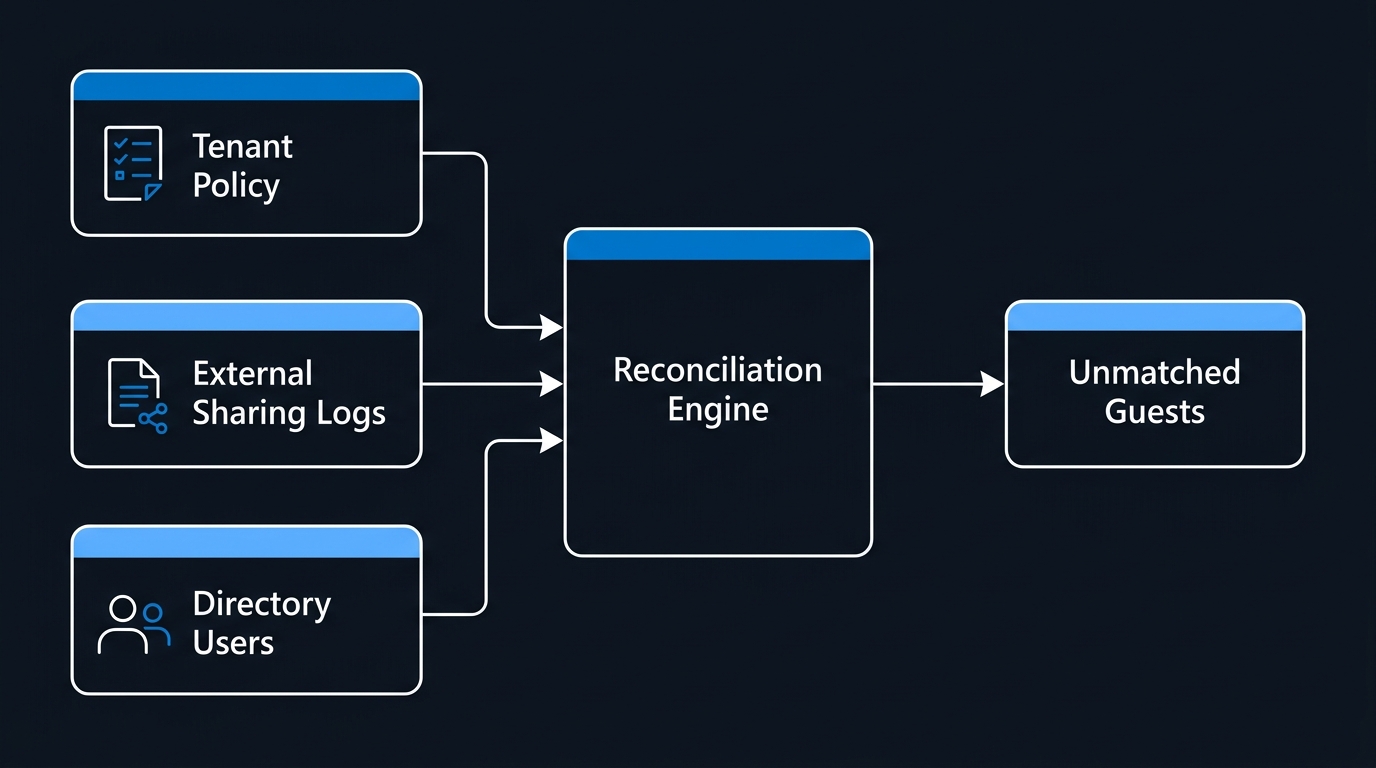
The SharePoint OTP retirement only breaks access for recipients who lack a guest account, so you need that list first, and Get-SPOExternalUser will not give you one: it does not inventory recipients of the email-verification sharing flow, so comparing its output against the directory produces a reassuring zero that means nothing. Microsoft's external sharing FAQ points at the site-level external sharing report instead, whose User E-mail column lists guests invited through SharePoint OTP who do not yet have a B2B guest account.
Start by listing the sites where external sharing is switched on at all, because those are the only sites that can hold affected links:
$sites = Get-SPOSite -Limit All |
    Where-Object { $_.SharingCapability -ne 'Disabled' } |
    Select-Object Url, Title, SharingCapability, Owner

$sites | Export-Csv ".\external-sharing-sites.csv" -NoTypeInformation
"Sites with external sharing enabled: $($sites.Count)"
For each site, a site admin opens Settings > Site usage, selects Run report under Shared with external users, and saves the CSV described in Report on file and folder sharing in a SharePoint site. Download each report into one folder and name the file after the site path (SupplierPilot.csv for /sites/SupplierPilot) so the site URL survives the merge. For very large tenants, the FAQ also points at sharing auditing in the audit log and the Microsoft Graph Data Connect sharing datasets.
Merge the reports, keep the site URL on every row, and reconcile the addresses against the directory:
$tenantRoot = "https://contoso.sharepoint.com/sites"

$recipients = Get-ChildItem ".\sharing-reports\*.csv" | ForEach-Object {
    $siteUrl = "$tenantRoot/$($_.BaseName)"
    Import-Csv $_.FullName |
        Where-Object { $_.'User or Group Type' -eq 'Guest' -and $_.'User E-mail' } |
        Select-Object @{n='Email';e={$_.'User E-mail'.ToLower()}},
                      @{n='SiteUrl';e={$siteUrl}},
                      'Resource Path', 'Link Type'
}

$guests = Get-MgUser -Filter "userType eq 'Guest'" -All `
            -Property Id,DisplayName,Mail,OtherMails,UserPrincipalName,ExternalUserState,CreatedDateTime

# Guest UPNs encode the source address: user_contoso.com#EXT#@tenant.onmicrosoft.com
$guestAddresses = $guests | ForEach-Object {
    if ($_.Mail) { $_.Mail.ToLower() }
    $_.OtherMails | ForEach-Object { $_.ToLower() }
    ($_.UserPrincipalName -split '#EXT#')[0].ToLower() -replace '_', '@'
} | Select-Object -Unique

$orphans = $recipients | Where-Object { $guestAddresses -notcontains $_.Email }

$orphans | Group-Object Email, SiteUrl | ForEach-Object {
    [pscustomobject]@{
        Email     = $_.Group[0].Email
        SiteUrl   = $_.Group[0].SiteUrl
        ItemCount = $_.Count
    }
} | Export-Csv ".\legacy-otp-recipients.csv" -NoTypeInformation

"Recipients with no matching guest account: $(($orphans.Email | Select-Object -Unique).Count)"

# Rank sites for the owner review
$orphans | Group-Object SiteUrl | Sort-Object Count -Descending |
    Select-Object -First 10 Name, Count
The address-decoding heuristic is imperfect for mailboxes containing underscores, so spot-check a handful before you act on the CSV. Send the result to the business owners of the top ten sites by orphan count, and ask each owner to mark which recipients still need access. Half of them will tell you the project ended two years ago, which is the cheapest remediation available.
How to restore access with Entra B2B guest accounts
There is no switch to flip for the SharePoint OTP retirement. Restoring access is two jobs: confirm the policies the B2B path depends on, then give every confirmed recipient a matching guest account.
Check the policies first. The B2B path has to be able to create a guest at all:
# 1. Tenant sharing ceiling. ExistingExternalUserSharingOnly blocks NEW guests,
#    so resharing cannot create the missing accounts.
Get-SPOTenant | Select-Object SharingCapability, SharingDomainRestrictionMode,
    SharingAllowedDomainList, SharingBlockedDomainList

# 2. Sharing setting on each affected site from the inventory.
Import-Csv ".\legacy-otp-recipients.csv" | Select-Object -ExpandProperty SiteUrl -Unique |
    ForEach-Object { Get-SPOSite -Identity $_ | Select-Object Url, SharingCapability }

# 3. Directory guest invite settings.
(Get-MgPolicyAuthorizationPolicy).AllowInvitesFrom

# 4. Cross-tenant access defaults for inbound B2B collaboration.
(Get-MgPolicyCrossTenantAccessPolicyDefault).B2bCollaborationInbound | Format-List
SharePoint's domain lists and the Entra B2B allow/deny list are both evaluated, and the more restrictive one wins. A domain allowed in one and blocked in the other produces a hard failure at invitation time, so align them before you remediate anyone.
ExternalUserSharingOnly permits authenticated guests but not "Anyone" links. If your business genuinely needs anonymous links, use ExternalUserAndGuestSharing, but set link expiry at the same time with -RequireAnonymousLinksExpireInDays 30. Anonymous links are unaffected by the retirement, which is precisely why they become the shadow workaround if guest invitation friction is too high.
Then remediate each confirmed recipient. The FAQ gives two routes, and both restore every previously shared Specific people link at once, so you do not need to reshare item by item. A user with sharing permissions can share or reshare at least one file, folder, or site with the recipient, which creates the guest automatically. Or an administrator creates the guest using the exact email address the original link was sent to:
# Only rows the site owners confirmed still need access
$confirmed = Import-Csv ".\legacy-otp-recipients-confirmed.csv"

foreach ($r in $confirmed | Sort-Object Email -Unique) {
    New-MgInvitation -InvitedUserEmailAddress $r.Email `
        -InviteRedirectUrl $r.SiteUrl `
        -SendInvitationMessage:$true
}
Entra does not create a duplicate if a guest already exists for the address, so a rerun is safe. Recipients who are no longer needed simply get nothing; their old links fail closed when the retirement reaches the tenant.
Validate on a selected site before you work through the whole list. Pick one affected site and make sure it allows guest sharing:
# Changes this site's external sharing setting only. The B2B integration and the
# OTP retirement are tenant-wide and cannot be scoped to a site.
Set-SPOSite -Identity "https://contoso.sharepoint.com/sites/SupplierPilot" `
            -SharingCapability ExternalUserSharingOnly

Get-SPOSite -Identity "https://contoso.sharepoint.com/sites/SupplierPilot" |
    Select-Object Url, SharingCapability, SharingDomainRestrictionMode
Note what the Set-SPOTenant reference makes explicit: tenant-level sharing acts as a ceiling. A site can be more restrictive than the tenant, never more permissive. Setting a site does nothing to the other sites, and it cannot open a site beyond what the tenant allows.
What the new guest sharing flow looks like
In every commercial tenant, a share to an unknown address now runs through directory invitation and redemption before SharePoint ever evaluates permissions:
- An internal user shares a file or site with an external email address.
- SharePoint calls the Entra B2B invitation API instead of minting its own passcode.
- Entra evaluates cross-tenant access settings and the B2B allow/deny list.
- A guest user object is created in the directory with
externalUserStateofPendingAcceptance. - The recipient receives an invitation and redeems it with a work account, a Microsoft account, or an Entra-issued email one-time passcode.
externalUserStateflips toAccepted, and Conditional Access evaluates the session.- SharePoint grants access based on the resource permission it recorded in step 1.
Two consequences follow. First, failures now surface in Entra sign-in logs rather than only in SharePoint, which is a detection improvement. Second, every successful external share leaves a durable directory object — so lifecycle management stops being optional.
How to govern B2B guests after the retirement
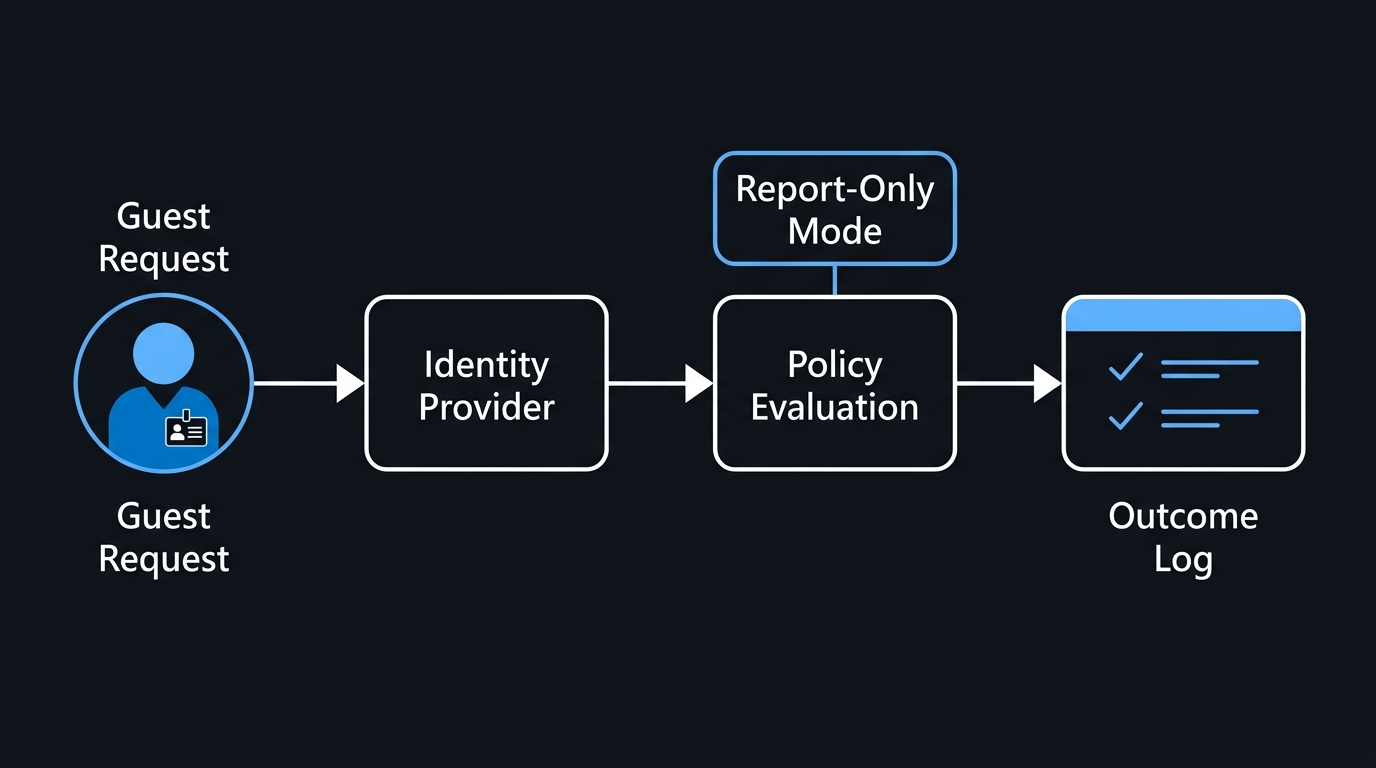
Start with Conditional Access in report-only mode. Guests inherit nothing useful by default, and a blanket "require compliant device" policy will lock out every supplier you have.
$params = @{
    DisplayName = "Require MFA for B2B guests"
    State       = "enabledForReportingButNotEnforced"
    Conditions  = @{
        Users = @{
            IncludeGuestsOrExternalUsers = @{
                GuestOrExternalUserTypes = "b2bCollaborationGuest,b2bCollaborationMember"
                ExternalTenants = @{
                    "@odata.type"  = "#microsoft.graph.conditionalAccessAllExternalTenants"
                    MembershipKind = "all"
                }
            }
            ExcludeUsers = @("<break-glass-account-object-id>")
        }
        Applications = @{ IncludeApplications = @("All") }
        ClientAppTypes = @("all")
    }
    GrantControls = @{
        Operator         = "OR"
        BuiltInControls  = @("mfa")
    }
}

New-MgIdentityConditionalAccessPolicy -BodyParameter $params
Leave it report-only for a full business week, review the impact in the Conditional Access insights workbook, then set State to enabled. Exclude service-style guest accounts explicitly rather than hoping they fall outside the filter.
Then attack sprawl. SharePoint's own ExternalUserExpireInDays removes guests from SharePoint but leaves the directory object behind, so pair it with directory-side cleanup. Access reviews for guest access can recur quarterly and auto-remove guests whose owner does not respond, which is the only control that survives contact with busy site owners.
# Find guests who never redeemed, or have not signed in for 90 days
$stale = Get-MgUser -Filter "userType eq 'Guest'" -All `
    -Property Id,DisplayName,UserPrincipalName,ExternalUserState,SignInActivity |
  Where-Object {
      $_.ExternalUserState -eq 'PendingAcceptance' -or
      ($_.SignInActivity.LastSuccessfulSignInDateTime -and
       $_.SignInActivity.LastSuccessfulSignInDateTime -lt (Get-Date).AddDays(-90))
  }

$stale | Select-Object DisplayName, UserPrincipalName, ExternalUserState,
    @{n='LastSuccessfulSignIn';e={$_.SignInActivity.LastSuccessfulSignInDateTime}} |
  Export-Csv ".\stale-guests.csv" -NoTypeInformation
The script uses LastSuccessfulSignInDateTime because LastSignInDateTime records only interactive attempts, failed ones included, while the successful property covers both interactive and non-interactive sign-ins that actually got in. Reading signInActivity requires the AuditLog.Read.All scope granted at connection time, and it is not available on the free tier. Review the CSV with owners before any bulk Remove-MgUser.
Verify it worked
Prove both paths end to end: a link issued before the retirement, and a brand-new invitation.
Step 1 — test an existing recipient's previously issued link. Pick one remediated recipient from the validation site and ask them to open the original Specific people link in a private browser window. They should be prompted to sign in through Entra, not SharePoint, and the file should open without anyone resharing it.
Step 2 — share to a fresh external address. Use a personal address you control that has never touched the tenant. Share a single document from the validation site.
Step 3 — confirm a directory object now exists.
Get-MgUser -Filter "userType eq 'Guest'" -All `
    -Property DisplayName,UserPrincipalName,ExternalUserState,CreatedDateTime |
  Sort-Object CreatedDateTime -Descending |
  Select-Object -First 5 DisplayName, UserPrincipalName, ExternalUserState, CreatedDateTime
A new row with #EXT# in the UPN and PendingAcceptance state means SharePoint used the B2B invitation API. If nothing appears, check the site's sharing capability, AllowInvitesFrom, and both domain lists; in a commercial tenant the integration flag is never the cause.
Step 4 — confirm the site permission binding.
Get-SPOUser -Site "https://contoso.sharepoint.com/sites/SupplierPilot" |
  Where-Object { $_.LoginName -like "*#ext#*" } |
  Select-Object DisplayName, LoginName, IsSiteAdmin
Step 5 — check the sign-in telemetry after redemption. In Log Analytics, confirm the authentication method actually used and the named policy's report-only result:
SigninLogs
| where TimeGenerated > ago(1d)
| where UserType == "Guest"
| where AppDisplayName has_any ("SharePoint", "OneDrive")
| mv-expand AuthenticationDetails = todynamic(AuthenticationDetails)
| mv-expand Policy = todynamic(ConditionalAccessPolicies)
| where tostring(Policy.displayName) == "Require MFA for B2B guests"
| project TimeGenerated, UserPrincipalName, ResultType,
          Method = tostring(AuthenticationDetails.authenticationMethod),
          CrossTenantAccessType,
          PolicyResult = tostring(Policy.result)
| order by TimeGenerated desc
The same check from Graph PowerShell, for one test guest:
$guest = Get-MgUser -Filter "mail eq 'tester@example.com'" -Property Id
Get-MgAuditLogSignIn -Filter "userId eq '$($guest.Id)'" -Top 10 |
  ForEach-Object {
      $_.AppliedConditionalAccessPolicies |
        Where-Object DisplayName -eq "Require MFA for B2B guests" |
        Select-Object @{n='SignIn';e={$_.Id}}, DisplayName, Result
  }
Method values differ by identity type; group and inspect rather than filtering on a hardcoded string. Guests redeeming with an Entra email OTP and guests arriving from a federated tenant should both appear. Do not read ConditionalAccessStatus for this: it summarises enforced policies and can show notApplied while your report-only policy evaluated. The named policy's result should read reportOnlySuccess, reportOnlyInterrupted (MFA would have been prompted), or reportOnlyFailure; in the portal, the same answer sits on the sign-in's Report-only tab.
Common mistakes that break guest access
- Treating the retirement as "OTP is gone." Entra's email one-time passcode remains the fallback authentication method. Communicating otherwise sets the wrong expectation with suppliers who have no work account.
- Trusting
Get-SPOExternalUseras the inventory. It misses recipients of the email-verification flow. Use the site external sharing reports, then reconcile against Entra. - Mismatched domain lists. SharePoint's
SharingAllowedDomainListand the Entra B2B allow/deny list are evaluated independently. A domain permitted in one and blocked in the other fails at invitation time with an unhelpful message. - Leaving
AllowInvitesFromatnone. Directory policy wins. Sharing breaks tenant-wide with no SharePoint-side signal explaining it. - Applying device-compliance Conditional Access to all users. Guests have no managed devices. Scope compliance requirements to members, and MFA to guests.
- No lifecycle plan. Every share now creates a directory object. Without access reviews or scheduled cleanup, a tenant with heavy external collaboration accumulates thousands of stale guests inside a year — all of them in scope for Conditional Access, reporting, and audit.
- Waiting for the retirement date. You cannot choose when the SharePoint OTP retirement reaches your tenant. Create the missing guest accounts now, with the helpdesk briefed and a known-good test guest already in place.
- Forgetting existing anonymous links. They keep working. If you only hardened guest sharing, "Anyone" links remain the unmonitored side door.
What to do Monday morning
List the sites with external sharing enabled, run their external sharing reports, and get a real count of recipients with no guest account — that number drives every conversation that follows. Verify tenant and site sharing, AllowInvitesFrom, cross-tenant inbound defaults, and both domain lists before you remediate anyone. Validate on one selected site: create guests for its confirmed recipients, create the report-only MFA policy for guests, and run the five verification steps against one existing recipient's old link and one throwaway external address. Leave EnableAzureADB2BIntegration alone; in a commercial tenant it no longer does anything.
Then schedule the quarterly guest access review in the same change window. The SharePoint OTP retirement forces external identities into your directory whether you planned for it or not; the tenants that come out ahead are the ones that treat it as the moment guest governance finally got tooling.

Leave a Reply