
Executive Snapshot
| Category | Recommendation |
|---|---|
| First tool, always | Message trace — it answers "did the service ever see this message?" in under a minute |
| Interactive path | Exchange admin center → Mail flow → Message trace |
| Scripted path | Get-MessageTraceV2 + Get-MessageTraceDetailV2 via the ExchangeOnlineManagement module |
| Cmdlet transition | The original Get-MessageTrace/Get-MessageTraceDetail are on a published retirement path — move automation to the V2 cmdlets |
| Data window | Roughly 10 days on the legacy real-time cmdlets; up to 90 days via V2 and historical search |
| Silent-loss suspect #1 | A mail flow rule with delete without notifying anyone, a redirect, or moderation |
| Rule audit | Get-TransportRule sorted by Priority, checking State, Mode, and StopRuleProcessing |
| When trace is empty | The message never entered the service — look at connection filtering, DNS/MX, or the sending platform |
TL;DR
- Message trace is the source of truth for metadata, not content. It tells you what the service did with a message; it never shows you the body.
- An empty trace is a result, not a failure. If nothing comes back, the message was rejected before transport logging or was never sent — stop hunting inside Exchange Online.
- Mail flow rules are the most common cause of "it just vanished." Delete, redirect, and moderation actions all remove mail from the expected path without an NDR.
- Move scripts to
Get-MessageTraceV2now. The V1 cmdlets have a retirement timeline and the pagination model changed — rewriting under pressure during an outage is miserable. - Work the runbook in order. Trace → status → detail events → rule audit → authentication and connectors. Skipping to a theory is how three-hour investigations happen.
Introduction
A user messages the service desk: "The invoice from our supplier never arrived." The supplier swears they sent it. The mailbox has no trace of it, the junk folder is empty, and everyone is now looking at you.
This is the single most common Exchange Online support ticket, and it has exactly two honest answers: either the message never reached Microsoft's service, or the service did something with it that the user cannot see. Message trace distinguishes those two worlds in about sixty seconds. Everything after that — spam verdicts, transport rules, connectors, authentication failures — is narrowing down which thing the service did and why.
What makes these tickets drag on is guessing. Admins jump straight to "it must be spam filtering" or "check the connector," and burn an hour disproving a theory they picked at random. This guide replaces guessing with a deterministic sequence: run the trace, read the status, expand the detail events, and only then reach for the subsystem the evidence points at. It also covers the part most guides skip — how mail flow (transport) rules silently remove mail from the delivery path, and how to prove which rule did it.
Prerequisites
- PowerShell 7.4+ and the
ExchangeOnlineManagementmodule (v3.x or later). The V3 module is REST-backed; the old remote PowerShell session model is retired. - A role that grants message tracking. The Message Tracking role — included in Organization Management, Compliance Management, and Help Desk role groups — is the minimum for trace cmdlets. Reading transport rules additionally needs View-Only Configuration or the Transport Rules role.
- Read access to the Defender/Purview portal if you need quarantine detail alongside the trace.
- A test recipient you can send to safely, so you can reproduce a suspected rule hit without touching production mail.
Install-Module ExchangeOnlineManagement -Scope CurrentUser

# Interactive, modern auth
Connect-ExchangeOnline -UserPrincipalName admin@contoso.com

# Unattended (certificate app-only) — needs Exchange.ManageAsApp + a directory role
Connect-ExchangeOnline -AppId 'd1f4…' -Organization 'contoso.onmicrosoft.com' `
                       -CertificateThumbprint '9A2B…'
1. The Diagnostic Workflow
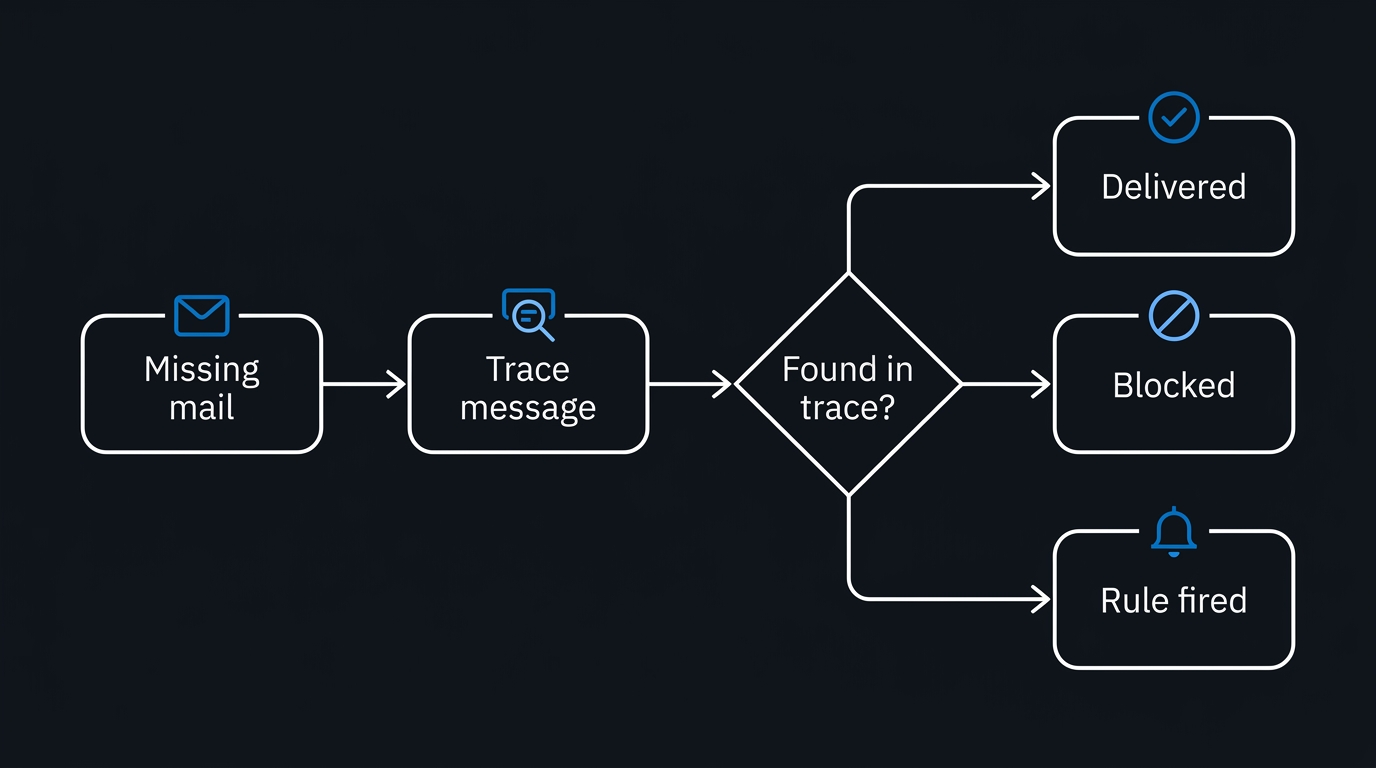
Before touching a cmdlet, fix the shape of the investigation in your head. Every delivery-failure ticket resolves along this path:
The branch that catches people out is the leftmost one. No result is a real verdict. Connection-level rejections — IP block lists, directory-based edge blocking, throttling at the perimeter — happen before transport logging, so they leave nothing in message trace. If the trace is empty and you have confirmed the timestamp and addresses are right, the problem is upstream of Exchange Online and no amount of rule auditing will find it.
2. Running a Message Trace
2.1 The Exchange admin center path
In the Exchange admin center, go to Mail flow → Message trace. The default query covers the last 48 hours and returns results in the browser. A custom query lets you set sender, recipient, delivery status, direction, and a date range; anything outside the real-time window is queued as a downloadable report rather than rendered live.
Use the EAC when a colleague is watching, when you want the clickable message-detail pane, or when you need to hand a CSV to someone. Use PowerShell for everything else — it is faster, filterable, and repeatable.
2.2 The PowerShell path, and the V2 transition
Exchange Online historically exposed Get-MessageTrace and Get-MessageTraceDetail. Microsoft has published V2 replacements — Get-MessageTraceV2 and Get-MessageTraceDetailV2 — and a retirement timeline for the originals. Treat V1 as legacy: it still works in many tenants at time of writing, but new automation should target V2. Confirm the current retirement dates against Microsoft docs before you plan a migration window.
# Recent inbound mail for one recipient (V2)
Get-MessageTraceV2 -RecipientAddress 'jane@contoso.com' `
                   -StartDate (Get-Date).AddDays(-2) `
                   -EndDate   (Get-Date) |
    Select-Object Received, SenderAddress, RecipientAddress, Subject, Status |
    Sort-Object Received -Descending |
    Format-Table -AutoSize

# Narrow by sender domain and status when the volume is high
Get-MessageTraceV2 -SenderAddress '*@supplier.com' `
                   -StartDate (Get-Date).AddDays(-5) -EndDate (Get-Date) `
                   -Status Failed
The most disruptive difference is pagination. V1 used -Page and -PageSize. V2 drops page-number paging in favour of -ResultSize plus a continuation pattern: you re-issue the query with the last returned record's timestamp and recipient as the new boundary. Any script that loops for ($p = 1; $p -le 100; $p++) over -Page will need rewriting.
# Continuation pattern for large result sets (V2)
$start   = (Get-Date).AddDays(-7)
$end     = Get-Date
$all     = @()

do {
    $batch = Get-MessageTraceV2 -StartDate $start -EndDate $end -ResultSize 5000
    if (-not $batch) { break }
    $all += $batch

    # Continue from the oldest record returned in this batch
    $last = $batch | Sort-Object Received | Select-Object -First 1
    $end  = $last.Received
} while ($batch.Count -eq 5000)

"Collected $($all.Count) records"
The exact continuation parameter names (and the maximum
-ResultSize) shifted during the V2 rollout, and some tenants also expose a-StartingRecipientAddressboundary for records sharing a timestamp. Verify the current signature withGet-Help Get-MessageTraceV2 -Fulland check current Microsoft docs before hard-coding a loop.
2.3 The 10-day / 90-day split
This is the detail that wastes the most time. The original real-time cmdlets only reach back roughly 10 days; message trace data itself is retained for 90 days. Anything older than the real-time window was served through historical search, which runs asynchronously and delivers a CSV.
# Queue a 90-day-window historical search (asynchronous; result arrives as CSV)
Start-HistoricalSearch -ReportTitle 'Missing supplier invoice' `
    -StartDate (Get-Date).AddDays(-45) -EndDate (Get-Date).AddDays(-30) `
    -ReportType MessageTrace `
    -SenderAddress 'billing@supplier.com' `
    -NotifyAddress 'admin@contoso.com'

# Track it
Get-HistoricalSearch | Select-Object ReportTitle, Status, SubmitDate, Rows
-ReportType MessageTraceDetail produces the extended report — the same rows plus the low-level fields covered in section 5. The V2 cmdlets extend the directly queryable window considerably, which reduces how often you need historical search at all; because that boundary has moved during the transition, check current Microsoft docs for the window your tenant actually supports rather than assuming ten days.
3. Reading the Verdict
3.1 Delivery status
The Status field is your first fork in the road.
| Status | Meaning | Where to look next |
|---|---|---|
Delivered |
Handed to the mailbox | Mailbox rules, retention, the user's own folders |
Pending |
Still being retried | Connectors, remote host availability |
Failed |
Not delivered; an NDR was generated | The SMTP response in the detail events |
Quarantined |
Held by policy | Quarantine, anti-phishing/anti-malware policy |
FilteredAsSpam |
Routed to junk or quarantine by filtering | Spam verdict in the extended fields |
Expanded |
A distribution group was expanded | Trace each member recipient separately |
GettingStatus |
Result not yet finalised | Re-run the trace shortly |
A Delivered status on a message the user swears never arrived is not a contradiction — it is a strong signal to look at mailbox-side rules (inbox rules, a client-side sweep rule, or a mistaken retention tag), not transport.
3.2 Detail events
Get-MessageTraceDetailV2 expands a single message into the events transport recorded for it. This is where transport rules become visible.
$msg = Get-MessageTraceV2 -RecipientAddress 'jane@contoso.com' `
        -StartDate (Get-Date).AddDays(-1) -EndDate (Get-Date) |
       Where-Object Subject -like '*Invoice 4471*' |
       Select-Object -First 1

Get-MessageTraceDetailV2 -MessageTraceId $msg.MessageTraceId `
                         -RecipientAddress $msg.RecipientAddress |
    Select-Object Date, Event, Action, Detail |
    Format-List
| Event | What it tells you |
|---|---|
RECEIVE / SUBMIT |
The service accepted the message |
TRANSFER |
Handed between components — often a rule bifurcation |
AGENTINFO |
A transport agent acted; rule and filter data lives here |
DEFER |
Temporarily retried — usually a downstream host problem |
DELIVER |
Placed in the mailbox |
DROP |
Silently discarded, no NDR — the classic rule delete |
FAIL |
Delivery failed; the Detail field carries the SMTP response |
REDIRECT |
Sent somewhere other than the original recipient |
MODERATE |
Held for approval |
EXPAND |
Distribution group expansion |
A DROP or a REDIRECT with no matching user action is, in practice, a mail flow rule until proven otherwise.
4. When a Mail Flow Rule Is the Culprit
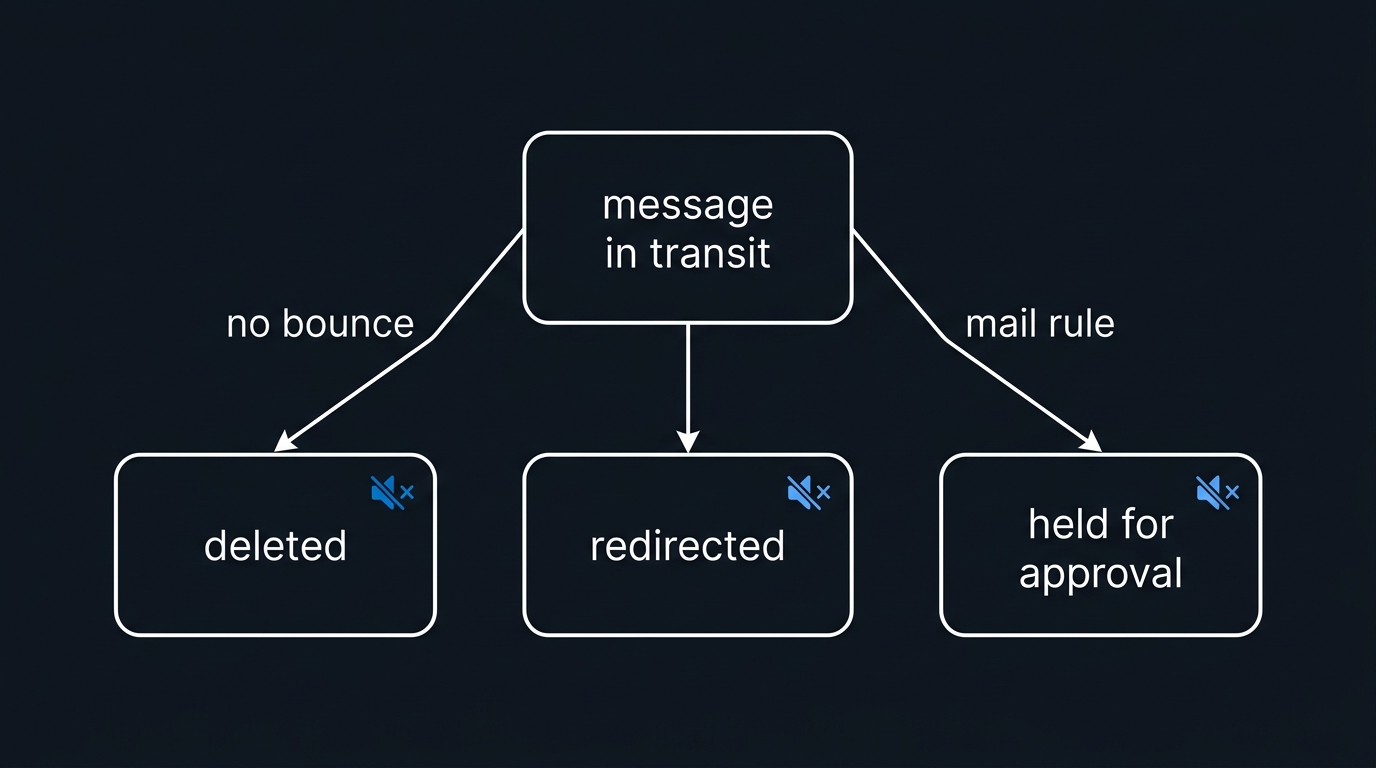
Mail flow rules (still called transport rules in PowerShell) run on every message in transit and can remove it from the expected path in three ways that generate no bounce and no user-visible signal:
- Delete the message without notifying anyone (
DeleteMessage) — the message is gone. Nothing is quarantined, nothing is NDR'd. - Redirect (
RedirectMessageTo) — the original recipient never receives it; the message lands in a review mailbox. - Moderation (
ModerateMessageByUser) — held pending approval, and approval requests expire after a couple of days by default, at which point the message is discarded.
A fourth pattern is subtler: SetSCL -1 bypasses spam filtering entirely. That rule does not lose mail, but an over-broad version of it (scoped to a whole domain rather than a specific partner address) is how phishing reaches inboxes and why "why wasn't this filtered?" tickets exist.
4.1 Auditing rules the right way
Rules evaluate in Priority order starting at 0, and a rule with StopRuleProcessing set halts everything after it. Auditing in any other order will mislead you.
# The whole rule set, in evaluation order
Get-TransportRule |
    Sort-Object Priority |
    Select-Object Priority, Name, State, Mode, StopRuleProcessing |
    Format-Table -AutoSize

# The dangerous actions, isolated
Get-TransportRule | Where-Object {
    $_.DeleteMessage -eq $true -or
    $_.RedirectMessageTo -or
    $_.ModerateMessageByUser -or
    $_.BlindCopyTo
} | Select-Object Name, Priority, State, Mode,
                  DeleteMessage, RedirectMessageTo, ModerateMessageByUser

# Full predicate + action detail for one suspect rule
Get-TransportRule -Identity 'Quarantine external finance mail' | Format-List

# Snapshot the whole collection before you change anything
Export-TransportRuleCollection -FileData ([System.IO.File]::ReadAllBytes('.\rules-backup.xml'))
Two properties deserve extra attention. State (Enabled/Disabled) is obvious; Mode is not. A rule in Audit or AuditAndNotify mode logs and warns but does not enforce its actions — so a rule that looks like the cause may be doing nothing at all. Conversely, a rule someone left in Enforce "just for a test last quarter" is a live production rule.
4.2 Proving which rule fired
Extended trace data records rule hits in the custom_data field of AGENTINFO events, typically as an entry that names the transport rule engine along with a rule identifier, a timestamp, the action taken, and the rule's mode. Extract that identifier and map it back to a name:
# Map a rule GUID found in extended trace data to its friendly name
$ruleId = '3f2b9c14-…'

Get-TransportRule |
    Where-Object { $_.Guid -eq $ruleId -or $_.ImmutableId -eq $ruleId } |
    Select-Object Name, Priority, State, Mode
If nothing matches, the rule was deleted after the fact — check the admin audit log for Remove-TransportRule and Set-TransportRule entries around the incident time. The exact layout of custom_data is not a documented contract and has changed between service updates, so treat parsing it as a diagnostic aid rather than a monitoring dependency, and check current Microsoft docs for the extended-report schema.
Once you have a suspect, do not disable it on a hunch during business hours. Switch it to Audit mode, reproduce with a test message, and confirm the trace changes:
Set-TransportRule -Identity 'Quarantine external finance mail' -Mode Audit
5. Extended Message Trace Fields
The extended report (-ReportType MessageTraceDetail) returns the low-level transport columns that the standard trace summarises away. The ones that actually earn their keep:
| Field | Why it matters |
|---|---|
network_message_id |
The stable identifier that joins trace rows, quarantine entries, and Defender alerts |
message_id |
The RFC 5322 Message-ID — how you correlate with the sender's logs |
client_ip / original_client_ip |
The true originating host; essential for SPF and relay questions |
custom_data |
Agent verdicts — spam confidence, filter decisions, transport rule hits |
source / source_context |
Which transport component acted (agent, routing, delivery) |
recipient_status |
Per-recipient outcome on multi-recipient messages |
directionality |
Inbound, outbound, or internal — instantly rules out half the causes |
total_bytes |
Size-limit rejections, which masquerade as generic failures |
network_message_id is the one to standardise on. It is the join key across message trace, quarantine (Get-QuarantineMessage), and threat investigation surfaces, and unlike Message-ID it cannot be forged by the sender.
6. Common Failure Patterns
SPF, DKIM, and DMARC rejections. Inbound messages that fail authentication may be marked as spoof, quarantined, or rejected outright depending on your anti-phishing policy and whether the sender publishes p=reject. Outbound, the symptom is a Failed status carrying a remote SMTP response complaining about SPF — meaning your sending IP is not in your own SPF record. Verify both directions:
Get-DkimSigningConfig | Select-Object Domain, Enabled, Selector1CNAME, Status
Resolve-DnsName -Name 'contoso.com' -Type TXT |
    Where-Object Strings -match 'v=spf1'
Your EXO SPF record should include include:spf.protection.outlook.com, and any third-party sender — marketing platform, scanner, line-of-business app — must be included too or its mail will fail at the recipient.
Spam filtering verdicts. A FilteredAsSpam or Quarantined status means policy, not transport, made the call. Pull the quarantine entry and the headers rather than theorising:
Get-QuarantineMessage -RecipientAddress 'jane@contoso.com' `
                      -StartReceivedDate (Get-Date).AddDays(-3) |
    Select-Object ReceivedTime, SenderAddress, Subject, Type, QuarantineTypes, Released

Get-QuarantineMessageHeader -Identity '<quarantine-message-identity>'
The header output carries the spam confidence level and filter verdict codes that explain the decision. Verdict code meanings evolve with the service, so check current Microsoft docs when you meet an unfamiliar one.
Connector misconfiguration. Symptoms are Pending that eventually becomes Failed, or failures naming TLS or an unreachable smart host. Hybrid and third-party-gateway tenants hit this most.
Get-OutboundConnector | Select-Object Name, Enabled, SmartHosts, TlsSettings,
                                      RecipientDomains, IsTransportRuleScoped
Get-InboundConnector  | Select-Object Name, Enabled, SenderDomains, SenderIPAddresses,
                                      RequireTls, EFSkipLastIP
Two frequent causes: a connector scoped to * that swallows all outbound mail to a dead appliance, and enhanced filtering (EFSkipLastIP) not configured on an inbound connector fronted by a third-party gateway — which makes every relayed message appear to fail SPF.
Rule loops. A redirect rule pointing at an address that is itself a member of the redirected group creates a loop. Transport detects it and drops the message once the hop count is exceeded, which surfaces as a failure mentioning a mail loop. Audit any rule whose redirect target could route back into the same scope, and be similarly careful with mailbox-level forwarding (Get-Mailbox | Select-Object ForwardingSmtpAddress) interacting with a rule.
7. The Runbook
Work this sequence top to bottom. Do not skip ahead.
- Capture the facts. Sender address, recipient address, approximate timestamp with time zone, and subject or
Message-IDfrom the sender's side. - Run the trace for a window generously wider than the reported time. Choose V2 cmdlets or historical search based on the age of the message.
- If the trace is empty, stop investigating Exchange Online. Verify MX records, ask the sender for their SMTP log or bounce, and check connection-level blocks.
- Read the
Status. Branch per the table in section 3.1 —Deliveredsends you to the mailbox, everything else stays in transport. - Expand the detail events.
DROP,REDIRECT, orMODERATEmeans a rule;FAILmeans read the SMTP response verbatim. - Audit rules in priority order if the events point that way. Isolate delete, redirect, moderate, and blind-copy actions first.
- Otherwise check authentication and connectors — DKIM config, SPF record contents, connector scope and TLS.
- Reproduce and confirm. Flip the suspect rule to
Audit, send a test message, and re-trace. A fix you cannot demonstrate is a guess. - Write it down. Record the
network_message_id, the root cause, and the change made. The next identical ticket then takes five minutes.
Troubleshooting
| Symptom | Likely cause | Fix |
|---|---|---|
| Trace returns nothing at all | Message never entered the service, or wrong time window/time zone | Widen the window; confirm addresses; check MX and connection filtering |
Delivered but user cannot find it |
Inbox rule, sweep rule, or retention tag moved it | Inspect mailbox rules and the Recoverable Items folder |
| Message disappears with no NDR | Rule with delete without notifying anyone | Audit DeleteMessage rules; set the suspect to Audit and retest |
Pending for hours, then Failed |
Smart host or remote server unreachable | Check Get-OutboundConnector smart hosts and TLS settings |
| Outbound mail rejected for SPF | Sending IP missing from your SPF record | Add the sender to SPF; verify with a TXT lookup |
| Relayed mail fails authentication | Third-party gateway in front of EXO without enhanced filtering | Configure enhanced filtering on the inbound connector |
| Failure mentions a mail loop | Redirect rule or forwarding routes mail back into scope | Trace the redirect chain; remove the circular hop |
-Page parameter errors in a script |
Script still targets the V1 cmdlets | Port to Get-MessageTraceV2 and the continuation pattern |
Pitfalls to Avoid
| Pitfall | Why it bites | Do instead |
|---|---|---|
| Assuming an empty trace means "trace is broken" | Wastes hours inside Exchange when the cause is upstream | Treat no result as a verdict: the service never saw it |
| Auditing rules alphabetically | Priority and StopRuleProcessing decide what actually runs |
Sort by Priority and read as an ordered pipeline |
Ignoring rule Mode |
Audit-mode rules log without enforcing — a false suspect | Check Mode before blaming or disabling a rule |
| Disabling a suspect rule in production | Removes controls tenant-wide with no evidence gathered | Switch to Audit, reproduce, then decide |
Correlating on Message-ID alone |
Sender-supplied and forgeable | Join on network_message_id |
| Trusting a 10-day window for old tickets | Real-time cmdlets silently return nothing beyond their range | Use V2 or historical search for anything older |
Writing new automation on Get-MessageTrace |
V1 cmdlets are on a retirement path | Target the V2 cmdlets now |
Key Takeaways
- Message trace answers the only question that matters first: did the service ever handle this message? Everything else is downstream of that answer.
- Status then detail events, in that order. The status picks the subsystem; the detail events name the mechanism.
DROP,REDIRECT, andMODERATEmean a mail flow rule until you prove otherwise — those three actions are why mail vanishes without a bounce.- Audit rules in priority order, and read
Mode. An audit-mode rule cannot be your culprit, and a forgotten enforce-mode rule usually is. network_message_idis the join key across trace, quarantine, and threat investigation — standardise every runbook on it.- The V2 cmdlets are the future surface. Port automation before the retirement date rather than during an incident, and confirm the current dates and parameter signatures against Microsoft docs.
Next Steps
- Run one trace today against a known-good message so you recognise a healthy event sequence before you have to spot a broken one.
- Export your transport rule collection and review every rule with a delete, redirect, moderate, or
SetSCL -1action against a documented business justification. - Grep your automation for
Get-MessageTrace,-Page, and-PageSizeand schedule the V2 migration. - Publish the section 7 runbook to your service desk so tier 1 can complete steps 1 to 4 before escalating.
- Add an SPF and DKIM check to your monthly review — most "delivery failure" tickets from partners trace back to a sender added to the estate but never added to DNS.

Leave a Reply